How to Rearrange PDF Pages by Drag and Drop
4 min read
Reorder, move, reverse and duplicate pages in a PDF with a visual thumbnail grid. Fix a wrong page order and save a new file, all in your browser.
Pages end up in the wrong order more often than you would think: a scanner fed the stack upside down, an appendix that should come before the signature page, a slide handout with one sheet in the wrong place. The fix should be moving a thumbnail, not exporting and merging again.
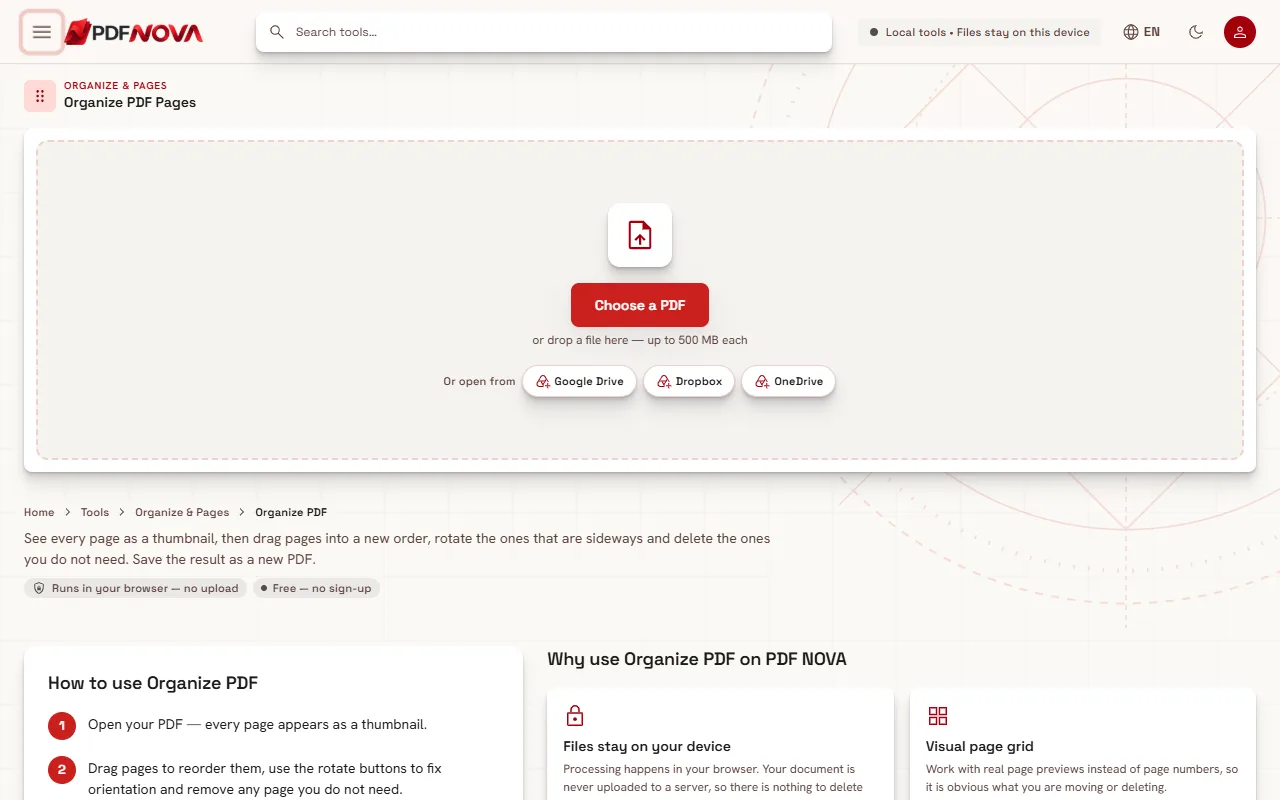
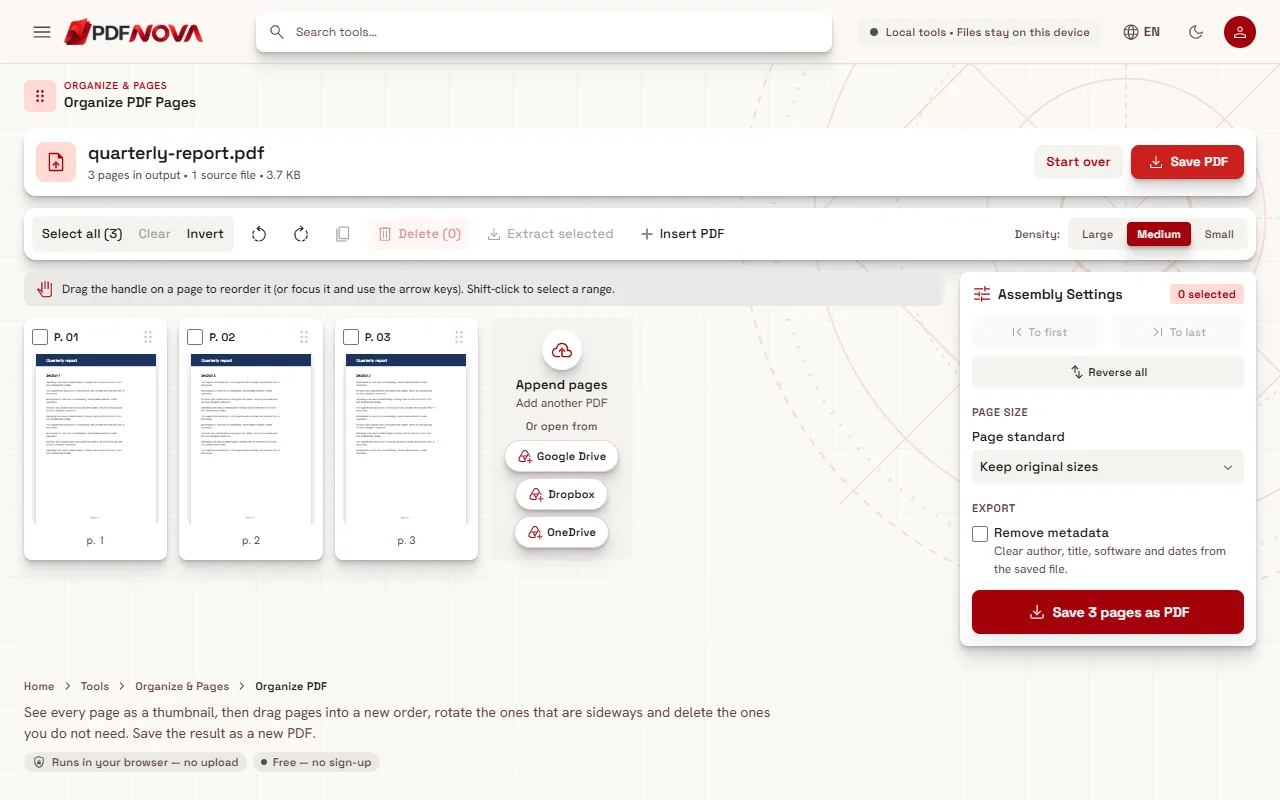
Organize PDF shows every page as a thumbnail that you can drag into place. When the order is right, you save a new PDF. It runs in your browser, is free and leaves the original file as it was.
Step by step: reorder pages
- Open Organize PDF and select Choose a PDF.
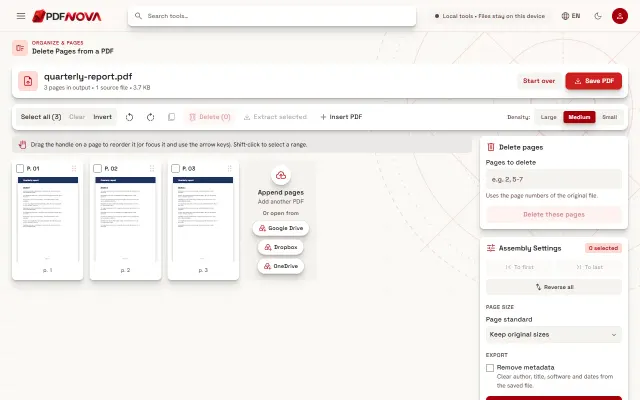
- Drag the handle of a page to a new position. Keyboard users can focus a page and press the arrow keys instead.
- To move several pages at once, tick their checkboxes (Shift-click selects a range) and use To first or To last under Assembly Settings.
- Look at the position labels (P. 01, P. 02 and so on) and the source page captions to confirm the new flow.
- Select Save PDF to download the reordered document.
Moving pages: the options
- Drag and drop is the most precise way for one or two pages.
- To first / To last sends all selected pages to the start or the end. This is the quick way to move an appendix, a cover sheet or a signature page.
- Reverse selected and Reverse all flip the order. Reverse all rescues a stack that was scanned back to front. With some pages selected, only those pages swap places among themselves.
- Duplicate inserts a copy right after each selected page, useful for a form you need twice.
- Insert PDF and the Append pages tile add pages from another PDF into the same grid, so you can merge and arrange in one session. For a dedicated workflow with ranges per file, see how to merge PDF files in order.
The density buttons (Large, Medium, Small) change thumbnail size. Use Small for a long document so you can see more pages at once, Large when you need to read the content to recognise a page.
Rearranging a duplex scan
A classic problem: you scanned fronts first, then flipped the stack and scanned the backs, so the file reads 1, 3, 5 and so on, then 6, 4, 2. Select the backs, choose Reverse selected, and the backs sit in the right order. You still have to interleave them with the fronts by dragging; the tool has no automatic interleave step. If your file contains blank backs, remove them first with Remove Blank Pages, as explained in removing blank pages from scanned PDFs.
What else the grid can do
The same screen lets you rotate and delete. Use the rotate icons for sideways pages (see rotating PDF pages permanently) and the Delete button for unwanted ones (see how to delete pages from a PDF). Because everything happens in one session, you can reorder, rotate and delete, then save once.
Under Assembly Settings you will also find Remove metadata, which clears author, title, software and dates from the saved file, and a Page size choice between the original sizes, A4 and US Letter. Extract selected saves only the ticked pages as a new file.
After rearranging
- Number the pages. Once the order is final, add numbers with Add Page Numbers; the guide on adding page numbers to a PDF covers the choices. Do this last, so the numbers follow the final order.
- Reduce the size. Reordering keeps every page as it is, so the file size stays about the same. If it is too big to email, read how to compress a PDF without losing quality.
- Take pages out instead. If you want to pull a section into its own file, Split PDF and the guide on extracting pages are the better fit.
Common problems
- Dragging is awkward on a touch screen. Use the arrow keys on a keyboard, or the To first and To last buttons, which do not need dragging.
- The page order looks right but printed numbers are wrong. Printed numbers are part of the page itself. Moving a page does not change them. Edit them with Edit PDF Text; see how to edit text in a PDF.
- Bookmarks or links stop working. Organize PDF assembles a new file from pages. Treat bookmarks and internal links as not guaranteed to survive, and check the result if the document depends on them.
- A password-protected file will not open. Unlock it first with Unlock PDF.
Privacy
Organize PDF runs in your browser. The file is read from your device, the pages are rearranged in memory and the new PDF is saved back to your device. It is not uploaded.
FAQ
Is rearranging PDF pages free?
Yes. Organize PDF is free to use and does not add a watermark.
Does reordering reduce quality?
No. Pages are copied into the new file, not re-rendered, so text stays selectable and images keep their quality.
Can I undo a move?
Before you save, Start over resets the session to the original order. Your original file is never changed, so you can always open it again.
Can I reorder pages from two PDFs together?
Yes. Use Insert PDF or the Append pages tile to bring a second file into the same grid, then drag pages wherever you want them.