How to Remove Blank Pages from a Scanned PDF
5 min read
Find and delete blank pages left by duplex scanning. Learn how the ink-coverage threshold works, review each page and save a cleaned PDF in your browser.
A duplex scanner reads both sides of every sheet. When the back of a sheet is empty, you still get a page, and a 40-page stack becomes an 80-page PDF where every second page is white. Deleting them by hand is slow and easy to get wrong.
Remove Blank Pages measures every page, marks the ones that look empty, lets you correct its choices and saves a cleaned PDF. It runs in your browser, is free and keeps the original file.
Step by step
- Open Remove Blank Pages and select Choose a PDF.
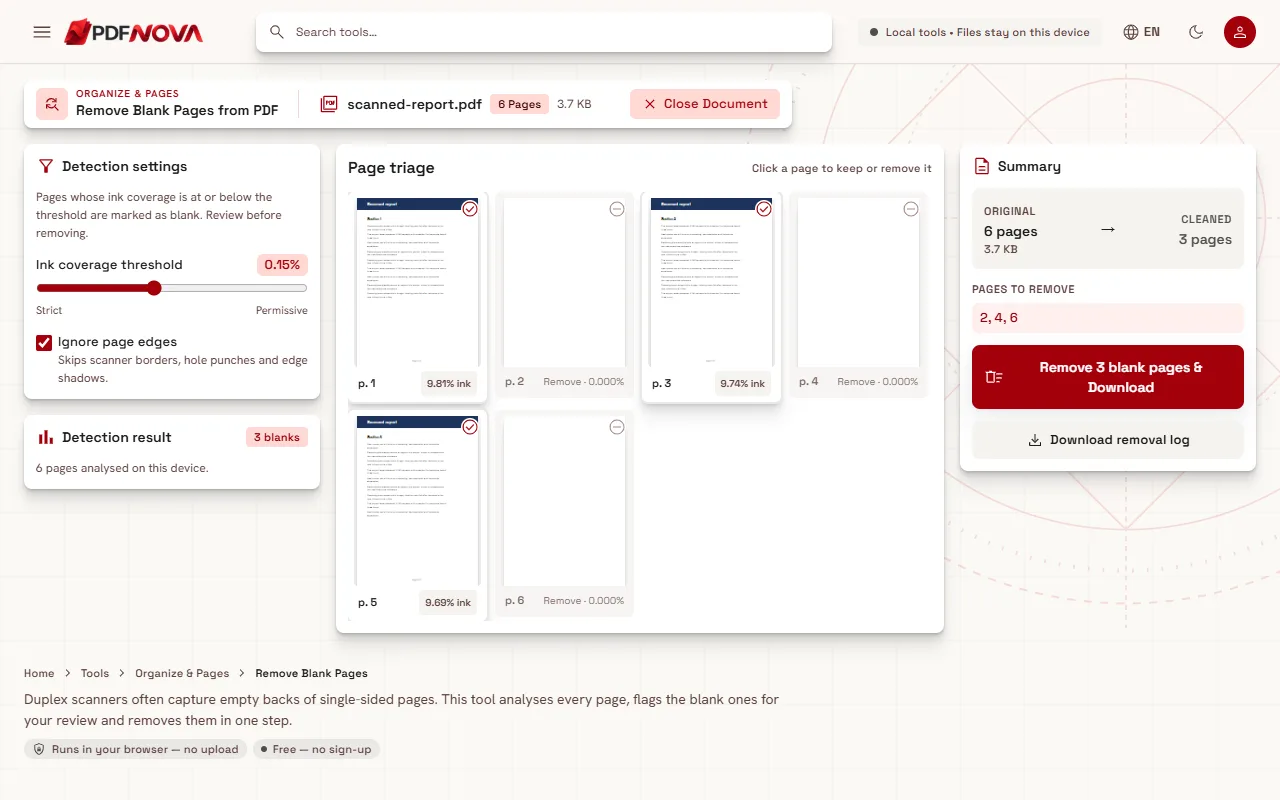
- The tool analyses each page on your device. A progress line reads "Analysing pages... 12 of 80".
- Pages it considers blank are marked Remove in the Page triage area. The Detection result shows how many blanks were found.
- Click any page to flip its decision: keep one that was marked, or mark one that was missed.
- Check the Summary: the original page count, the cleaned count and the pages to remove.
- Select the button that reads, for example, Remove 38 blank pages & Download.
How blank pages are detected
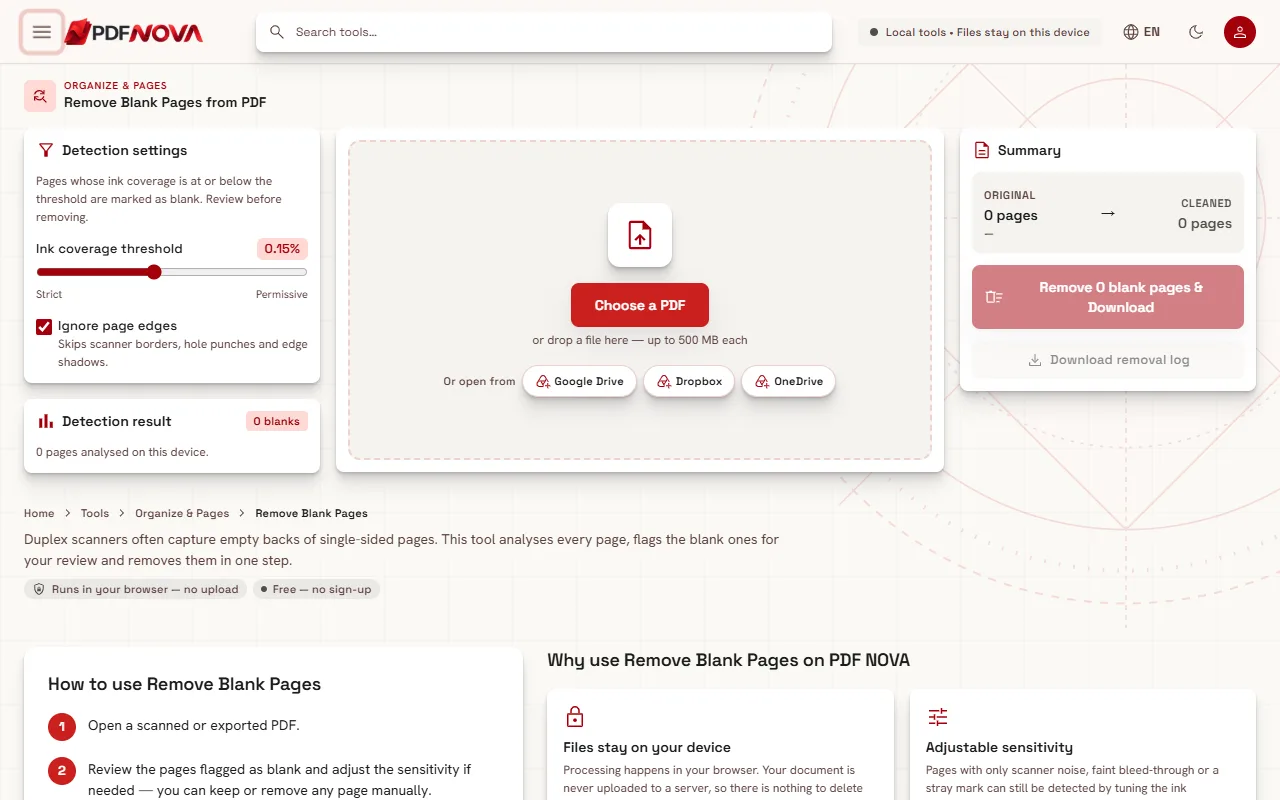
The tool renders each page in your browser and counts the pixels that are not almost white. A pixel counts as ink when its brightness falls below a fixed level (200 on a scale of 0 to 255). The share of the page covered by such pixels is the page's ink coverage, shown as a badge such as "0.15% ink".
The Ink coverage threshold slider sets the line. A page whose coverage is at or below the threshold is marked blank. The slider has eight steps, from 0.02% at the Strict end to 0.8% at the Permissive end, and starts at 0.15%.
- Strict removes only pages that are almost perfectly white. Use it when your document has pages with very little content, such as a page with only a short signature line.
- Permissive also removes pages with a little dirt: speckles, a faint shadow, bleed-through from the other side. Use it for old or grey scans.
Pages with printed text or images have far higher coverage than these values, so they stay. Pages that carry only a small mark can still fall under a permissive threshold, which is why the review step matters.
Ignore page edges
The switch Ignore page edges is on by default. It leaves out a border of about 4% of the page's shorter side when measuring. That skips scanner borders, hole punches and edge shadows, which would otherwise make a clean page look used. Turn it off only if real content sits right at the page edge, such as a thin line on a form.
Review before you remove
Detection is a measurement, not a guarantee. Nothing is deleted until you press the download button, and every page can be overruled with a click. Look especially at:
- pages marked for removal that you know carry a faint pencil note or light grey stamp;
- pages that were kept but are clearly empty, perhaps with scanner noise. Raise the threshold or click them to mark them.
If every page is marked blank the tool asks you to keep at least one. Download removal log saves a text file listing each page, its ink coverage and whether it was removed or kept. It is a useful record when you clean a batch of documents.
Typical situations
- Duplex scan of single-sided originals. The default threshold usually works. Check the result and download.
- Intentionally blank pages. Some documents include a page that says it is intentionally left blank. That page has text, so it is kept. Click it to remove it if you do not want it.
- Poor, grey scans. Try one or two steps towards Permissive, and keep Ignore page edges on.
- Sheets that are only partly blank. Detection judges the whole page, so it cannot trim part of a page. Use Crop PDF for that.
Clean the rest of the scan
Blank pages are usually not the only issue. After removing them:
- turn sideways sheets with Rotate PDF, as explained in rotating PDF pages permanently;
- fix the page order with Organize PDF and the guide on rearranging pages;
- delete anything else you do not want by number, see how to delete pages from a PDF;
- make the text searchable with OCR: making a scanned PDF searchable;
- shrink the finished file following how to compress a PDF without losing quality.
Common problems
- A page with light text was marked blank. Move the slider towards Strict, or click the page to keep it.
- Blank pages were not detected. They probably have scan noise above the threshold. Move the slider towards Permissive and check the coverage badge on a few pages.
- A tiny mark makes a page look used. Dust or a staple shadow can push coverage over the line. Click the page to mark it for removal.
- It takes a while. Analysis happens on your device and long documents need a moment. The progress line shows how far it is.
Privacy
The pages are rendered and measured on your device. The cleaned PDF is built in your browser and saved back to your computer. Nothing is uploaded.
FAQ
Is Remove Blank Pages free?
Yes. It is free to use without an account and adds no watermark.
Does it work on scans that are only images?
Yes. Detection looks at what the page looks like, not at its text, so scanned images work.
Will it remove pages that contain only a page number?
Not with the default threshold, because a page number covers more of the page than that. A very permissive setting may catch such pages, so review the badges before downloading.
Does removing pages reduce the quality of the rest?
No. The remaining pages are copied unchanged into the new file.