How to Rotate PDF Pages and Save Them Permanently
4 min read
Fix sideways or upside-down pages in a PDF. Rotate all pages or only selected ones by 90 or 180 degrees and save a file that opens upright everywhere.
You open a scanned contract and half the pages lie on their side. Your PDF viewer has a rotate button, you click it, and the page turns. But the next time you open the file, or send it to someone, the pages are sideways again. That is because many viewers rotate only the view, not the file.
Rotate PDF changes the pages themselves and saves a new PDF that opens the right way up when you reopen it. It runs in your browser and is free.
Step by step: rotate and save
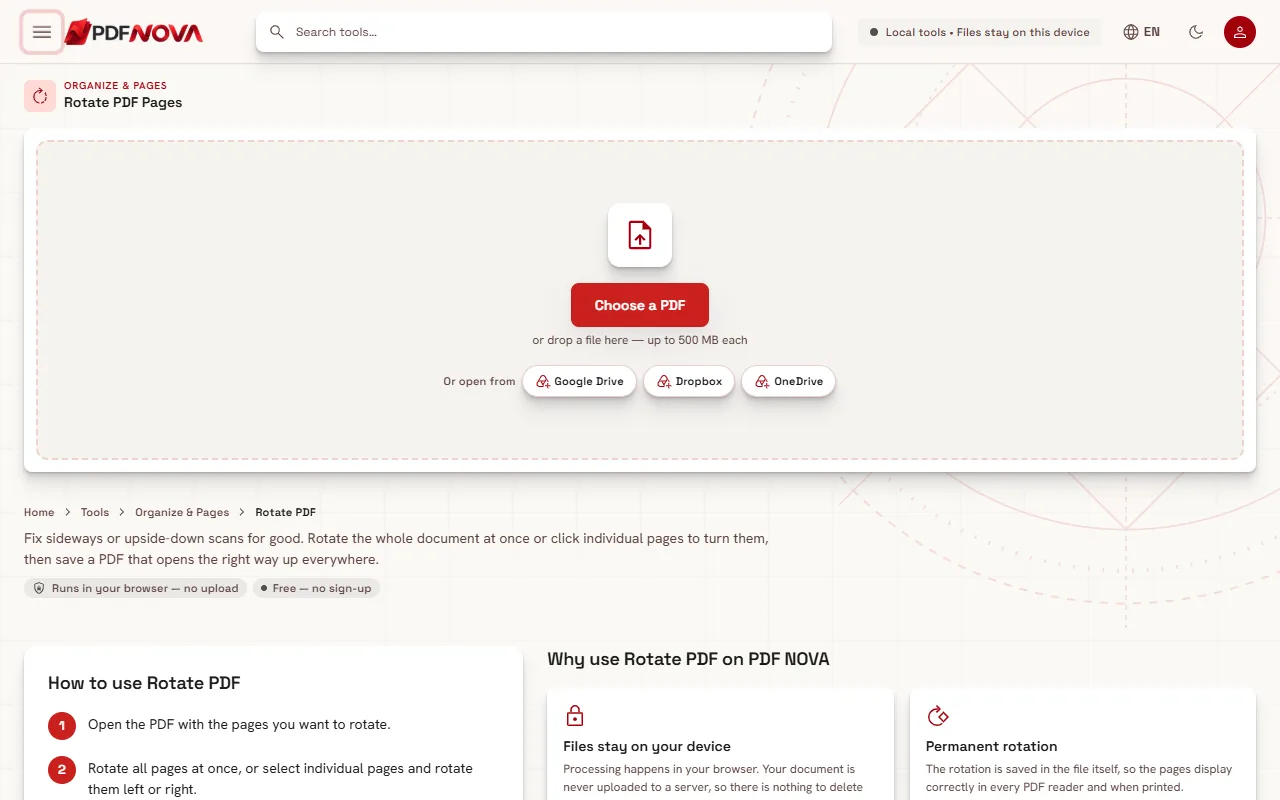
- Open Rotate PDF and select Choose a PDF.
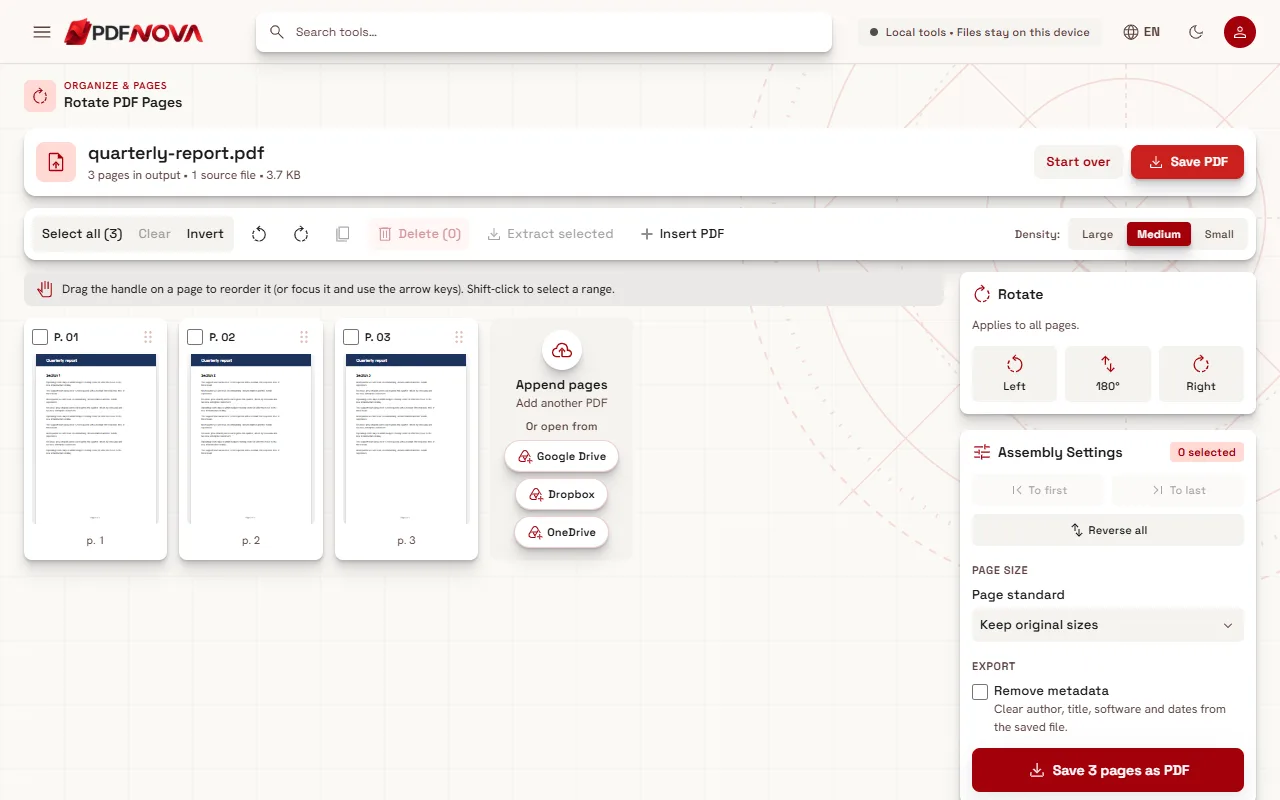
- Look at the thumbnails. To turn the whole document, leave nothing selected. To turn only some pages, tick their checkboxes (Shift-click selects a range).
- In the Rotate panel choose Left, 180° or Right. The panel says either "Applies to all pages." or how many selected pages it applies to.
- Check the thumbnails. Each turned page shows its rotation, such as 90°, in its caption.
- Select Save PDF to download the corrected file.
All pages or just some
The most important detail is the selection:
- Nothing selected means the rotate buttons act on every page. Use this when the whole scan is turned the same way, for example a stack fed in landscape.
- Some pages selected means only those pages turn. Use this for mixed documents: a portrait report with a few landscape tables, or a scan where a handful of sheets went through the feeder sideways.
- Single pages also have their own rotate-left and rotate-right buttons on the thumbnail, which is the fastest way to fix one stray page.
Invert is useful here. If the sideways pages are scattered, select the good ones and choose Invert, or just click the bad ones, then press Left or Right once for the whole group.
Which direction?
Right turns the page 90 degrees clockwise, Left 90 degrees counter-clockwise, and 180° flips an upside-down page. If a page is on its side with the top of the text pointing left, rotate it right. If the top points right, rotate it left. If you guess wrong, press the opposite button; the turns add up, so two rights equal 180° and a right followed by a left cancels out.
Why "permanent" matters
When you rotate in a viewer, the file often does not change. When you save from Rotate PDF, the rotation is stored in the new document. That has a few practical effects:
- The file is set up to open upright when you email it, upload it to a portal or print it.
- Other tools work better on correctly oriented pages. Text recognition on a sideways scan gives poor results, so rotate first and then run OCR; see making a scanned PDF searchable.
- Your original file stays as it was, because the tool saves a copy named like scan_rotated.pdf.
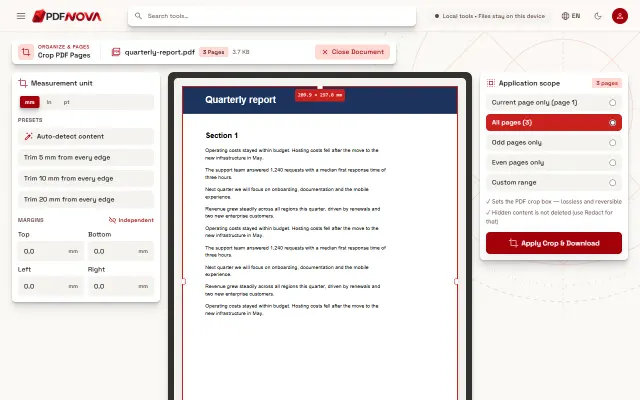
The tool turns whole pages in fixed steps. It does not straighten a slightly tilted scan and it does not crop margins. For margins, see Crop PDF.
Rotate and fix other things in one session
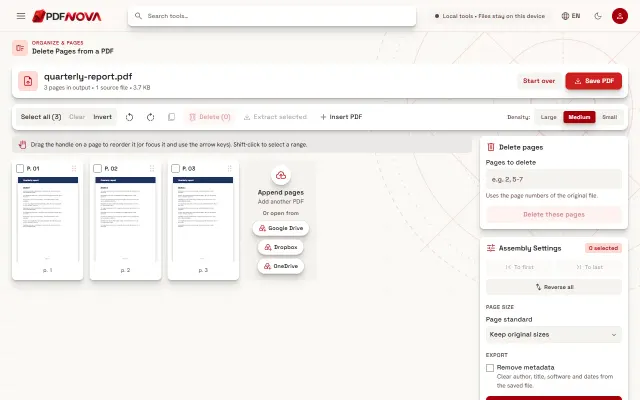
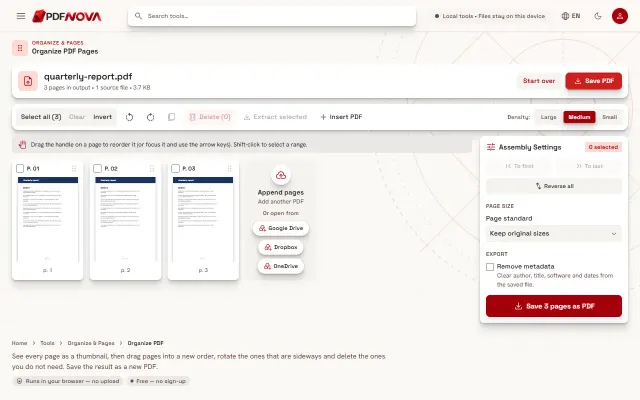
The same grid lets you reorder and delete pages, so you can clean up a messy scan in one go and save once. Rearranging is covered in how to rearrange PDF pages, unwanted pages in how to delete pages from a PDF. If you are starting from photos of paper pages, begin with photos to PDF.
Common problems
- Only some pages rotated. You had a selection active. Select Clear to deselect everything, then rotate to act on all pages.
- The page looks fine here but sideways elsewhere. Open the saved file, not the original. The saved file carries the rotation.
- Photos from a phone are sideways in the PDF. Rotate the affected pages here.
- The text is sideways but the file is a scan. The page is a picture, so rotating works fine. After rotating, run OCR if you need searchable text.
- A password-protected file will not open. Unlock it first with Unlock PDF.
Privacy
Rotate PDF processes the file in your browser. Your document is read from your device, the pages are turned in memory and the new PDF is saved back to your device. Nothing is uploaded.
FAQ
Is Rotate PDF free?
Yes. It is free to use without an account and does not add a watermark.
Can I rotate only one page?
Yes. Use the rotate buttons on that page's thumbnail, or tick the page and use the Rotate panel.
Can I rotate by an angle like 45 degrees?
No. The tool turns pages in steps of 90 degrees (Left, Right) and 180 degrees.
Does rotating reduce quality?
No. Pages are copied with a changed orientation, not re-rendered, so text and images stay as they were.