How to Turn Photos and Screenshots into One PDF
6 min read
Combine JPG, PNG and WebP images into a single PDF in your browser: set the order, page size, orientation and margins, and keep the original quality.
Sooner or later you end up with a pile of pictures that should really be one document: photos of a signed form, screenshots of a booking confirmation, pages of a receipt taken with your phone. Sending ten separate attachments is clumsy, and the recipient may open them in the wrong order. A single PDF fixes both problems, and it prints cleanly on standard paper.
This guide shows how to do it with Image to PDF, what each page option really does, and how to avoid the usual surprises: sideways phone photos, cropped edges and files that are far too large.
Step by step
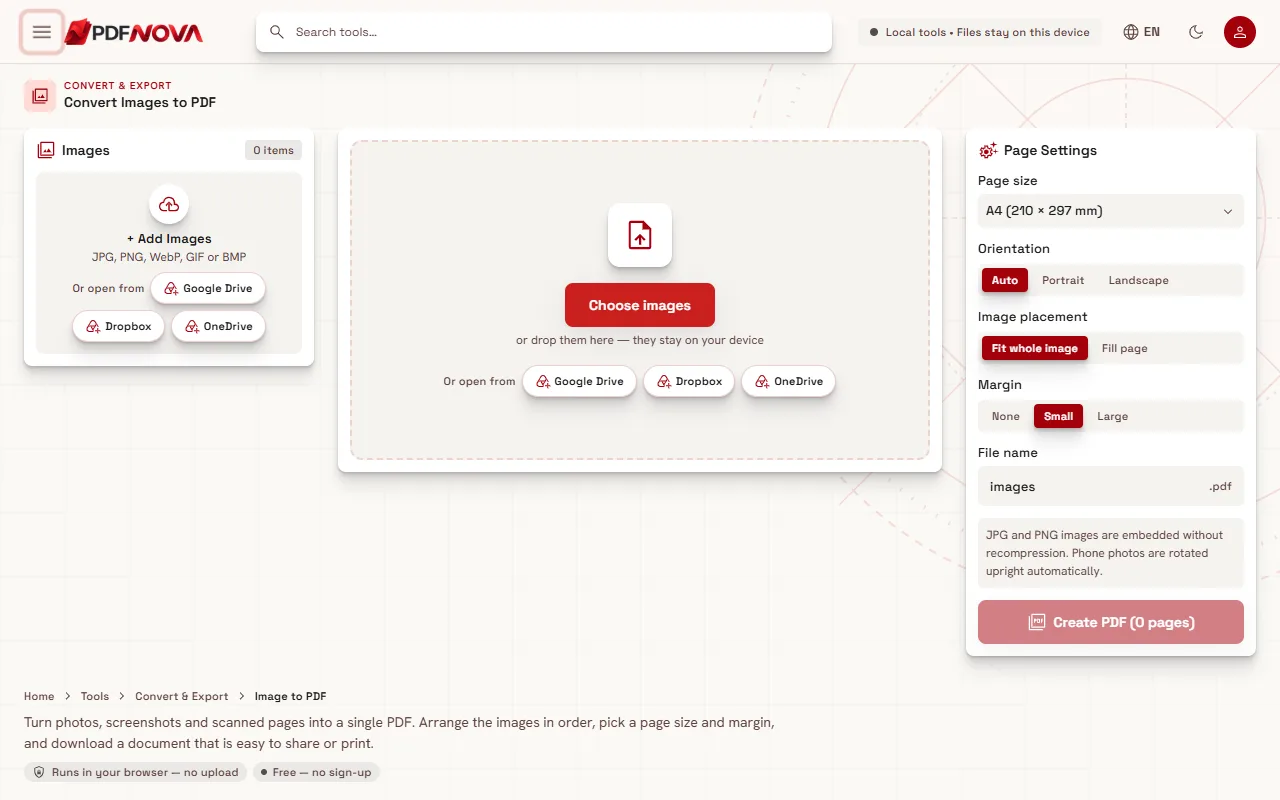
- Open Image to PDF. The page opens with an area where you can choose images or drop them.
- Select Choose images, or drag the files onto the page. You can add JPG, PNG, WebP, GIF or BMP files, and use + Add Images later to add more.
- Check the order in the left-hand list. Each image becomes one page, and the page number appears under every file name. Drag an image to move it, or use Sort by name or Reverse order.
- Choose the page settings on the right (explained below).
- Optionally change the File name, then select Create PDF. The button shows the number of pages it will produce. The PDF is then ready to download.
Once images are loaded you also get a Page preview with one tile per page. If a photo is sideways, use the rotate button on its tile (it turns the page 90 degrees clockwise each time).
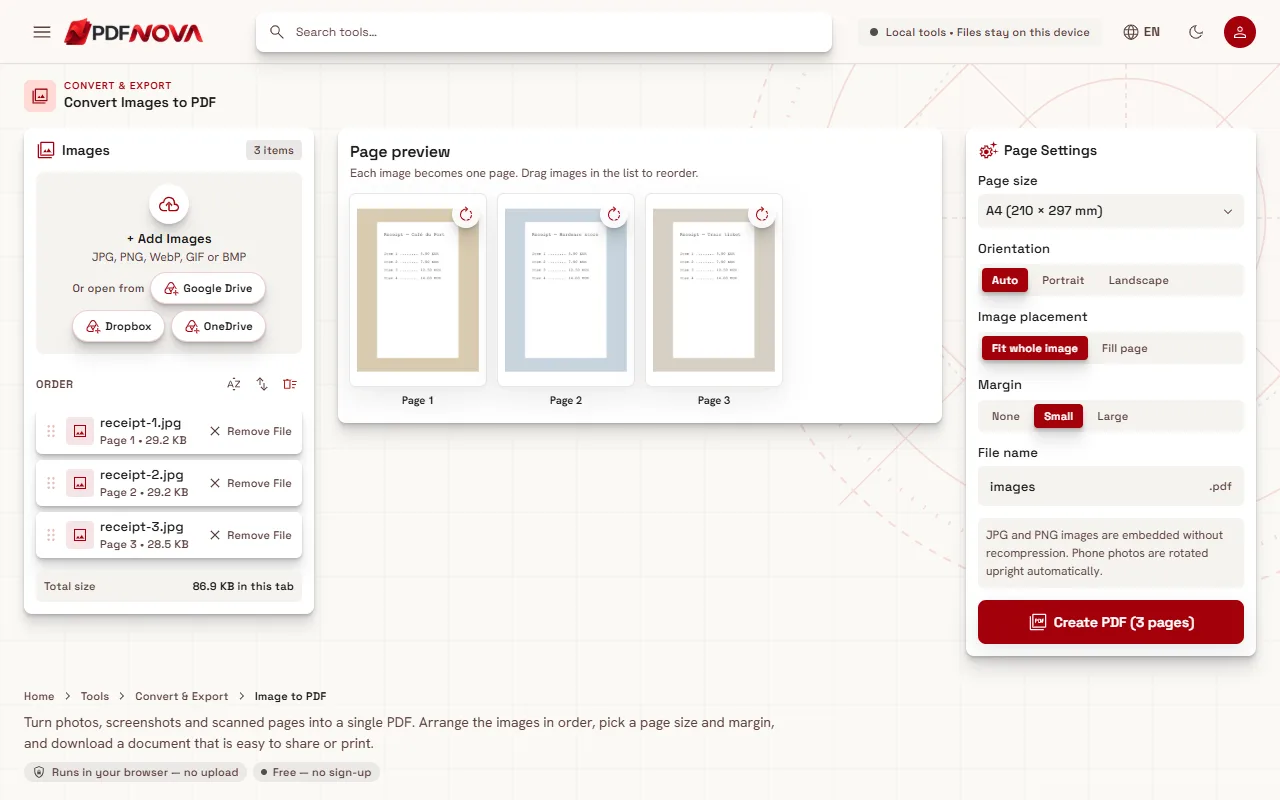
The page settings explained
The Page Settings panel has five choices. They matter more than they look, because they decide how the final document looks on screen and on paper.
Page size
You can pick Fit to image size, A4, US Letter, US Legal, A3 or A5. With Fit to image size, every page takes the dimensions of its picture, so nothing is scaled or cropped. This is the best choice if the PDF will only be read on a screen. If you plan to print, or the recipient expects a normal document, choose A4 (common in Europe) or US Letter (common in North America).
Orientation
Auto looks at each image and picks portrait or landscape for that page, which is usually what you want when your pictures are a mix. Choose Portrait or Landscape only when you need every page to match.
Image placement
Fit whole image shows the entire picture inside the page, leaving empty space where the proportions differ. Fill page covers the whole page and crops whatever does not fit; the tool itself warns that edges that do not fit are cropped. For documents such as receipts or forms, use Fit whole image, otherwise text near the border can be lost.
Margin
Choose None, Small or Large. A small margin is a sensible default for printing, because many printers cannot reach the very edge of the paper. Use none when you want a full-bleed photo page.
File name
Type the name you want for the downloaded file. A descriptive name such as "lease-signed-pages" saves you from hunting through a downloads folder later.
Quality and file size
JPG and PNG images are embedded in the PDF without being recompressed, so the picture inside the PDF is the same as the file you added. That is good for quality, but it means the PDF is roughly as large as the images put together. Twelve full-resolution phone photos can easily produce a heavy file.
If the result is too big to email, run it through Compress PDF afterwards. The trade-offs are explained in Compress a PDF without losing quality. Another approach is to shrink the photos before adding them, using your phone's smaller-size option when sharing.
Phone photos are rotated upright automatically. If one still looks sideways, rotate its tile in the preview.
Tips for better results
- Photograph documents flat and in even light. Shadows and angles are hard to fix afterwards. Image to PDF does not straighten or enhance pictures; it only places them on pages.
- Name your files so they sort correctly. If you use Sort by name, files called page-01, page-02 and so on stay in order, while page-2 and page-10 may not.
- Crop before converting if a photo includes a lot of table or background. Any basic photo editor can do it.
- Screenshots work well at their natural size with Fit to image size, because the text stays sharp.
- Need text you can search or copy? A PDF made from photos is just pictures. Run OCR PDF on the result, as described in Make a scanned PDF searchable with OCR.
If you are scanning paper pages with a phone camera, the related Scan to PDF tool adds a camera panel with manual cropping and contrast controls. It does not correct perspective, so hold the phone directly above the page.
When to use something else
Image to PDF is for turning pictures into pages. If you already have PDFs and want to join them, use Merge PDF; the guide Merge PDF files in the right order covers it. If you need to turn a PDF back into pictures, that is a different tool, PDF to JPG.
Common problems and fixes
- An image could not be read. The file may be damaged or in an unusual format. Open it in a photo app and save it again as JPG or PNG, then add it again.
- Pages are in the wrong order. The list order is the page order. Reorder the list, or use Sort by name, and check the page numbers before creating the PDF.
- Text near the edge is cut off. Switch Image placement to Fit whole image.
- The file is too large. Compress it afterwards or reduce the photo size beforehand.
- A HEIC photo from an iPhone will not load. The supported formats are JPG, PNG, WebP, GIF and BMP. Share the photo as JPG, or switch the camera to its most compatible format in the phone settings.
Privacy
Image to PDF runs entirely in your browser. The images are not uploaded to a server, which is why the drop area says they stay on your device. That is useful for photos of IDs, contracts or receipts. For the full picture of how PDF NOVA handles files, read Are online PDF tools safe?.
FAQ
Is Image to PDF free?
Yes. It is one of the free tools and does not require an account.
Which image formats can I use?
JPG/JPEG, PNG, WebP, GIF (the first frame only) and BMP.
Does it reduce the quality of my photos?
No. JPG and PNG images are embedded without recompression. If you need a smaller file, compress the PDF afterwards and accept the quality trade-off consciously.
Can I mix photos and screenshots in one PDF?
Yes. Each image becomes one page, whatever its size. With Fit to image size each page matches its picture; with a fixed page size, Auto orientation handles the mix.
Can I add more images after starting?
Yes. Use + Add Images and then adjust the order before you select Create PDF.