Convert PDF to PowerPoint With Editable Text
5 min read
Turn a PDF into PowerPoint slides with editable text boxes in your browser. See what stays editable, what becomes a picture, and how to get the best result.
You have a presentation only as a PDF and need to change a title, fix a number or reuse a few slides. PDF to PowerPoint turns each PDF page into one slide. The text comes back as real text boxes you can edit, with the original size, weight, colour and position, and the conversion runs on your device.
It is important to know what "editable" means here, because it is not a full rebuild of the original deck. Text is editable. Pictures, shapes and charts are not: they stay together as one picture behind the text. The rest of this guide explains the details and how to get the best result.
Step by step
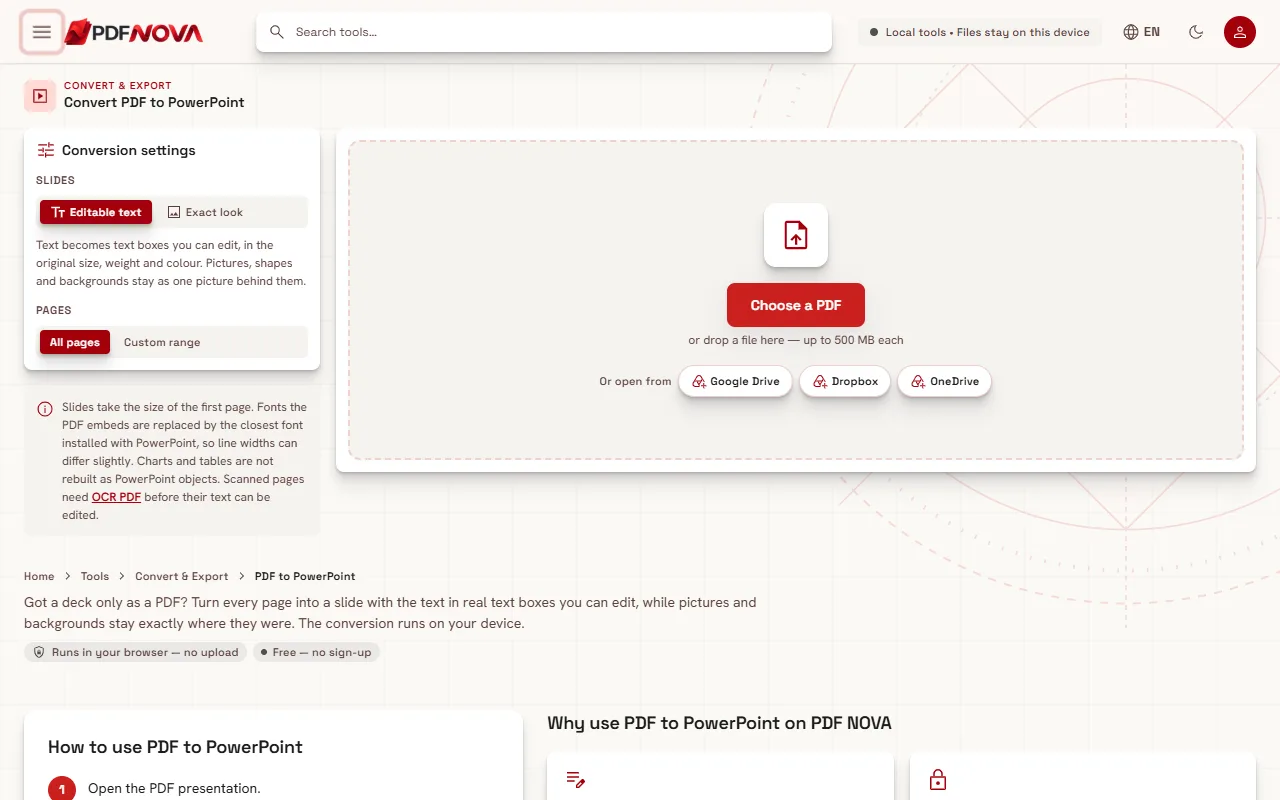
- Open PDF to PowerPoint and choose your PDF.
- Under Slides, choose All pages or Custom range (for example `1-5, 8`).
- Under Slide content, choose Editable text or Exact look (explained below).
- Select the Convert N pages to PowerPoint button at the top.
- Download the PPTX. It opens in PowerPoint, Keynote and Google Slides.
After the conversion, a Slide outline panel lists the text boxes found on the first slides, so you can check the result before you open the file. A note under the result tells you if any pages had no editable text and were kept as pictures.
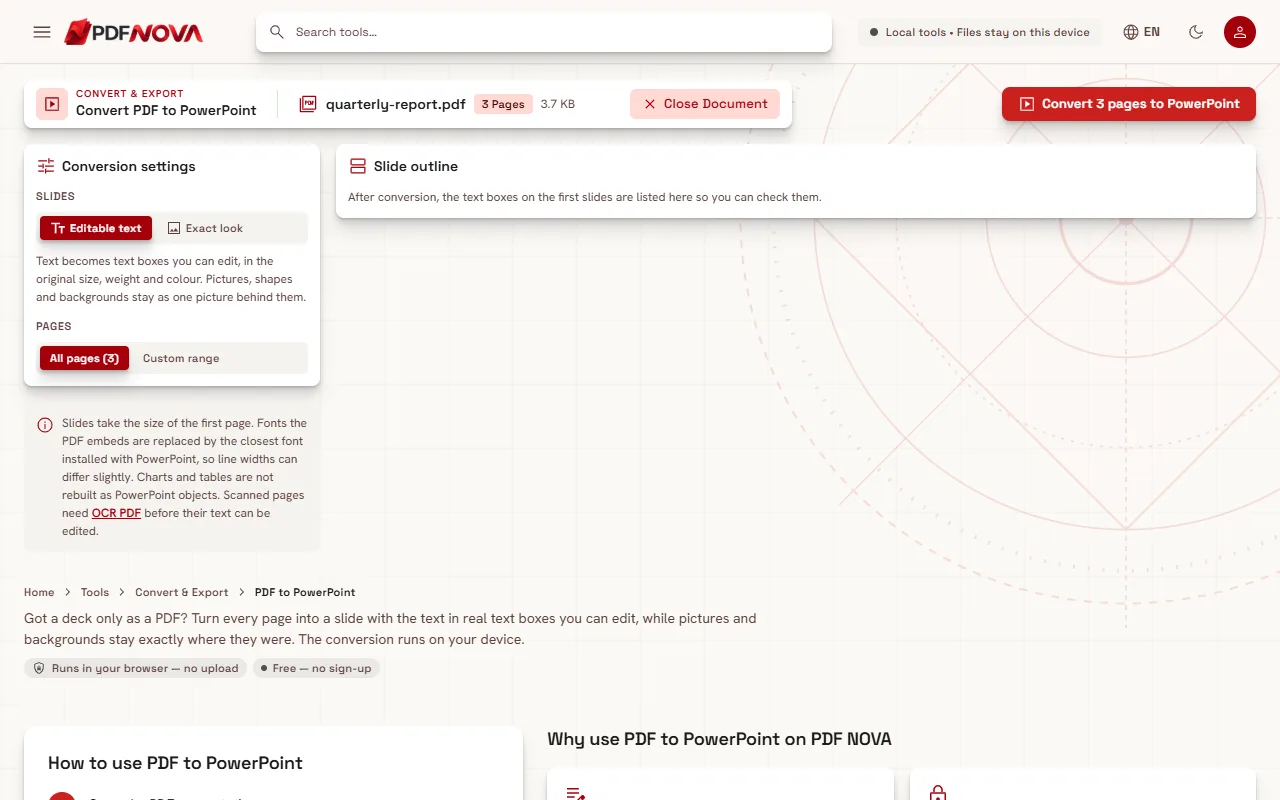
Editable text or Exact look
Editable text is the default. For each page, the tool lifts the text out into text boxes and puts everything else, meaning pictures, shapes, lines and backgrounds, back as a single image behind them. Lines that share an edge and spacing are grouped into one box with a paragraph per line, so a bulleted list is one box and not twenty.
Exact look keeps each page as a single picture on its slide. It looks identical to the PDF, but the text cannot be edited. Choose it when the slides only need to be shown, for example to drop a PDF page into a presentation without any risk of the layout moving.
Both options run in your browser.
What does not stay editable
Be realistic about these limits, which the tool itself lists:
- Pictures, shapes and charts stay one background picture. You cannot click a chart and change its data, move a logo on its own, or recolour a shape. If you need to edit them, you must redraw them in PowerPoint, or ask whoever made the PDF for the original deck.
- Tables are not rebuilt as PowerPoint tables. Their text comes back as text boxes, and the grid lines are part of the background picture.
- Fonts are replaced. Fonts embedded in the PDF are replaced by the closest font installed with PowerPoint, so line widths can differ slightly, and a line can wrap differently. Check long headings.
- One slide size. Slides take the size of the first page. If a PDF mixes page sizes, other pages are fitted onto the first page's size, with space around them.
- Scans have no text to lift. A page that is only a picture of text stays a picture, and the result note says so. Run OCR PDF first, as explained in making a scanned PDF searchable, and convert the searchable file. OCR text is recognised, so check it for mistakes.
- No animations, transitions or speaker notes. A PDF does not contain them.
The conversion is marked partial in the project's tool status for exactly these reasons. It is dependable for text-heavy slides and a poor fit for diagram-heavy decks.
High fidelity engine (Pro)
If the site has a cloud conversion engine configured, an Engine choice appears with This device and High fidelity. High fidelity sends the PDF to PDF NOVA's conversion server instead of processing it in your browser, so it is not private in the same way; the result says it was "Converted on our server" and that the upload is deleted after conversion. That engine is a Pro feature, according to the project's tool status. If you do not see the choice, the server engine is not enabled on this site. The device engine described above is available on the Free plan at the time of writing; see pricing for current plans.
Tips when the result matters
- Start from the best PDF. A PDF exported from PowerPoint, Keynote or Google Slides converts better than one scanned or printed to PDF from another program.
- Convert a range first. Try two or three pages to see how it behaves before converting the whole file.
- Check fonts. If your brand font is not installed on the computer that opens the deck, PowerPoint substitutes it anyway. Install the font, or change the text style in PowerPoint.
- Use Exact look for the pages you will not edit, then convert the rest with Editable text and combine the pieces in PowerPoint. You can also select a page range with Extract PDF Pages first.
- Reduce the size. Slides built from page pictures can be large; compress the PDF before converting if needed.
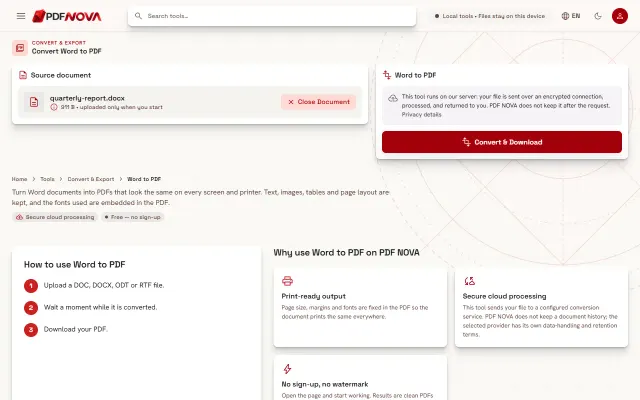
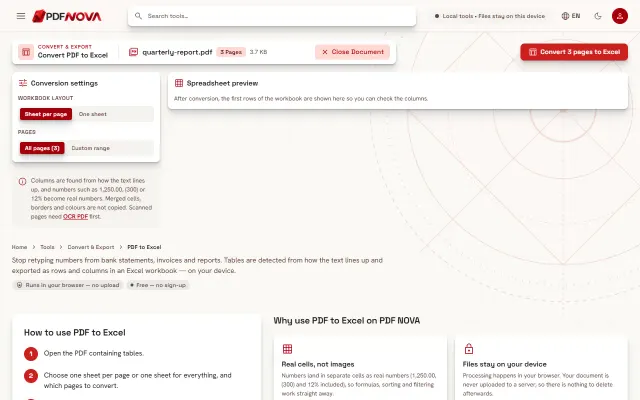
- Need a document, not slides? See converting a PDF to Word, or PDF to Excel for tables.
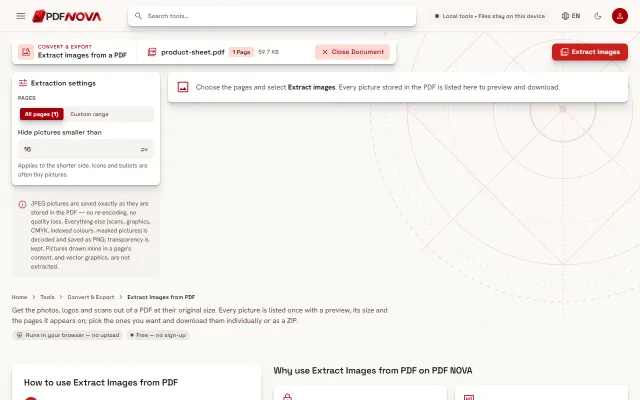
- Pictures only? If you just need the photos from the deck, extract the images from the PDF at their original quality.
Privacy
On the device engine, the PDF is read and the PPTX is built in your browser, and nothing is uploaded. Only the optional High fidelity engine uses the server.
FAQ
Can I edit charts and shapes after converting?
No. They remain part of one background picture. Text on top of them is editable.
Why does a line wrap differently in PowerPoint?
The original font is replaced by the closest Office font, so the widths can differ a little. Adjust the text box or the font size.
Why is one slide just a picture?
That page had no editable text, for example a scan. Run OCR first and convert again.
Does it work with Keynote and Google Slides?
The output is a standard PPTX file, which both open. Check the layout after importing.