How to Convert a PDF to Word and What Happens to the Layout
5 min read
Convert a PDF to an editable Word (DOCX) file, learn what is kept and what is not, and how to get the best result from text, scans and complex layouts.
Sooner or later you receive a PDF that you need to change: a CV with an old address, a form someone sent as a PDF, a report you have to update with new figures. Retyping it is slow and error-prone. Converting it to a Word document is faster, but it is also where people get disappointed, because a PDF is not built to be edited and no converter reproduces every detail.
This guide explains how to use PDF to Word, what the converter keeps, what it does not, and how to choose the right approach for your file. The honest summary: simple text documents convert well, and heavily designed layouts do not.
Why a PDF does not convert perfectly
A PDF describes where each piece of text sits on a page, line by line, much like a printed sheet. It usually has no notion of paragraphs, headings or table cells. Word documents are the opposite: text flows, wraps and reflows. Converting means guessing the structure from positions. Where the guess is easy, such as a page of paragraphs with a few headings, the result is clean. Where the page has columns, tables, text boxes or decorative design, the guess is harder and the result needs manual work.
Step-by-step: convert a PDF to Word
- Open PDF to Word and choose your PDF.
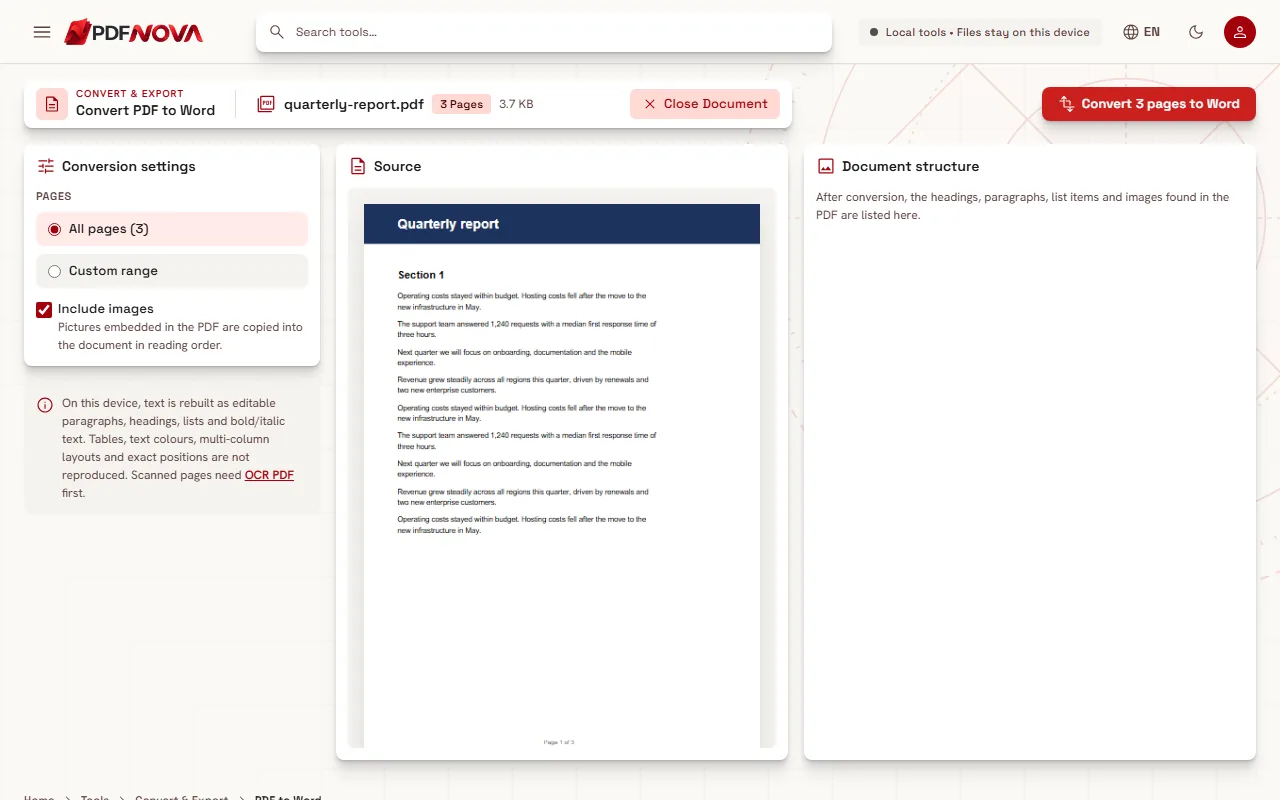
- Choose the pages to convert: "All pages", or a "Custom range" such as 1-3, 7.
- Decide whether to keep "Include images". When it is on, pictures embedded in the PDF are copied into the document in reading order.
- Select the "Convert ... to Word" button.
- Download the DOCX file and open it in Word, Google Docs, LibreOffice or Pages.
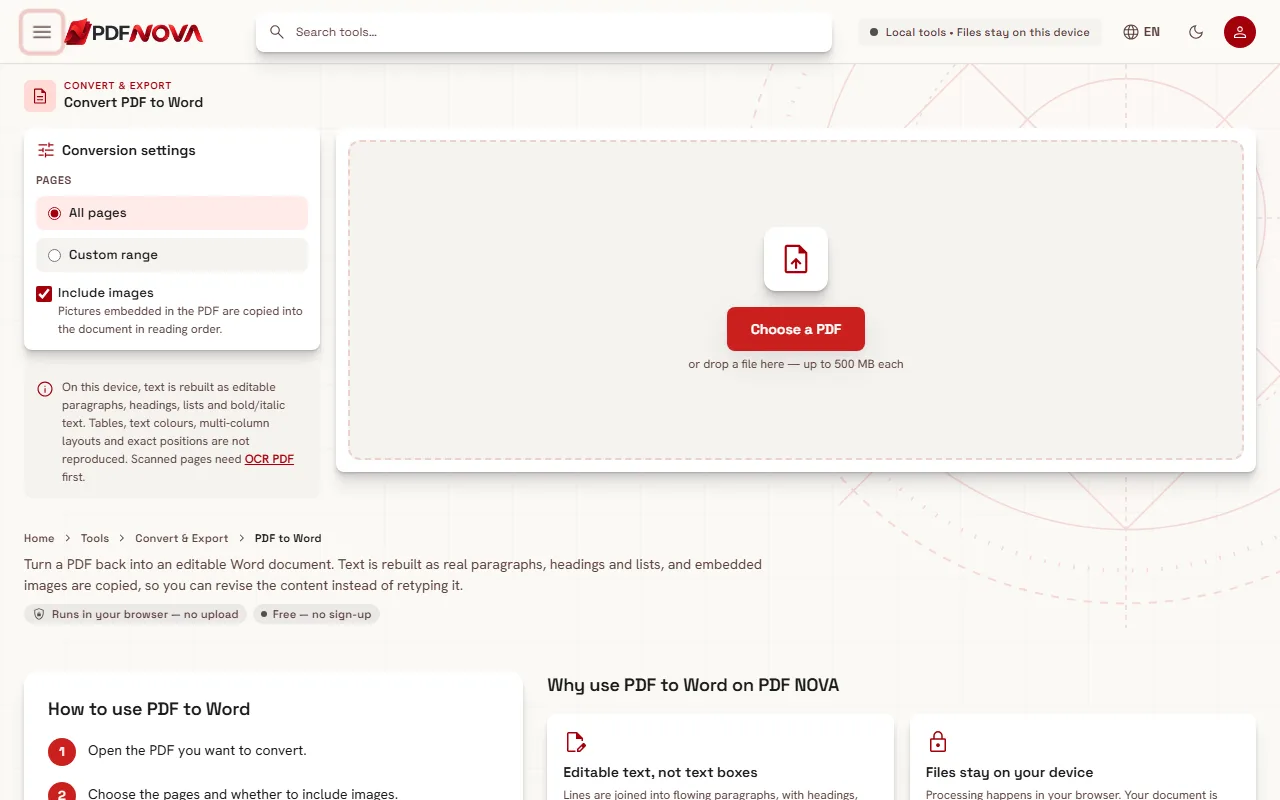
Once the file is loaded you see a preview of the source pages and, next to it, an outline of the document structure that will be rebuilt: headings, paragraphs, list items and images.
What is kept, and what is not
On your device, the converter rebuilds the text as editable Word content:
- Kept: paragraphs (lines are joined into flowing text), headings, bullet lists, bold and italic text, and embedded images.
- Not reproduced: tables, text colours, multi-column layouts and exact positions of elements. The text flows as normal Word paragraphs instead.
So a letter, an article, a contract or a manual in a single column will give you a document you can start editing straight away. A brochure, a price table or a two-column newsletter will give you the words, but you will need to rebuild the layout in Word.
Fonts are another thing to expect. If the PDF uses a font that is not installed on your computer, Word substitutes another one, and line breaks can shift. This is normal for any PDF to Word conversion.
The two engines: This device and High fidelity
When it is offered, the workspace shows an "Engine" choice:
- This device converts in your browser. Nothing is uploaded, and it is best for text documents.
- High fidelity is for documents with tables, columns and exact layout. It sends the PDF to our conversion server, converts the whole document and, as the page states, deletes the upload after the conversion.
Which one to choose depends on the document and on how sensitive it is. If the PDF is a text document, stay on "This device". If the layout matters and the content is not confidential, try "High fidelity". If a document is both layout-heavy and confidential, the in-browser conversion plus some manual formatting in Word is the safer path.
Scanned PDFs: run OCR first
If the PDF is a scan, there is no text to convert, only pictures of pages. The tool detects this and reports that no selectable text was found. When only some pages are scans, the result tells you which pages had no selectable text, and that for those only the pictures were copied, if images were included.
The fix is to run the scan through OCR PDF first, so the text is recognised, then convert the resulting PDF to Word. The full process is in the guide on making a scanned PDF searchable. Remember that OCR output is only as good as the scan, so proofread numbers and names after converting.
Tips for a cleaner result
- Convert only what you need. If you need three pages of a long report, use the custom range. For a long document, you can also extract the pages you want first.
- Switch off images if you only need the words. The text will be simpler and the file smaller.
- Check the outline before downloading. The structure panel shows which lines became headings and which became paragraphs, which tells you in advance how the Word file will behave.
- Fix the styles once in Word. If headings came out as bold paragraphs, apply Word's heading styles to them. After that, a table of contents and navigation work.
- Just need a small correction? For a typo or a changed date, converting to Word may be more work than needed. See how to edit text in a PDF.
- Going back to PDF. When you finish editing, use Word to PDF to produce a fixed-layout file again.
Common problems
The Word file looks different from the PDF. Expected for tables, columns and decorative layouts. Try the High fidelity engine if it is offered and the document is not sensitive, or rebuild the layout in Word.
The result is empty or says no text was found. The PDF is a scan. Use OCR first.
Characters look wrong. This happens with PDFs that use unusual embedded fonts. Check the affected text in Word and retype it if needed.
The Word file could not be verified. The tool checks the file it created and refuses to save one it cannot validate. Try again.
Privacy
With the "This device" engine, conversion runs in your browser. The file is read from your device, processed in memory and saved back to your device, and it is not uploaded. If you choose "High fidelity", the PDF is uploaded to the conversion server, converted, and the upload is deleted after conversion. Choose the engine that fits the document. More on the general picture in are online PDF tools safe?
FAQ
Will the Word file look exactly like the PDF?
For simple text documents it is close. Text, headings, lists, bold and italic styling and images are kept. Tables, text colours, multi-column layouts and exact positions are not reproduced by the in-browser converter.
Is PDF to Word free?
The in-browser conversion is free to use without an account. Conditions for the High fidelity engine, when it is offered, are shown on the tool page.
Can I convert a scanned PDF?
Not directly, because a scan contains only pictures. Run OCR first, then convert.
Which programs open the result?
The DOCX file opens in Microsoft Word, LibreOffice, Pages and Google Docs.
Can I convert only some pages?
Yes. Choose "Custom range" and enter pages such as 1-3, 7.