How to Split a PDF and Extract Pages Without Uploading It
5 min read
Split a PDF by page range, every N pages or one file per page, or pull a few pages into a new PDF. A step-by-step guide that runs in your browser.
A 120-page report where you only need pages 14 to 19. A scanned stack of invoices that should be one file per invoice. A contract you want to share without the confidential appendix. All of these come down to the same job: taking pages out of a PDF without damaging them.
This guide covers two closely related tools. Split PDF breaks a document into several files. Extract PDF Pages saves the pages you choose into one new file. Both work in your browser and leave the original untouched.
Split or extract: which one do you need?
The difference is simple:
- Extract gives you one new PDF that contains only the pages you picked. Use it when you want a subset: "just the summary and the signature page".
- Split gives you several PDFs at once, for example one per chapter, one per page, or one per range you typed. Use it when the whole document has to be cut into parts.
Both tools share the same workspace, so the options look alike. Only the labels differ a little.
Step-by-step: split a PDF into several files
- Open Split PDF and choose your PDF.
- Pick a split mode (see the next section).
- Check the preview of the files that will be created, then select the button at the bottom. For several files it reads "Split & Download ZIP", for a single file "Split & Download PDF".
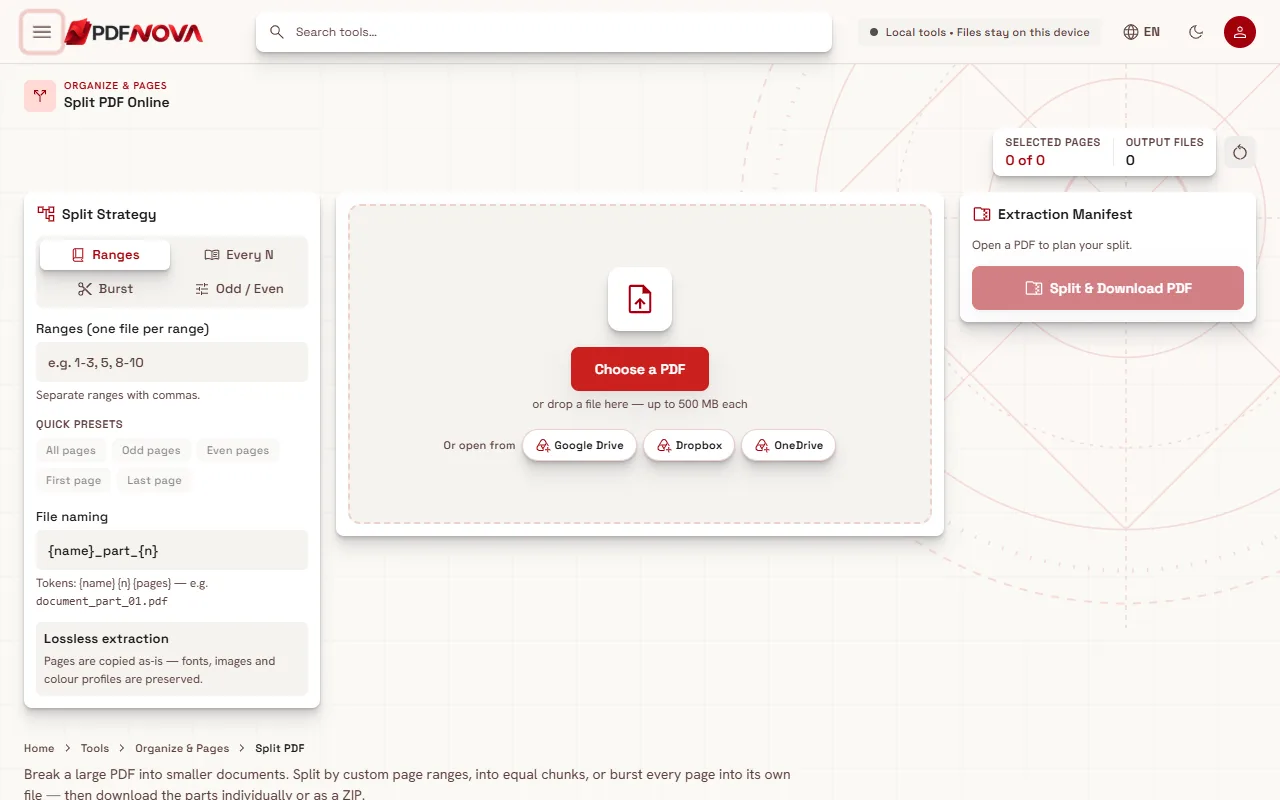
Once the document is open, the page shows thumbnails of every page, coloured by the part they will end up in, and a list of the files that will be created. Nothing is saved until you press the download button.
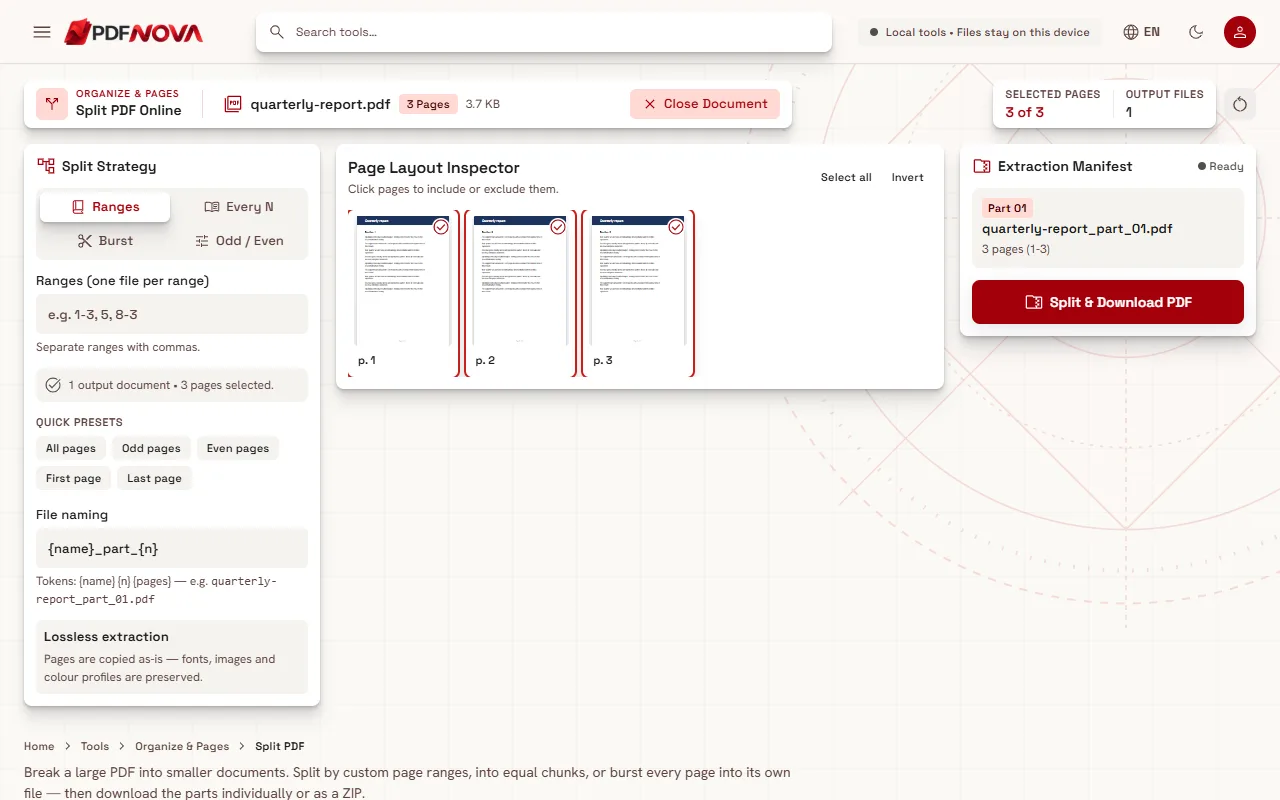
The four split modes explained
- Ranges: type ranges separated by commas, for instance 1-3, 5, 8-10. Each range becomes its own file, so that example produces three PDFs. A hyphen means "from page to page".
- Every N: set "Pages per file". A 30-page document with 10 pages per file gives three files. The tool tells you how many files it will create.
- Burst: every page becomes its own PDF. Handy for batches of scanned single-page documents.
- Odd / Even: two PDFs, one with the odd pages and one with the even pages. This is mostly useful for fixing duplex scans, where the fronts and backs were scanned separately.
Below the ranges field there are quick presets: all pages, odd pages, even pages, first page and last page. They fill the field for you.
Step-by-step: extract pages into one new PDF
- Open Extract PDF Pages and choose your PDF.
- Type the pages in the "Pages" field, for example 1-2, 6, 10-12. Alternatively, click page thumbnails to include or exclude them. "Select all" and "Invert" help when you want everything except a few pages.
- Select "Extract & Download PDF".
The pages you picked end up in one file, in page order. The summary under the field tells you how many pages are selected and how many were left out, which is a quick way to catch a typo before you download.
Naming the output files
When a split creates many files, names matter. The "File naming" field accepts three tokens: the original file name, the part number (01, 02, ...) and the page range. The default for splitting is the file name followed by "_part_" and the number, so a file called report.pdf becomes report_part_01.pdf, report_part_02.pdf and so on. Extraction uses the page range in the name instead. Change the pattern before you download if you want something more descriptive. Multiple files are delivered together as a ZIP archive.
Practical tips
- Count printed page numbers carefully. The tool uses the position of the page in the file, not the number printed on it. A report whose cover and contents page are unnumbered may have "page 1" printed on file page 3. Check the thumbnails.
- Preview before downloading. The coloured thumbnails make an off-by-one error obvious.
- Keep the original. Neither tool modifies your source file, but it is still good practice to keep it until you have opened the results.
- Reordering is a different job. If you need pages in a new order, rotated, or deleted rather than extracted, use Organize PDF. To join the pieces back together, read how to merge PDF files in order.
- Smaller files. Splitting a large document into parts is a practical way to stay under an email attachment limit. If a single part is still too big, see how to compress a PDF without losing quality.
Common problems and fixes
The result is the wrong pages. Re-check the numbering as described above, and make sure ranges are separated by commas, not spaces or semicolons.
A page is missing a signature or stamp. Pages are copied as they are. If the mark was never on that page, for example because a signature page is a separate sheet, extract that page too.
The file will not open. A password-protected PDF cannot be read until it is unlocked. If the file is damaged, try the repair tool first.
I need text from a scan. Splitting does not change what is on the pages. A scanned page stays a picture. To make it searchable, follow the guide on making a scanned PDF searchable with OCR.
Does splitting reduce quality?
No. The tool copies pages without re-rendering them, so text stays selectable and images keep their original quality. The option called "Lossless extraction" describes this: fonts, images and colour profiles are preserved.
Privacy
Split PDF and Extract PDF Pages run entirely in your browser. Your document is read from your device, processed in memory and saved back to your device. It is not uploaded to a server, which makes these tools reasonable for contracts, medical records and similar documents. Closing the tab releases the file from memory. If you want the details on how this works, read are online PDF tools safe?
FAQ
Is splitting a PDF free?
Yes. Both tools are free to use without an account and do not add a watermark.
Can I split a PDF into single pages?
Yes. Choose the Burst mode, and every page becomes its own PDF. With many pages you receive a ZIP archive.
What is the difference between Split and Extract?
Extract saves the pages you choose into one new PDF. Split breaks a document into several files, for example one per range or per page.
How do I write a page range?
Use commas between ranges and a hyphen inside a range. "1-3, 5, 9-12" means pages 1 to 3, page 5, and pages 9 to 12. In Split mode that creates three files; in Extract mode it creates one file with all of those pages.
Is there a size limit?
The tools run on your device, so the limit depends mostly on your computer's memory. The page accepts files up to 500 MB.