How to Make a Scanned PDF Searchable With OCR
6 min read
Why Ctrl+F finds nothing in a scanned PDF, and how OCR adds a hidden text layer so you can search, select and copy text. Runs in your browser.
You open a PDF, press Ctrl+F, type a word you can clearly see on the page, and nothing is found. You try to select a sentence and the whole page highlights as one block. The usual reason is that the file is a scan: every page is a photograph of text, not text.
OCR (optical character recognition) fixes this. It reads the pictures of letters and turns them into real text. This guide shows how to do it with OCR PDF and Make PDF Searchable, what to expect from the results, and what to do when recognition goes wrong.
How to tell whether your PDF is a scan
Open the file and try to click and drag over a line of text. If you can select individual words, the text is already real and you do not need OCR. If the cursor selects the whole page or nothing at all, the page is an image. Scans typically come from a phone camera, a copier or a scanner app, and page edges or shadows are often visible.
Some files are mixed: pages typed in a word processor combined with scanned pages, such as a signed page added at the end. The tool can handle this, as explained below.
Step-by-step: make a scanned PDF searchable
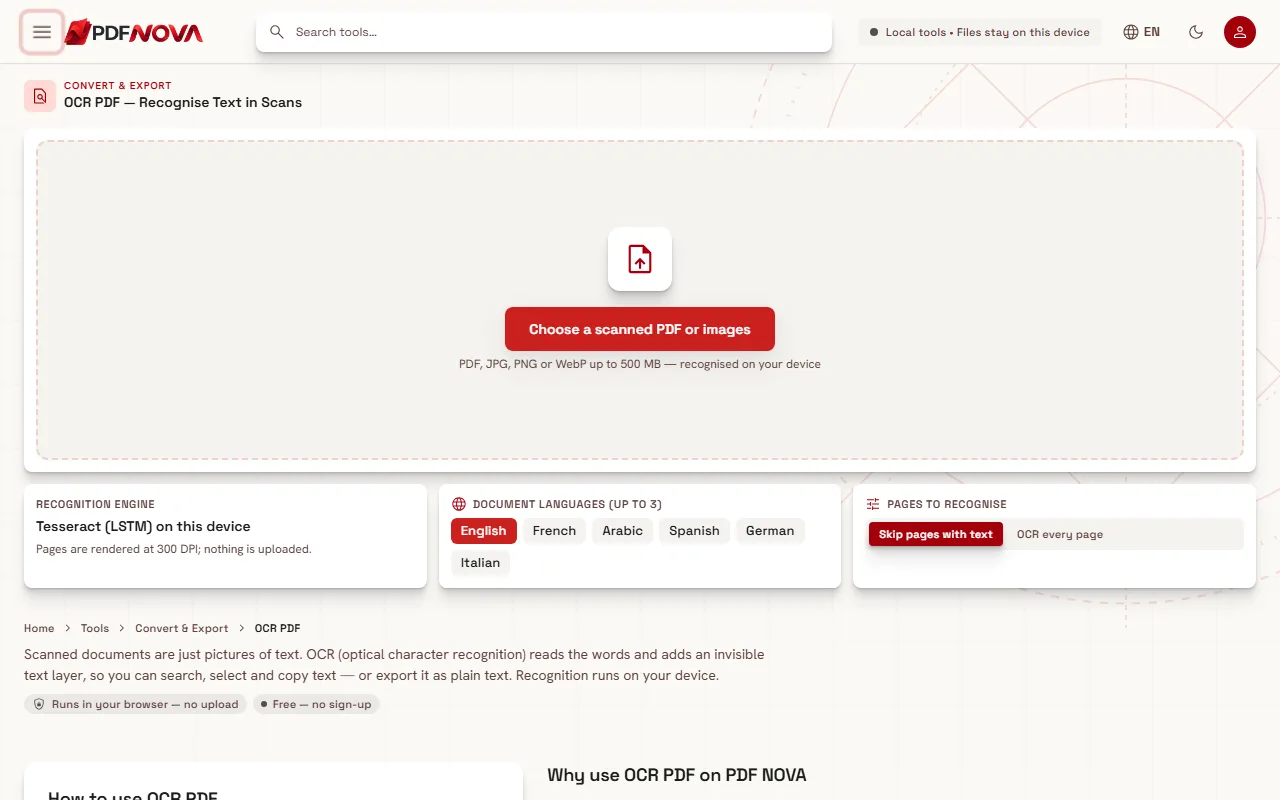
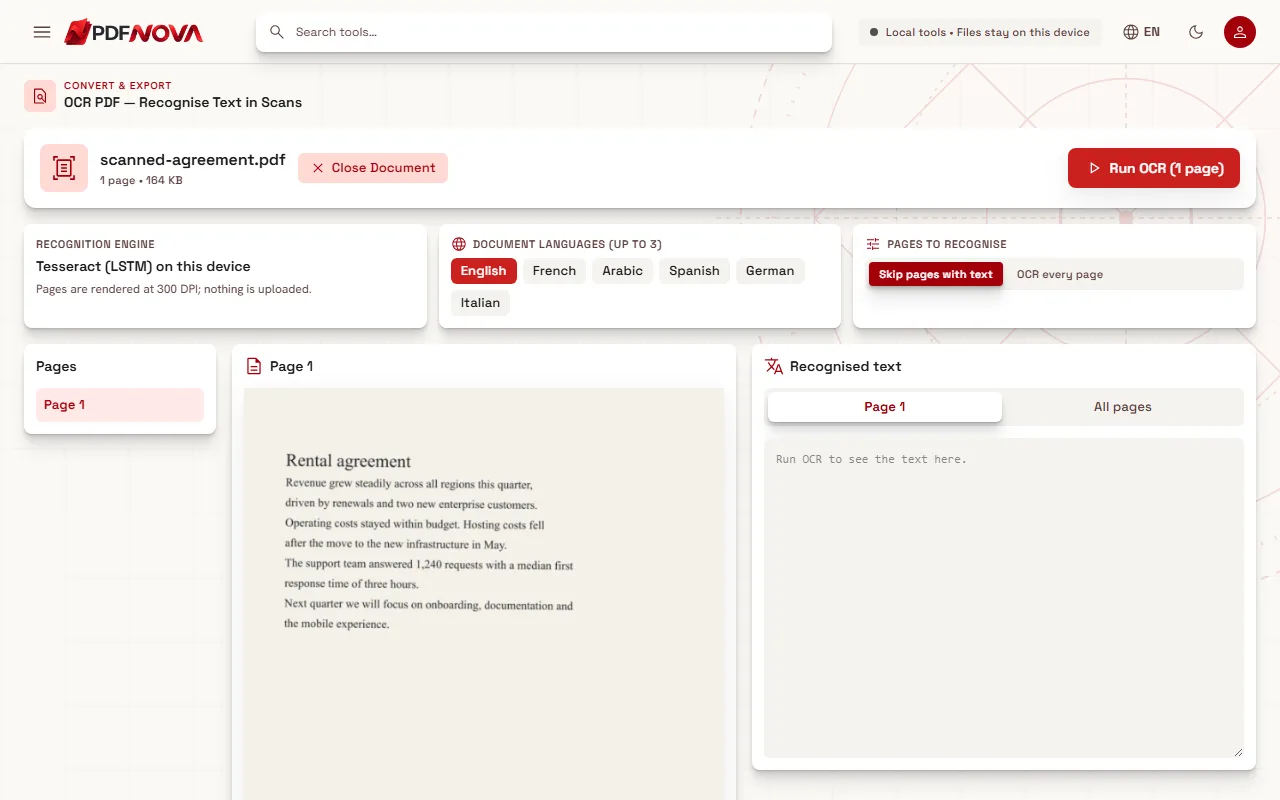
- Open OCR PDF (or Make PDF Searchable, which uses the same workspace). Choose a scanned PDF, or photos of pages in JPG, PNG or WebP format.
- Choose the language of the document. You can select up to three.
- Under "Pages to recognise", keep "Skip pages with text" or choose "OCR every page".
- Select "Run OCR". A progress message shows which page is being recognised.
- Review the result, then download the searchable PDF, or copy or download the text.
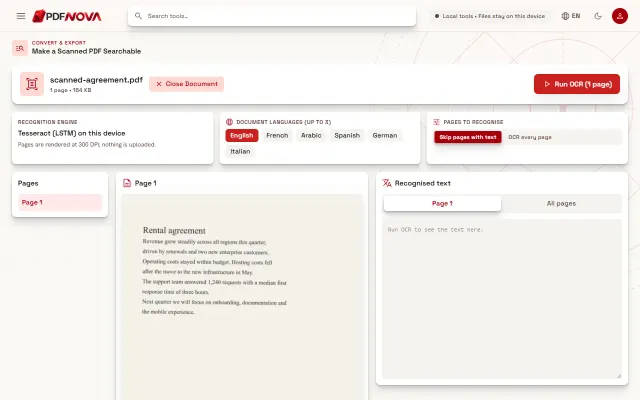
After you add a file, the workspace shows the pages in a list, a preview of the selected page, and the recognised text next to it.
What the options mean
Document languages. OCR works much better when it knows the language. The tool supports English, French, Arabic, Spanish, German and Italian, including accented letters and right-to-left Arabic. Choose every language that appears in the document, up to three. Selecting languages that are not on the page does not help and can lower accuracy, so keep the list short.
Skip pages with text or OCR every page. The first option looks at each page and leaves alone those that already contain real text. This is the right default for mixed documents: digital pages stay untouched and only the scanned ones are processed. Choose "OCR every page" if a page has a poor existing text layer, for example from an earlier bad OCR, and you want to redo it. If every page already has text and you stay on the default, the tool tells you there was nothing to recognise.
One PDF at a time. The tool works on a single PDF per run. You can, however, add several images of pages. To process many separate PDFs, run them one after another.
Reading the confidence levels
After recognition, the preview draws boxes around the words, coloured by confidence in three levels: 90 percent or more, 70 to 90 percent, and below 70 percent, which is marked "check". Hovering over a word shows the recognised text and its percentage. The header also gives an average confidence for the document.
Treat this as a guide, not a guarantee. A word can be recognised with high confidence and still be wrong, for example a similar-looking name. When accuracy matters, as with figures, names or legal references, read at least the low-confidence words and compare the numbers against the picture.
Getting better results
OCR quality depends mostly on the scan:
- Resolution. Clean, upright scans at 300 DPI usually recognise very accurately. The tool renders pages at 300 DPI itself, but it cannot add detail that a low-resolution photo never captured.
- Straight pages. Skewed or sideways pages reduce accuracy. Fix the orientation first, for example with Organize PDF, then run OCR.
- Contrast and light. Shadows, folds and uneven lighting hurt recognition. Rescan if you can.
- Fonts and handwriting. Decorative fonts are harder to read. Handwriting is generally not recognised reliably, so do not expect usable text from handwritten notes.
- Right language. If a French document is read as English, accents and many words will come out wrong. Check the language selection before anything else.
If you see the message that no text could be recognised, check the language, the page orientation and the sharpness of the scan.
What you get, and how big the file is
The searchable PDF keeps each page exactly as it looked and adds an invisible text layer positioned over the words. The page images are not re-encoded, so the file grows only slightly: the text layer is a few kilobytes per page. You can also copy all the recognised text, or download it as a .txt file with a page marker between pages. And because the pages now contain real text, Read PDF Aloud can read the document to you with your browser's voices.
OCR does not make a scan editable in the usual sense. The words become searchable, but the visible page is still a picture. If you need to change the text itself, convert the result to Word (see converting a PDF to Word), or use Edit PDF on documents that contain real text. If the file is simply too large, compress it. To cut a long scan into parts first, see splitting a PDF.
Common problems
The first run is slow. The recognition engine and the language model (about 1 to 3 MB per language) are downloaded once and then cached by your browser. Later runs start faster.
The PDF is password-protected. The tool asks you to unlock it first.
The text comes out garbled. This is usually a language or image-quality problem. Try a different language selection, or a better scan.
Columns and tables are mixed up. OCR recognises text; it does not rebuild layouts. Searching works fine, but text copied from complex layouts may need tidying.
Privacy
Recognition runs on your device. The pages are rendered and processed in your browser, and the document is not uploaded. What your browser downloads is the recognition engine and the language data. This matters for scans of IDs, medical records or contracts. More background in are online PDF tools safe?
FAQ
What is the difference between OCR PDF and Make PDF Searchable?
They share the same recognition engine and workspace. OCR PDF is the general tool for recognising text in scans and images; Make PDF Searchable is aimed at the common goal of getting a searchable copy of a scanned file.
Will the PDF look different afterwards?
No. The pages keep their original appearance. Only an invisible text layer is added.
Can OCR read handwriting?
Not reliably. It is built for printed text.
How accurate is it?
For clean, upright scans at 300 DPI, usually very accurate. Low-resolution photos, skewed pages and decorative fonts reduce accuracy, so check the words marked as low confidence.
Is it free?
Yes. The OCR tools run in your browser without an account and do not add a watermark.