Why You Can't Select or Copy Text in a PDF (and Fixes)
5 min read
Can't select, copy or search text in a PDF? Find out if it is a scan, a copy restriction, outlined text or a font problem, and how to fix each case.
You click on a line in a PDF and the whole page lights up as one block. Or Ctrl+F finds nothing for a word you are looking at. Or you copy a paragraph and paste a string of strange symbols. These look like one problem, but they have four different causes, and each one has a different fix.
This guide helps you work out which case you have in about a minute. For scanned pages, the fix is Make PDF Searchable, which adds a hidden text layer with OCR.
Step 1: test the file
Open the PDF and try three things:
- Drag across a line of text. Do individual words highlight, or does the entire page (or nothing) highlight?
- Press Ctrl+F and search for a word you can see.
- Select a line, copy it, and paste it into a notes app.
Then match what you see:
- The whole page highlights as a block, and search finds nothing: the page is a picture. See "Scanned pages".
- You can select, but copying is blocked or the menu is greyed out: the file has permission restrictions. See "Copy restrictions".
- Some text selects and some does not, for example only a logo or a heading: that text may have been converted to shapes. See "Text turned into outlines".
- Selecting works, but the pasted text is garbage or has missing letters: the fonts are encoded in a way that does not map back to real characters. See "Garbled text on copy".
Scanned pages (the most common cause)
A scan, a phone photo or a photo saved as PDF stores each page as a picture. There are no letters in the file, only pixels that look like letters, so nothing can be selected or found.
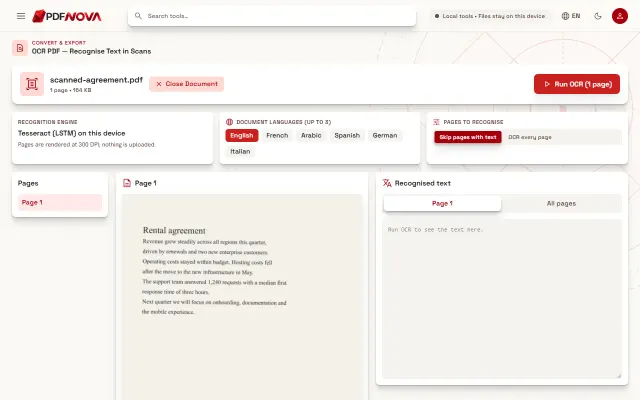
The fix is OCR (optical character recognition), which reads the picture and adds an invisible text layer on top of it. Here is how with Make PDF Searchable:
- Open the tool and choose your PDF (or photos of the pages).
- Pick the language under Document languages. You can choose up to three, and a wrong language is the main reason for bad results.
- Leave Skip pages with text under Pages to recognise to keep digital pages untouched, or choose OCR every page to redo all of them.
- Select Run OCR, then download the searchable PDF. Copy all text copies the recognised text without making a PDF.
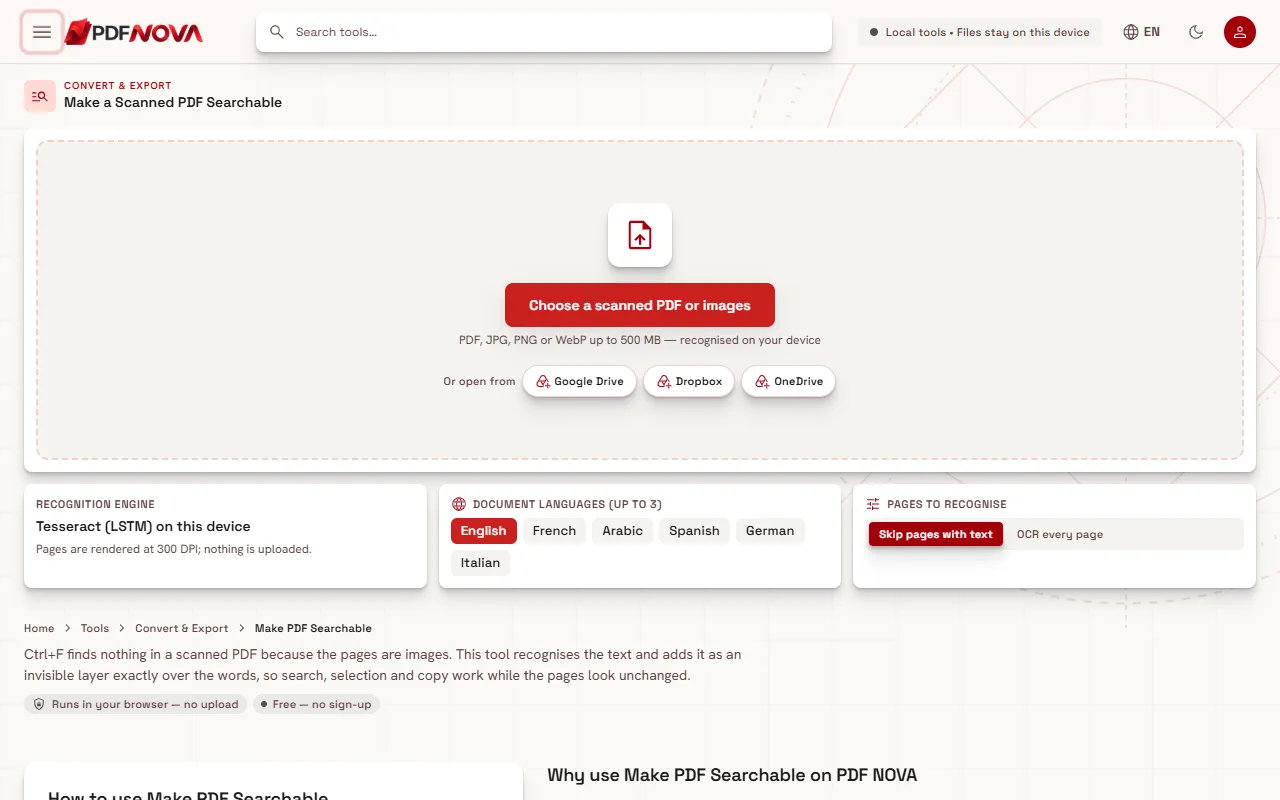
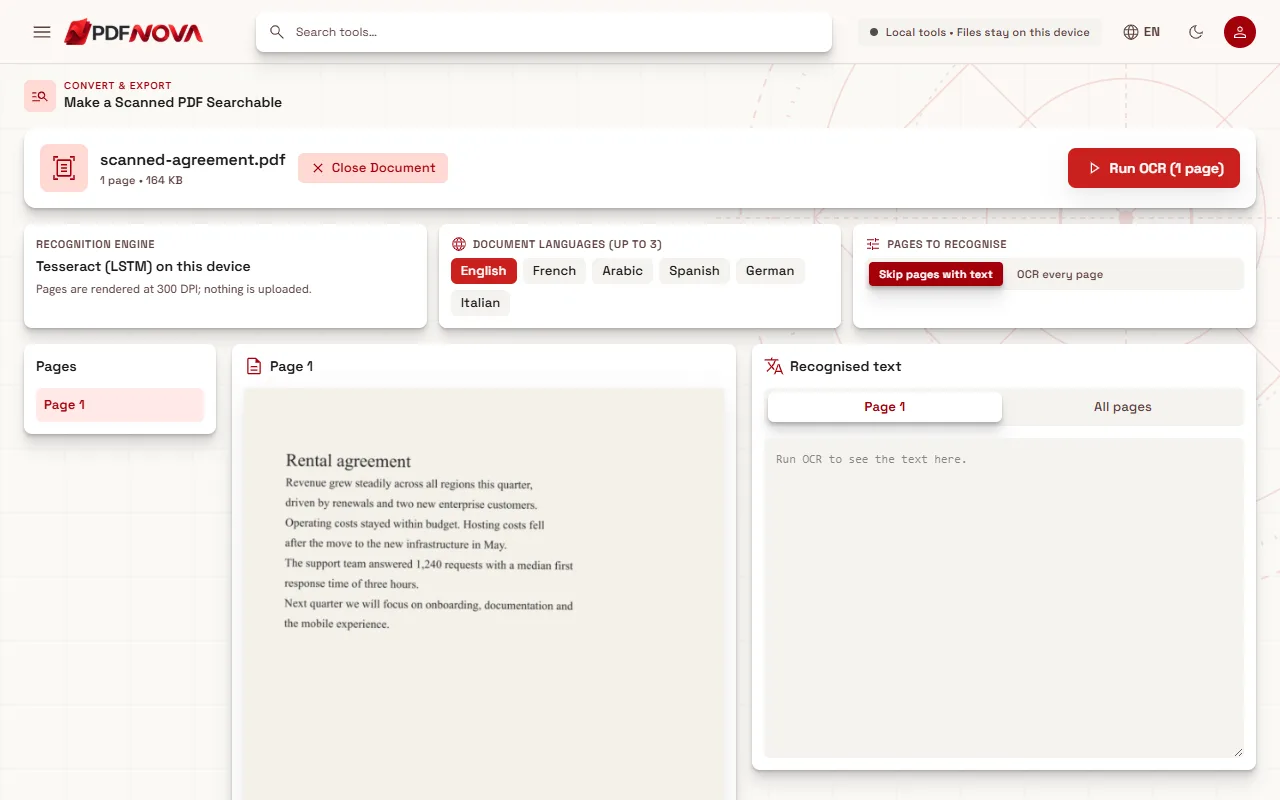
The pages look exactly as before. The text layer is added behind them, so you can now search, select and copy. Recognition runs in your browser and the file is not uploaded. The first run downloads the recognition engine and the language data, which your browser then keeps. The full walk-through, with confidence colours and tips for better results, is in the guide on making a scanned PDF searchable.
Be realistic about accuracy: clean, upright scans work well; blurry photos, skewed pages and decorative fonts do not, and handwriting is not supported. OCR PDF uses the same recognition engine if you prefer that name.
Copy restrictions
A PDF author can set permissions that forbid copying, printing or editing. The file still opens, and often you can read it, but copying is blocked in the viewer. This is different from a password needed to open the file.
To remove the restrictions, use Unlock PDF. If the file opens without a password but has restrictions, the tool says so and asks for its permissions (owner) password. This is a different password from the one that opens the file; it is the one the author set to control restrictions. After you select Unlock & Download, the tool checks that the new file opens without a password and has no restrictions before it saves it. It runs in your browser, so neither the file nor the password is uploaded.
Two honest limits. Unlock PDF does not guess or recover forgotten passwords. And its screens describe asking for the owner password, so if you do not have it, ask whoever created the document. Only remove restrictions from files you are allowed to use that way.
A quick extra check: copying may be blocked only by the viewer you are using. Extracting the text with PDF to Text tells you whether the text is really in the file.
Text turned into outlines
Designers sometimes export a PDF with text "converted to outlines" or "to paths". Every letter is then a drawn shape, like a logo, not a character. Such text looks perfect and scales without blur, but it cannot be selected or searched, and nothing in the PDF says which letter is which.
You can recognise this case when the page is clearly made of sharp vector graphics (zoom in a lot and the edges stay crisp, so it is not a scan) yet some text will not select, while other text on the same page does.
The fix is the same as for scans: OCR. Run Make PDF Searchable with OCR every page, because the default skips pages that already contain real text, and the outlined parts would stay unreadable. If you need to change the wording, the better route is to ask for the original file from before the text was outlined.
Garbled text on copy
If you can select the text but pasting gives symbols, boxes, or the wrong letters, the PDF's fonts do not carry a correct mapping from the shapes on screen to real characters. This happens with files produced by some older software, and with some non-Latin scripts. The page looks right because the shapes are right; the hidden character codes are wrong.
Try PDF to Text first. If the extracted text is also garbled, the information is simply not in the file. The reliable fix is again OCR, which ignores the broken character codes and reads what is actually drawn: run Make PDF Searchable and choose OCR every page, so the bad text layer is replaced. Choose the right language, especially for accents and Arabic.
If the extraction works, PDF to Text lets you choose Plain text or Markdown, then Copy text or Download .txt. If the PDF looks like a scan, it shows "No text found" and points to OCR.
Common questions
Why does the selection look slightly off after OCR?
The text layer follows the recognised words, so a selection may not line up perfectly with the printed letters. Searching and copying still work.
Will OCR change how the PDF looks?
No. The visible pages are kept as they are; the text layer is invisible.
Is it free?
OCR runs in your browser without an account, and the tools above are included in the Free plan according to the plan settings at the time of writing. Details are on the pricing page.
What if I want to edit the text, not only copy it?
OCR makes a scan searchable, but the page stays a picture. To get editable text, convert the result, as explained in converting a PDF to Word. For a PDF that has real text, editing PDF text works directly.