How to Edit Text in a PDF Online Without Retyping It
6 min read
Fix a typo, a date or a price directly in a PDF. Learn how paragraph editing works, what happens to fonts, and how scanned pages are handled.
You open a PDF you sent last week and spot a wrong date, a misspelled name or an old price. You no longer have the Word file, or the document came from someone else. PDFs were designed to look the same everywhere, not to be edited, so changing a single word can feel harder than it should.
This guide shows how to fix text in an existing PDF with Edit PDF Text on PDF NOVA, what to expect from the result, and which situations call for a different approach. The tool runs in your browser, is free to use, and adds no watermark.
Step by step: change text in a PDF
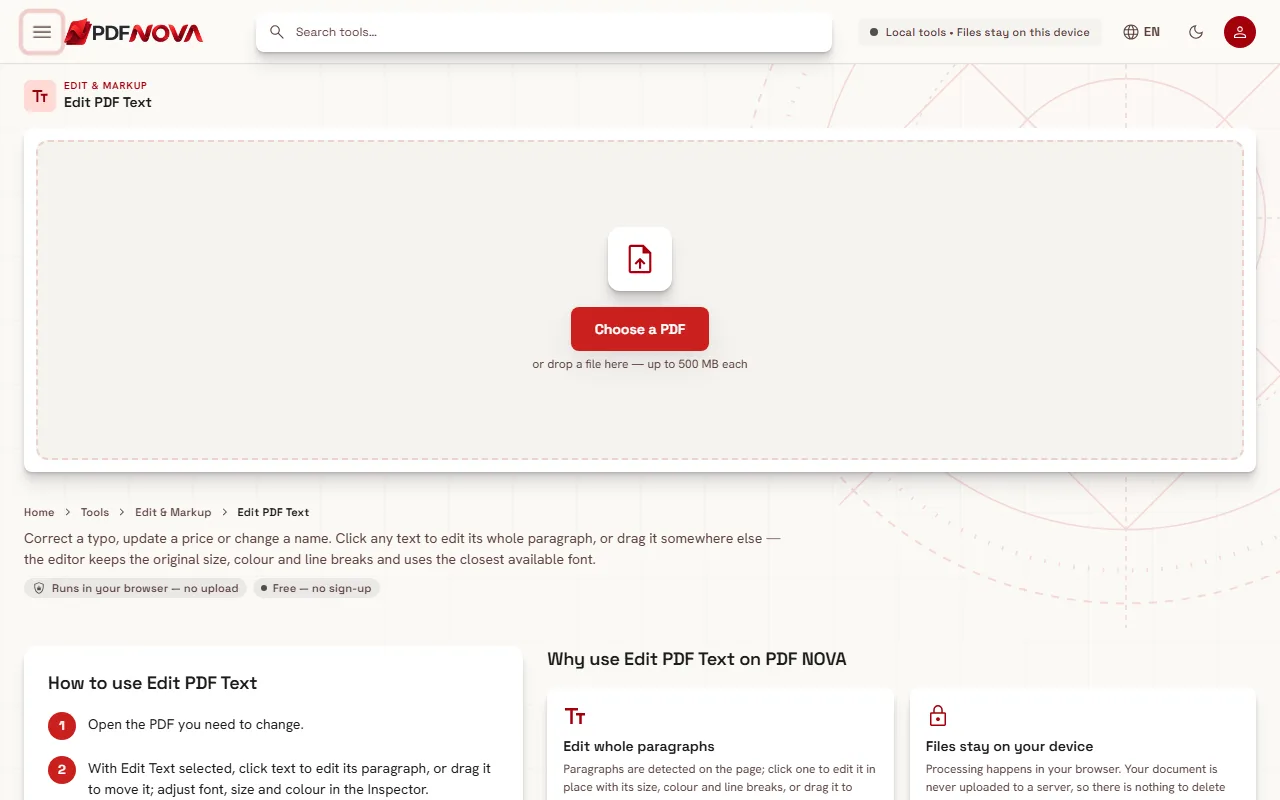
- Open the Edit PDF Text page and choose your PDF (or drop it onto the page).
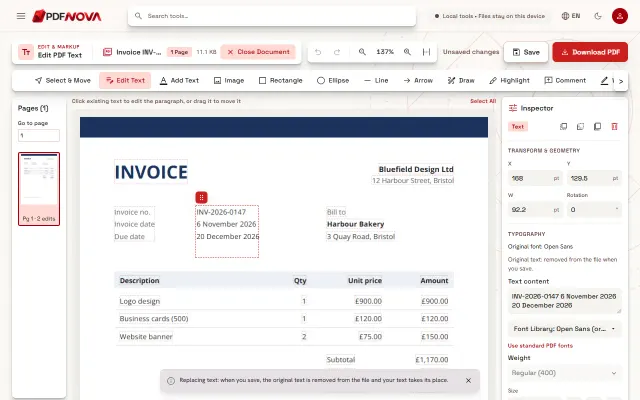
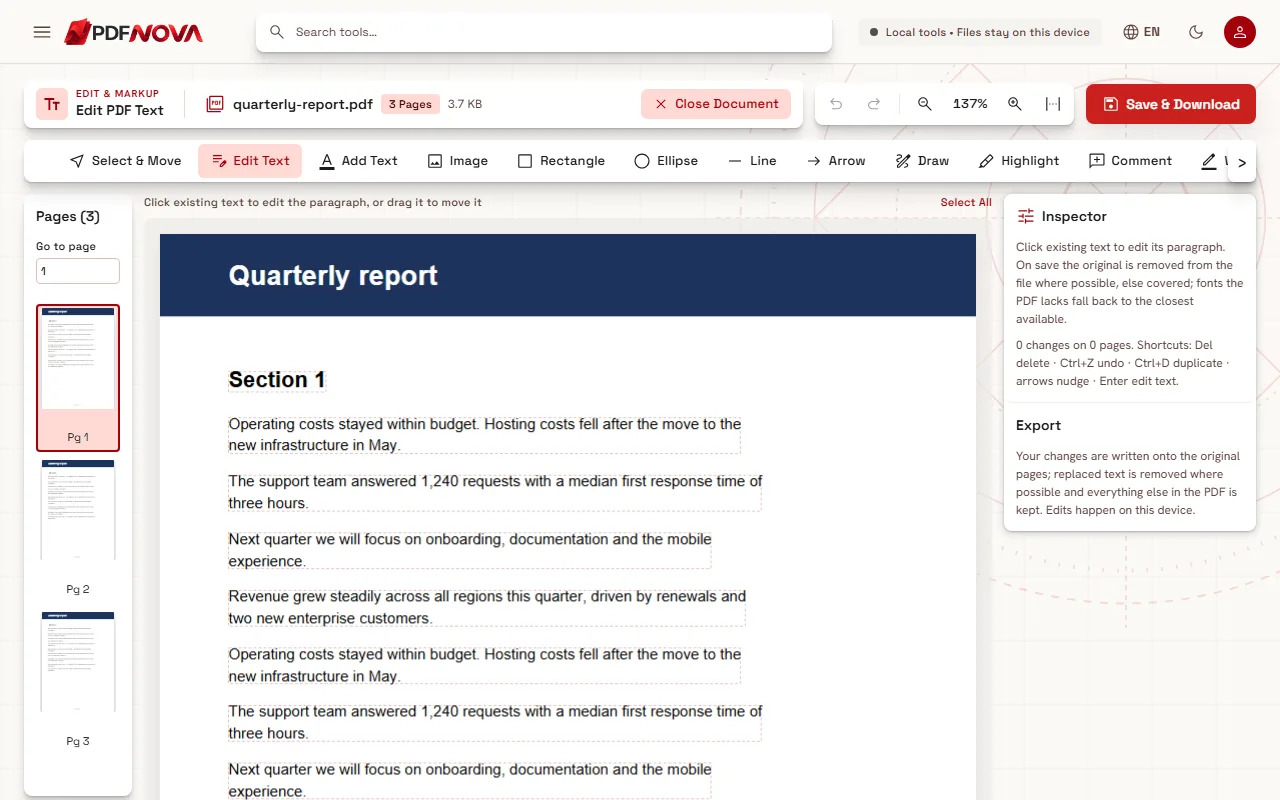
- Wait a moment while the pages load. The editor shows the page in the middle, a list of pages on the left and the Inspector on the right.
- Make sure the Edit Text tool is selected in the tool row above the page.
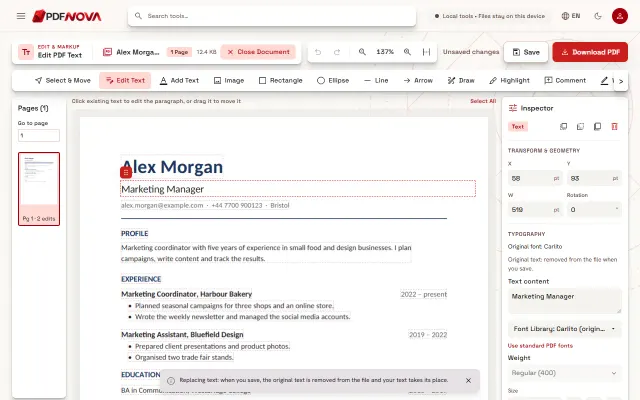
- Click the text you want to change. The whole paragraph becomes editable, so you can retype the wrong word or rewrite a sentence.
- To move a paragraph instead, drag it to its new position.
- Check the result on the page, then select Download PDF to get the updated PDF.
If you make a mistake, use Undo (Ctrl+Z) and Redo (Ctrl+Shift+Z). Your original file is never overwritten: the edited version is downloaded as a new file.
How paragraph editing works
A PDF stores text as positioned pieces, often line by line, with no real notion of a paragraph. PDF NOVA detects paragraphs on each page by looking at how the lines are grouped. When you click one, you edit it as a block, keeping its size, colour and line breaks. This is why a sentence can be rewritten without you having to fix every line by hand.
Because the layout is rebuilt from the page, results are best on PDFs created from text, for example exported from Word, Google Docs or a design tool. Heavily decorated pages, text laid out in unusual ways or text that follows a curve may not be detected as a clean paragraph. In that case, use the other tools described below.
Fonts, size and colour
When you select a text object, the Inspector shows its Typography settings: Font, Size, Color, Alignment, Letter spacing, Line spacing and more. You can change them for the selected text, or choose a tool first (such as Add Text) to set the defaults for the next object.
The important detail is fonts. Many PDFs embed only the letters they use from a font. The editor tells you the Original font and the Closest available font it will use instead. If the typeface does not match perfectly, the edited paragraph can look very slightly different from the text around it. For a fix of one or two words this is rarely noticeable; for a full page of rewritten text it may be.
The Inspector also has a setting called "When text is longer" with the options Auto, Fit, Expand and Wrap. It decides what happens when your new text does not fit in the original space. With Fit, the text is scaled down to stay inside its box (the Inspector then shows the size it was fitted to); the other options let it wrap or grow instead. Try each one on a copy to see which suits your layout.
Add new text, cover or remove content
Editing existing words is only one part of the job. The same editor has other tools in the row above the page:
- Add Text places a new text box where you click or drag. This is handy for filling in a line that has no text yet.
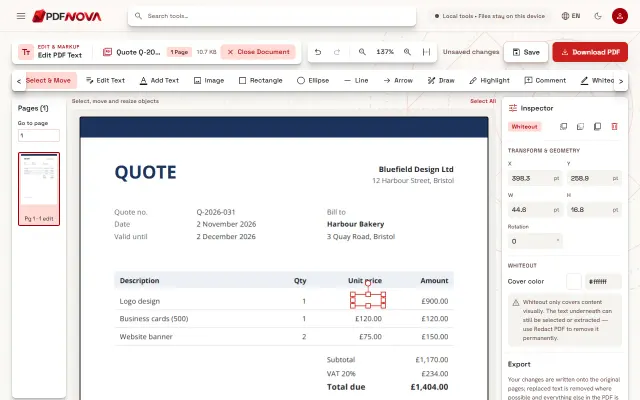
- Whiteout paints a white rectangle over content. It is purely visual: the covered text can still be selected or copied from the file.
- Redact opens the permanent redaction settings, for when something must be removed for good.
- Highlight, Comment, Draw, Image, Link and Signature let you mark up or complete a page without leaving the editor.
If you only want to review or comment on a document, see the guide on signing a PDF without printing for the signature workflow. The same editor also opens as the PDF Editor, with Select & Move active instead of Edit Text: a better starting point when the job is mostly adding text, images or shapes rather than changing words.
Is the old text really gone?
This matters if the document contains something you wanted to remove, like a wrong amount or a personal detail.
In most cases, when you save, the original text of a paragraph you replaced is removed from the page content. It can no longer be selected, searched or extracted. In some cases the editor cannot rewrite the text safely, for example when it sits inside a shared page object, also acts as a clipping shape, or uses a font that cannot be read. The editor then covers it with the page colour instead and keeps the original underneath. The Inspector tells you before you save with the message "Covered, original kept underneath."
If a document contains sensitive information, such as an ID number or an account number, do not rely on editing alone. Use Redact PDF, which is built to remove content permanently, including from images.
Common problems and fixes
- Clicking does nothing, or only a small box appears. On a scanned page (a picture of a page) the editor first reads the lines on your device, so wait a moment and then click a line. If no text can be read in the picture, the editor says so; you can still use Whiteout and Add Text on top.
- A paragraph looks different after editing. The original font was not available, so the closest one was used. Try a different font in the Inspector, or reduce the amount of changed text.
- The text shows an error about characters. Some fonts cannot display certain characters. The Inspector lists the ones that are missing; pick another font.
- The edited file is large. Editing keeps the rest of the PDF. If size matters, run the result through Compress PDF afterwards, as described in how to compress a PDF without losing quality.
- The file asks for a password. Remove the protection first with Unlock PDF, if you are allowed to.
Privacy: does my file leave my device?
No. Edit PDF Text processes your document in your browser. The file is read from your device, edited in memory and saved back to your device, so it is not uploaded to a server and there is nothing to delete afterwards.
FAQ
Can every PDF be edited?
PDFs created from text have detectable paragraphs you can edit or move. On a scanned PDF the editor reads the lines on your device (OCR) and you retype the line; the old words stay in the picture underneath, so use Redact PDF for confidential details.
Will editing change the rest of my document?
Only the paragraphs you change are affected. The other pages and content are kept as they were.
Do I need an account or will there be a watermark?
You do not need an account, and the downloaded PDF has no watermark or branding added.
Is this the same as redacting?
No. Editing replaces text; redaction is designed to remove it permanently. When confidentiality matters, use Redact PDF and check the result.