Editing PDF Text vs Covering It With White
6 min read
A white box hides PDF text on screen but leaves it in the file, where anyone can copy it. See what changes when you edit the text instead, and when to redact.
There are two ways to "change" text in a PDF. You can draw a white rectangle over the old text and type the new text on top, or you can change the text itself. On screen, both can look identical. In the file, they are completely different, and the difference shows up as soon as someone searches, copies or processes the document you sent.
Short answer: a white box (whiteout) only adds a shape on top of the page; the old text stays in the file and can be selected, copied, searched and read by software. Editing replaces the characters in the page content, so the old text is gone. When something must disappear for confidentiality reasons, use redaction, which is built to remove content for good. Edit PDF Text on PDF NOVA does the editing kind, and it tells you in the rare cases where it has to cover instead.
What a white box really does
A PDF page is a list of drawing instructions: draw this text here in this font, draw this line, draw this image. Whiteout adds one more instruction at the end: draw a white rectangle here. The text under it is still drawn first, then painted over.
That has consequences:
- Search finds it. Press Ctrl+F in any PDF reader and type the covered word: the reader jumps to the white box.
- Copying reveals it. Select the area or the whole page, copy, and paste into a text editor: the hidden text comes back.
- Software reads it. Applicant tracking systems, accounting tools, search engines and screen readers work on the text, not on the picture of the page. For them, the white box does not exist.
- The box can be removed. Anyone with a PDF editor can select the rectangle and delete it.
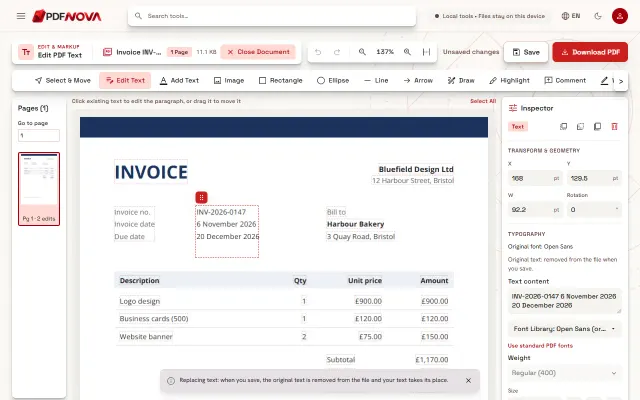
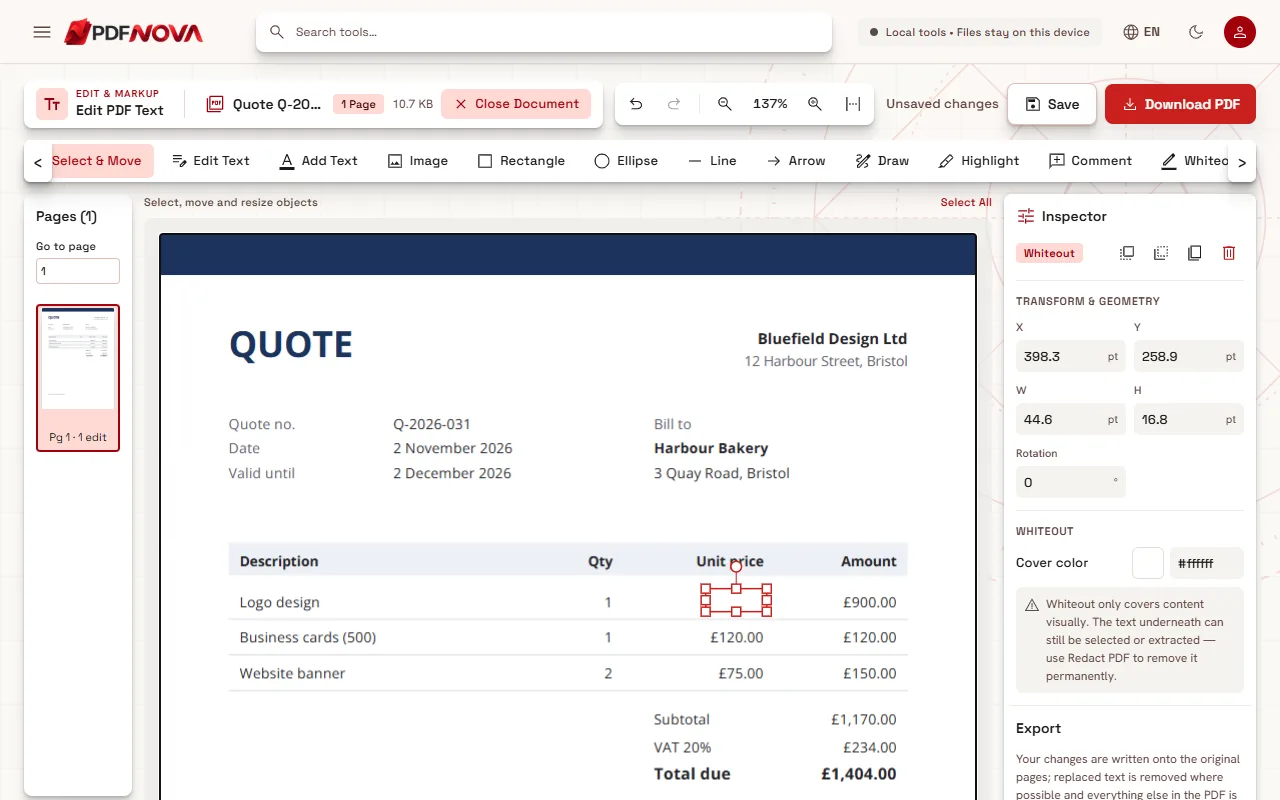
PDF NOVA's editor has a Whiteout tool, and the Inspector is explicit about what it does: "Whiteout only covers content visually. The text underneath can still be selected or extracted — use Redact PDF to remove it permanently."
What editing the text does
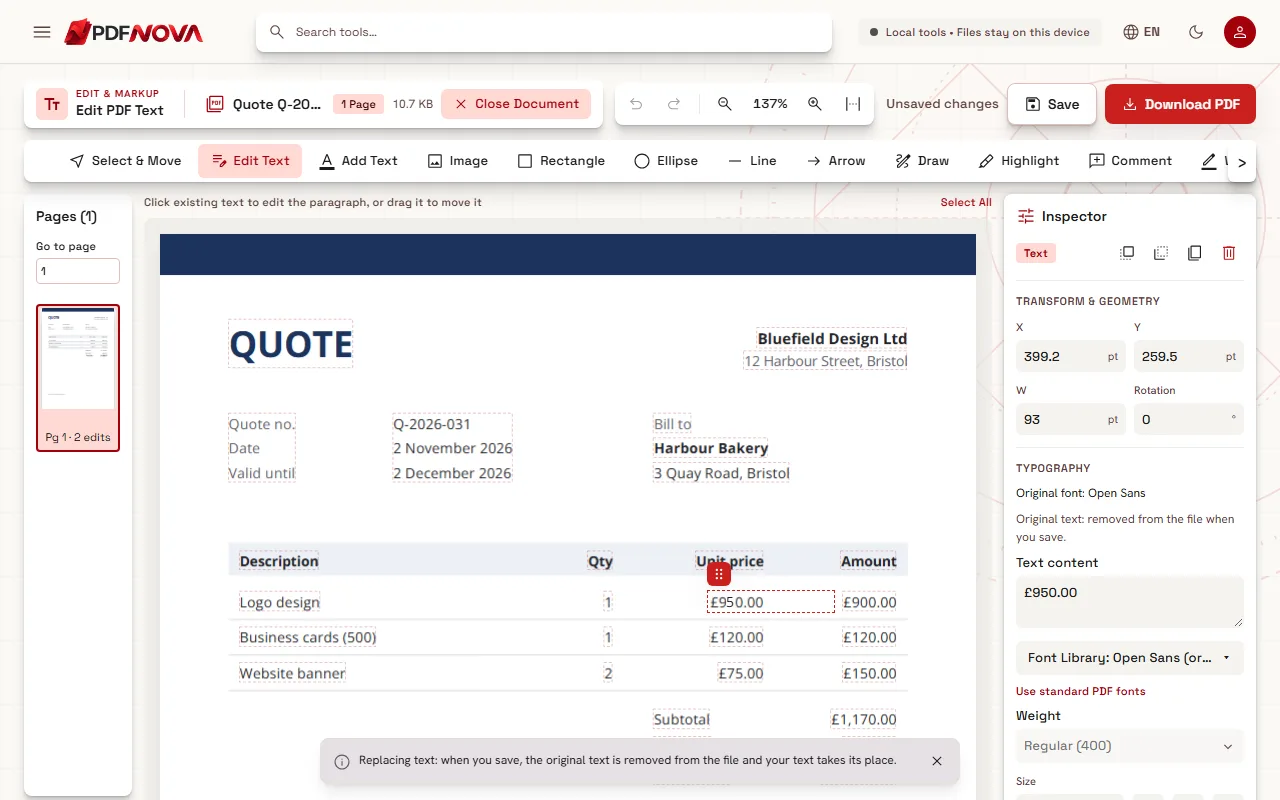
With Edit Text, PDF NOVA changes the drawing instruction itself. When you save, it rewrites the piece of text that holds your change in the page content, swapping the old letter codes for the new ones in the same font, size, spacing, colour and position, and leaves everything else untouched. Then it reads the page again and checks that every letter is exactly where it planned; if not, it restores the page and uses a safer way.
The result: the old text is no longer in the file. Search does not find it, copying gives the new text, and software reads what you see. The Inspector says so before you save: "Original text: removed from the file when you save."
When the editor has to cover instead
In a few situations, rewriting the text could damage the page: the text is part of a shared object drawn in several places, it also acts as a clipping shape for other content, or its font cannot be read reliably. PDF NOVA does not guess in those cases. It covers the old text with the page colour, writes the new text on top, and labels it clearly: "Covered, original kept underneath", with the reason. You know exactly which parts of your document are covered rather than removed.
Why it matters when you send the file
- Invoices and quotes. A covered old price is still in the file. A client who searches for it, or an accounting system that reads it, can find it.
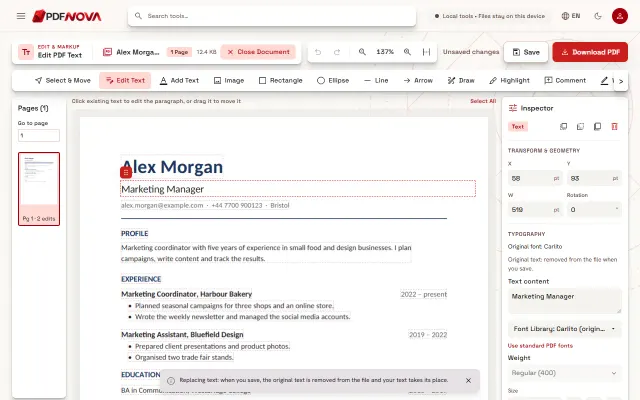
- CVs. Job sites extract the text of your CV. A covered job title can come out next to the new one (see how to edit a PDF CV).
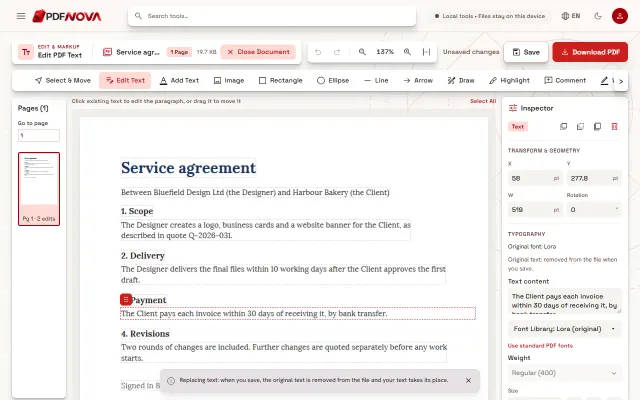
- Contracts. Copying a clause from the PDF into an email can bring back the covered wording.
- Accessibility. Screen readers read the covered text aloud, so people who rely on them hear something different from what you meant.
- Personal data. A whited-out ID number or account number is not removed. For anything confidential, editing is not enough either: use Redact PDF, which removes the content and checks the result. Our guide to redacting a PDF permanently explains why black and white boxes fail.
How to check any PDF yourself
You do not have to trust any tool, including ours. Three quick tests on the file you are about to send:
- Open it in your usual PDF reader and search (Ctrl+F) for the old word or number.
- Select all the text on the page (Ctrl+A), copy, and paste it into a plain text editor.
- Extract the text with PDF to Text, which runs in your browser, and look for the old value.
If the old text shows up in any of them, it is still in the file.
Which one to use
- Edit Text to correct or update text: a typo, a date, a price, a name, a job title. The old text leaves the file.
- Whiteout to hide something on the page when it does not matter that it stays in the file, for example to blank out a printed form field before writing on it, or to cover a mark that is not text.
- Redact when content must be gone for confidentiality: names, numbers, signatures, parts of images.
Step by step: change text instead of covering it
- Open Edit PDF Text and choose your PDF.
- Select Edit Text in the tool row (not Whiteout).
- Click the text, select the part that changes and type the new value.
- Check the Inspector: "Original text: removed from the file when you save" means the old text will be removed.
- Select Download PDF, then run one of the checks above on the new file.
The editor runs in your browser, the file is not uploaded, and it is free with no account and no watermark. For specific cases, see how to fix a typo in a PDF and how to change a date or an amount in an invoice.
FAQ
Is a black box safer than a white one?
No. A black rectangle is the same kind of shape as a white one; only the colour changes. The text under it stays in the file.
Does flattening or printing to PDF remove the hidden text?
Printing to a new PDF often keeps the text under the box, because the text is still part of the page. Only a tool that removes the text itself, or turns the page into an image, gets rid of it, and turning pages into images makes all the text unsearchable.
Can I see which parts of my file were covered rather than edited?
Yes. Before you save, every covered paragraph is labelled "Covered, original kept underneath" in the Inspector, and the export panel counts them.
Does Edit Text work on scanned PDFs?
Yes. On a scanned page the editor reads the lines on your device (OCR), you click a line and retype it, and the changed line is drawn to look like the scan. But the new words are drawn over the picture and the old ones stay in it, so for confidential details on a scan use Redact PDF.