Edit a PDF CV or Resume Without Retyping It
5 min read
Update a job title, phone number or dates on a PDF CV when the original file is gone. Keep its fonts and layout and make sure the old details really disappear.
Your CV only exists as a PDF. It was made with a template, a design tool you no longer use, or by someone who helped you years ago. Now you have a new job title, a new phone number, or "2022 – present" has to become "2022 – 2026". Rebuilding the whole layout in a word processor to change three lines is a lot of work, and it rarely looks the same afterwards.
You can update those lines in the PDF itself. Open it in Edit PDF Text, click the text, retype what changed and download. PDF NOVA keeps the fonts, sizes and colours of your CV and writes the new text where the old text was. It runs in your browser, so your personal details are not uploaded, and it is free with no account and no watermark.
Step by step: update a PDF CV
- Open Edit PDF Text and choose your CV.
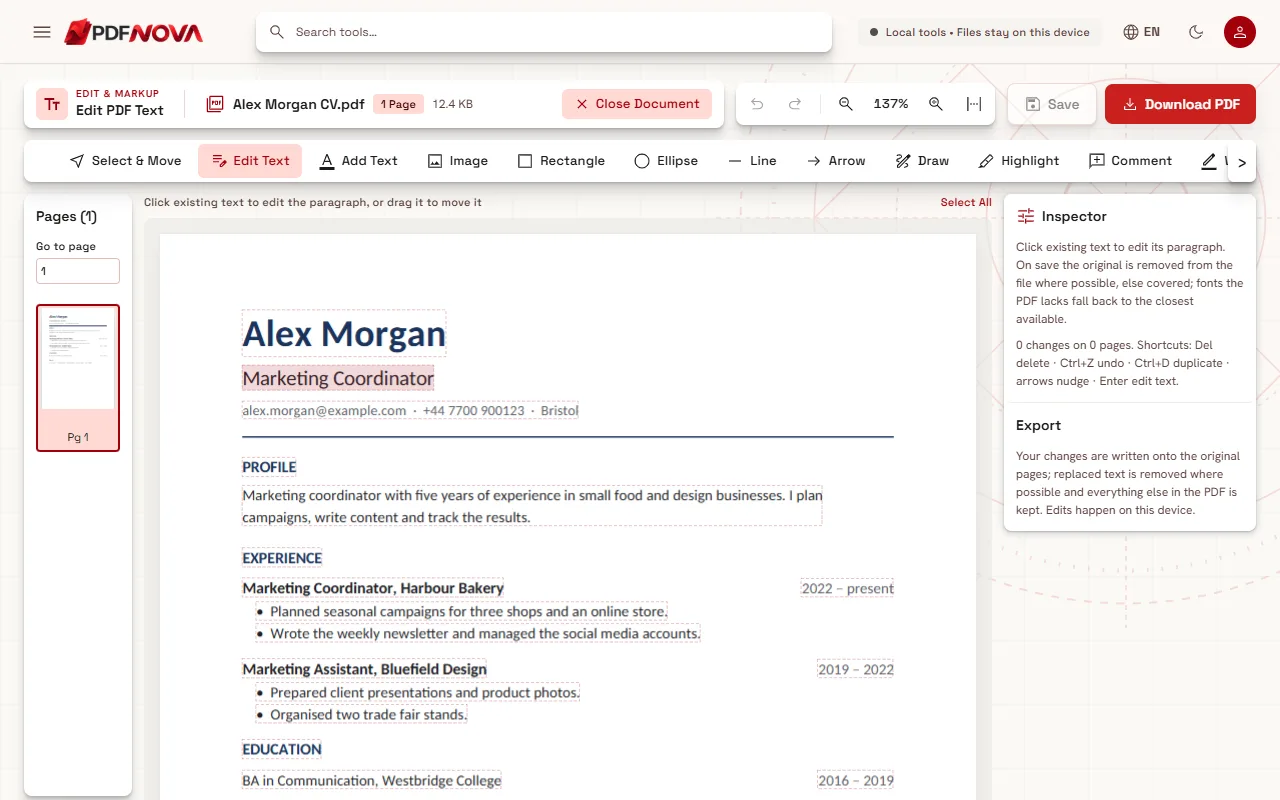
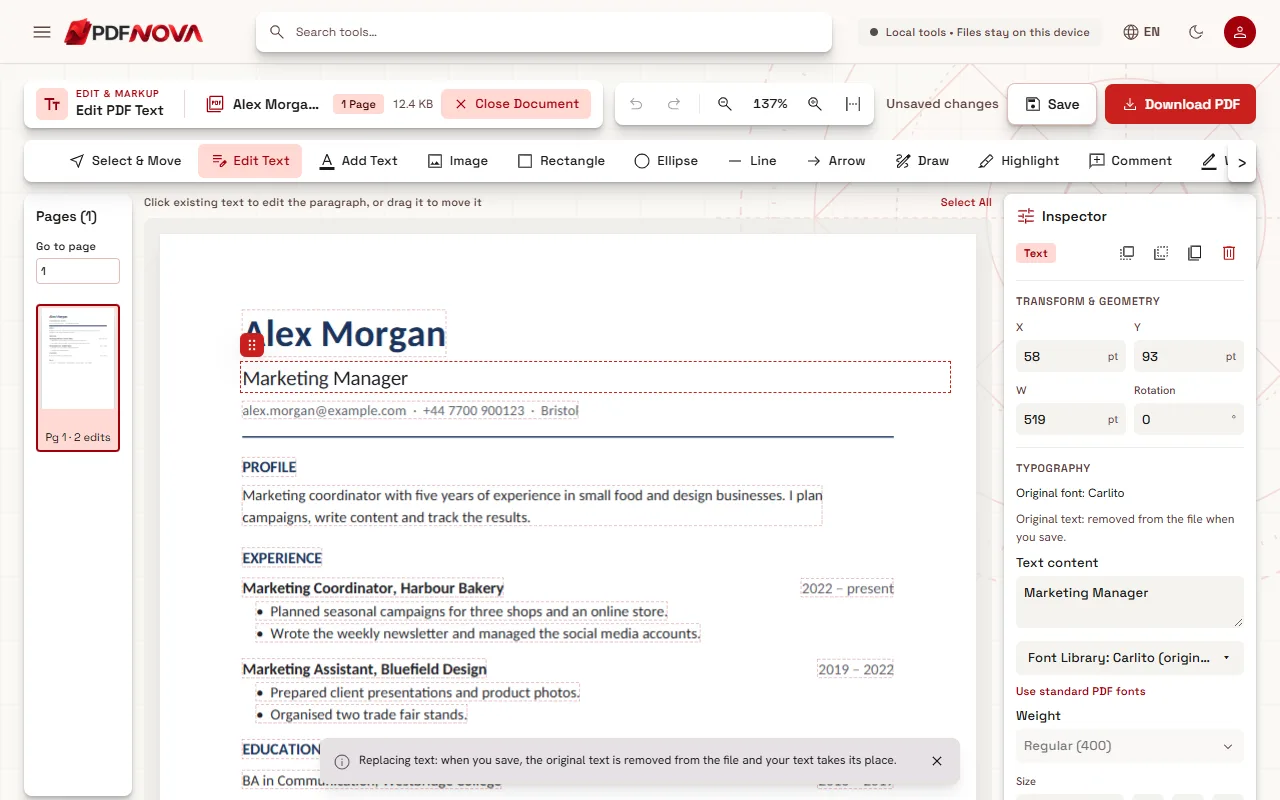
- Keep Edit Text selected in the tool row. The editor outlines each line and paragraph it can change.
- Click the line you want to update, for example your job title under your name. The Inspector on the right shows its original font.
- Select the words that change and type the new ones. Leave the rest of the line alone.
- Repeat for your phone number, email address or dates, then select Download PDF.
Rename the downloaded file before you send it. The editor adds "_edited" to the name, and a recruiter does not need to see that.
The updates people make most often
- Job title. Click the title, select it and type the new one. If the new title is shorter, the line simply ends earlier; if it is longer, check that it does not run into anything on the right.
- Phone number or email address. Digits usually have the same width, so a new phone number with the same number of digits fits exactly. Check one thing in the downloaded file: if your email address was a clickable link, the link itself is stored separately from the visible text. The editor changes the text you see, not a link target already stored in the file, so click it once to make sure it opens the right address.
- Dates. "2022 – present" to "2022 – 2026" is a normal text change. Dates in a right-aligned column grow towards the right when they get longer, so check the column edge afterwards.
- A short new line. Use Add Text to place a new text box, then choose the CV's font in the Font Library under "Document fonts". Each entry tells you which face will actually be used for new text.
Why editing beats a white box on a CV
Many people "update" a PDF by drawing a white rectangle over the old line and typing on top. On screen it looks fine. In the file, the old job title is still there under the box. That matters for CVs more than for most documents, because they are often read by software first: applicant tracking systems and job sites extract the text of the PDF, and a covered line is still extracted. Your CV could end up with two job titles, or your old phone number, in the recruiter's database.
Edit Text works differently: on save, the old text is removed from the page content and replaced by the new text. The Inspector tells you before you save ("Original text: removed from the file when you save"), and in the rare case where removal is not safe it says "Covered, original kept underneath" instead, with the reason. The full comparison is in editing PDF text versus covering it with a white box.
To check your result, open the downloaded CV, press Ctrl+F and search for the old title or phone number. It should not be found.
Keeping the CV's look
CV templates often use fonts that are not installed on your computer, and the PDF usually contains only the letters the CV uses. PDF NOVA reuses the font embedded in your CV for every letter it already has. If your new title needs a letter that appears nowhere else in the document, that letter is written in the closest matching font, and the Inspector names the characters and the font used. For a common font, this is the same family from the editor's library or a font made to match it, such as Carlito for Calibri. The details are in why the font changes when you edit a PDF.
When editing is not the right tool
- A big rewrite. Adding a new job with several bullet points means moving everything below it. That is a layout job: convert the CV with PDF to Word, update it there and export a new PDF, or go back to the template you used.
- A CV that is a scan or an image. The editor reads a scanned CV on your device (OCR), so you can click a line and retype it; check it, because OCR can misread, and the old words stay in the picture underneath. Some design tools also export decorative headings as shapes; those parts cannot be edited as text.
- Merging with a cover letter. Once both are ready, combine them in the right order.
If the CV is too large for an online application form, see how to reduce a PDF's size for email; the same steps work for upload limits.
Privacy
A CV holds your name, address, phone number and career history. Edit PDF Text processes it in your browser: the file is read from your device and saved back to it, and it is not uploaded to our server.
FAQ
Will the recruiter see that the CV was edited?
No mark or watermark is added, and the edited lines use the CV's own fonts. The file is saved again, so it is technically a new file. Its document properties, such as the title stored in the PDF, are kept as they were; if you want to clear them, remove the PDF's metadata.
Can I change my photo?
The Image tool adds a new picture, which you can place over the old one. The old photo stays in the file underneath, so for a different photo it is cleaner to start from the original template.
Does it work with two-column CVs?
Yes. Each column's lines are detected separately, so a sidebar with contact details and a main column with experience can both be edited.
Is it really free?
Yes. Editing text on PDF NOVA is free, needs no account and adds no watermark. For a quick spelling fix, see how to fix a typo in a PDF without the Word file.