How to Remove Hidden Metadata From a PDF Before Sharing
5 min read
See the author, software and dates hidden inside a PDF and remove them before you share it. Learn what metadata removal covers and what it leaves untouched.
Open a PDF and you see its pages. What you do not see is a layer of information about the file itself: who made it, with which program, and when. This is called metadata. It is usually harmless, but when you send a document outside your organisation, you may not want to show your name, your company's software or the date you started the file.
This guide explains what a PDF carries, how to view and remove it with Remove PDF Metadata, and, just as important, what this does not remove.
What hidden information a PDF carries
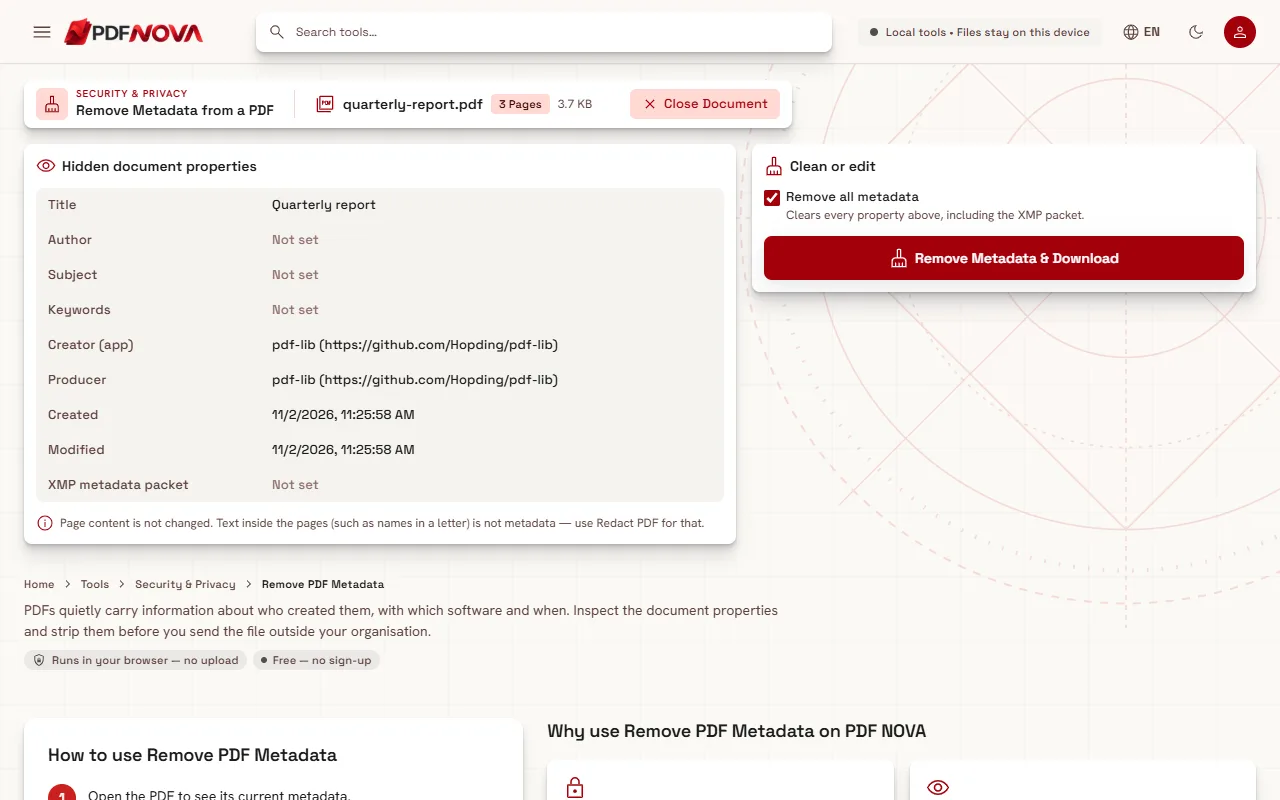
A PDF stores a set of document properties, sometimes called the document information. PDF NOVA lists these when you open a file, under the heading Hidden document properties:
- Title, the document's title, which may differ from its file name.
- Author, often the name of the person or the account that created it.
- Subject and Keywords, free-text fields some programs fill in.
- Creator (app), the application that created the original document, for example a word processor.
- Producer, the software that produced the PDF file.
- Created and Modified, the dates the file was made and last changed.
- XMP metadata packet, a separate block of descriptive data that some programs embed. The tool tells you whether one is Present.
Fields that are empty show as Not set. It is common to find that a file you thought was anonymous has an author name or a software name in it, because many programs fill these in automatically.
Why remove it
Reasons vary. You may be sending a CV, a draft or a report and prefer not to expose an internal username. You may be sharing a document created on a work computer from a personal address. Or you may simply want a clean file without the creation history. Metadata is not secret information in a dramatic sense, but it is information you did not necessarily choose to share.
Step by step: remove metadata
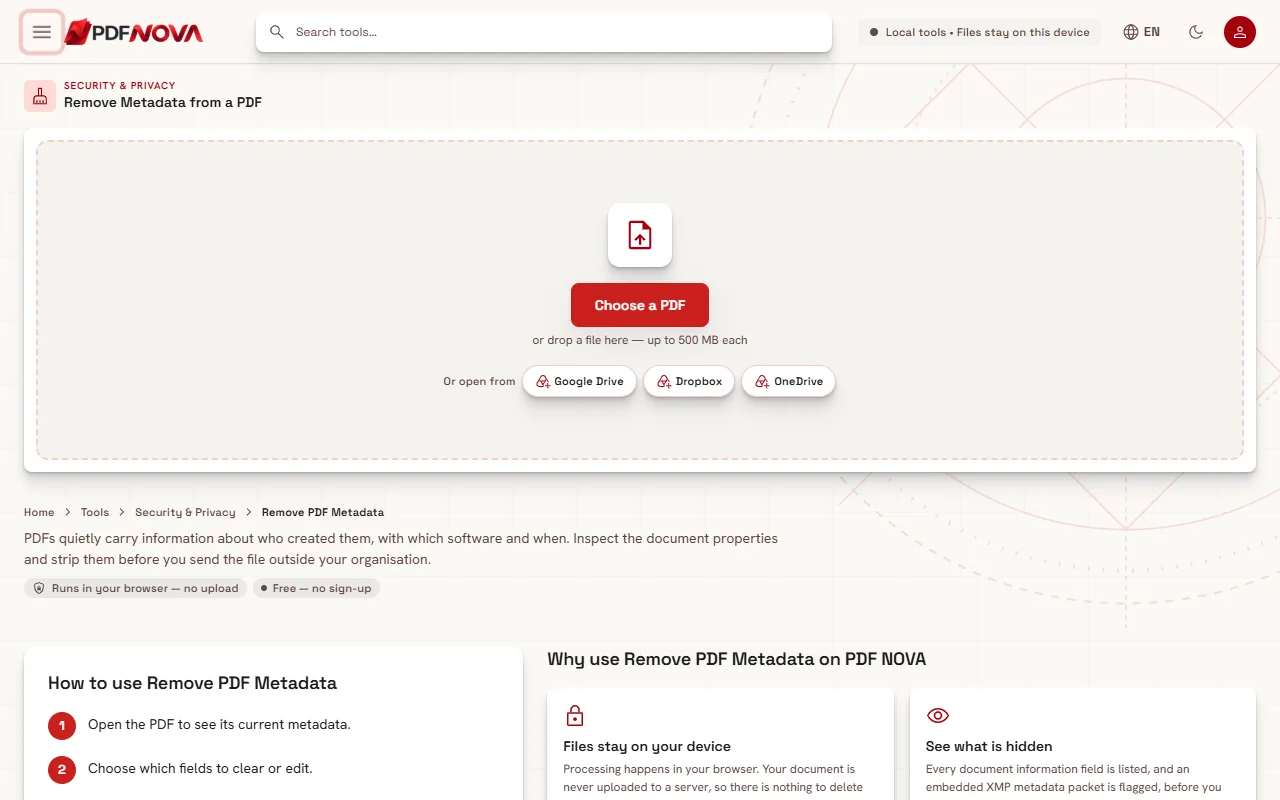
- Open Remove PDF Metadata and choose your PDF. If you want to see how your file is handled first, read are online PDF tools safe?.
- The tool reads the file ("Reading metadata...") and lists every property. Look through it to see what the file contains.
- In the Clean or edit panel, leave Remove all metadata switched on. It clears every property listed, including the XMP packet.
- Select Remove Metadata & Download. The cleaned file downloads, and the page confirms "Metadata removed". The file name is your original name followed by `_clean`.
Your original file is not changed. The tool creates a new file, so you keep the original if you need it.
Edit instead of removing everything
Sometimes you do not want a blank file; you want correct values. Switch off Remove all metadata and four fields appear: Title, Author, Subject and Keywords. Type a new value, or empty a field, since the placeholder says "Leave empty to remove". Then select Save Properties & Download. The result is named with `_edited` and the page confirms "Properties updated".
Note that in this mode only those four fields are changed. The other properties, such as Creator, Producer, the dates and the XMP packet, are not edited. If you want those gone too, use Remove all metadata.
Check the result
After cleaning, you can run the cleaned file through the tool again. The listing should show Not set for the fields and no XMP packet.
What metadata removal does not remove
This is the part people miss. Remove PDF Metadata changes the document properties and the XMP packet. The tool says plainly that page content is not changed. In particular:
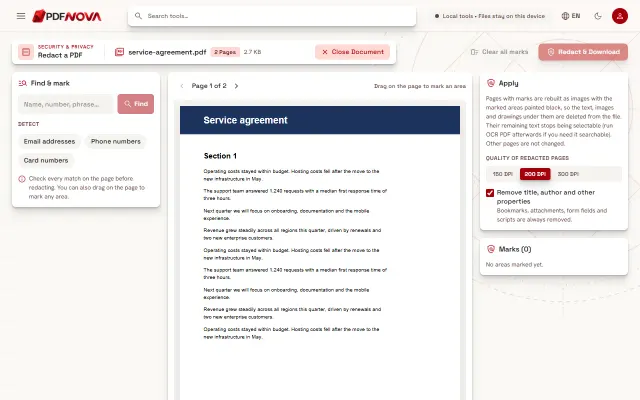
- Visible text stays. A name in a letter, an address in a header, an account number in a table, or a signature line is part of the page, not metadata. If you need to hide these, use Redact PDF, which is designed to permanently remove selected content.
- Images stay. Photos and logos on the pages are untouched.
- The file name stays. If the name of the file itself reveals something, rename it before sending.
- Anything else in the pages is untouched. The tool works on the properties listed above; it does not inspect or clean page content.
In short: use this tool for the hidden labels on the file, and use redaction for what is written on the pages. Be careful with the difference between whiteout and redaction too: covering text with a white box is not the same as removing it.
Common questions about the result
Will the PDF look different? No. The pages are the same; only the properties change.
Will the document still open everywhere? Yes. A PDF without these properties is still a normal PDF; the fields are optional.
Will the dates update? After removal the Created and Modified fields are empty. Other software may add its own values when you edit the file later.
A sensible workflow before sharing
- Finish editing the document, for example with editing PDF text online.
- Redact anything sensitive on the pages with Redact PDF, if needed.
- Reduce the size, if needed, using the advice in compressing a PDF without losing quality.
- Remove the metadata last, so later edits cannot add new properties.
- Reopen the cleaned file in the tool, or in your PDF viewer's properties dialog, to confirm.
Privacy: does my file leave my device?
No. Remove PDF Metadata runs in your browser. The file is read, cleaned and saved on your device, and nothing is uploaded.
FAQ
Is Remove PDF Metadata free?
It runs in your browser and does not need an account.
Can I remove metadata from only one field?
Yes. Switch off Remove all metadata, then empty the field you want to clear. This mode covers Title, Author, Subject and Keywords.
Does this make a document anonymous?
Not by itself. Names and details written on the pages remain, so review the content too.
Does it remove comments or form data?
The tool is limited to the document properties and the XMP packet. It does not edit page content or other parts of the file.