How to Password-Protect a PDF and Unlock One You Know
6 min read
Add an open password and printing or copying limits to a PDF, or remove a password you know. Learn what each password does and what unlocking cannot do.
Contracts, payslips, medical letters and scans of identity documents often travel by email or shared drives. A password on the file means that a wrong recipient, or someone who finds a forwarded message, still cannot read it. The opposite problem is just as common: a PDF you were given, or protected yourself years ago, asks for a password every time you open it.
This guide covers both directions with Protect PDF and Unlock PDF: how to add protection, what the two kinds of password mean, and what unlocking can and cannot do.
Two passwords, two jobs
A PDF can carry two different passwords, and mixing them up is the main source of confusion.
- Password to open (the open password) is needed to view the file at all. Without it, the pages cannot be read.
- Permissions password (the owner password) is needed to change or remove restrictions on printing, copying and editing. People who know only the open password can read the file but are expected to respect the restrictions.
The open password is what keeps a file private. Restrictions are a second layer: Adobe Acrobat and most PDF apps honour them, but some software ignores them, so the tool itself says they are not a substitute for the open password.
Step by step: protect a PDF
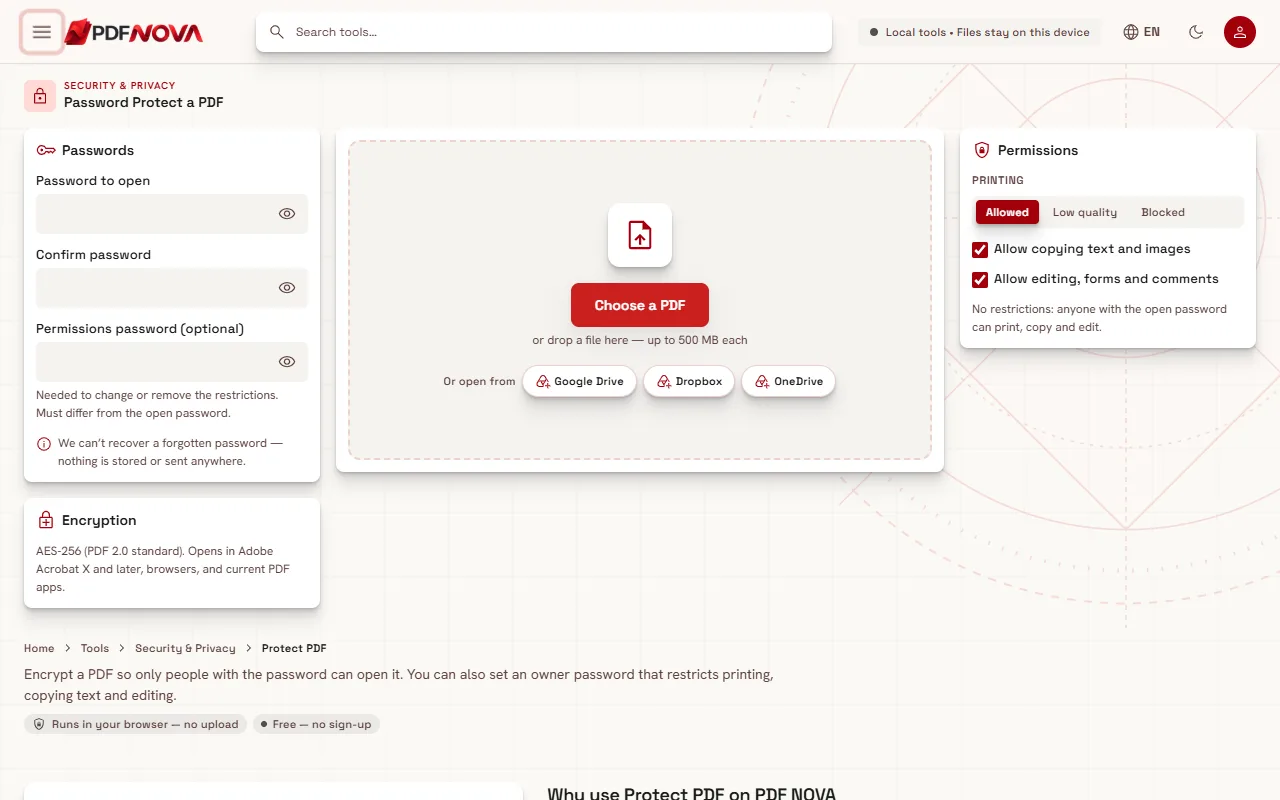
- Open Protect PDF and choose your PDF with Choose a PDF, or drop it onto the page.
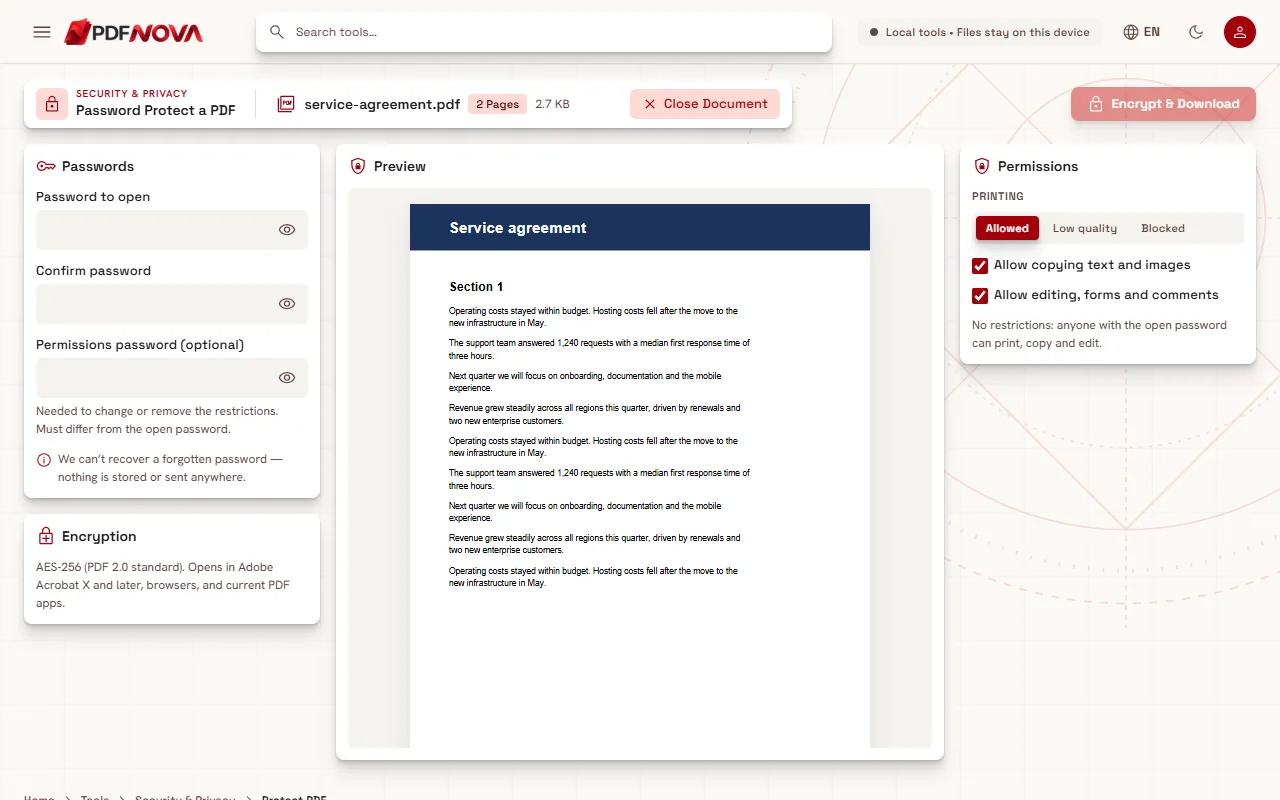
- In the Passwords panel, type a Password to open and repeat it in Confirm password. If they differ, the page shows "The passwords do not match." The eye button next to each field lets you check what you typed.
- Watch the Estimated strength line. It shows Weak, Fair, Strong or Very strong with an estimated number of bits. It is only a guide, but a longer phrase of several unrelated words usually scores better than a short word with a digit.
- In the Permissions panel, choose what readers may do. Printing can be Allowed, Low quality or Blocked. You can also untick Allow copying text and images and Allow editing, forms and comments.
- If you restrict anything, fill in the Permissions password. It must differ from the open password. If you restrict nothing it is optional, and the panel says "No restrictions: anyone with the open password can print, copy and edit."
- Select Encrypt & Download.
After the file is written, the tool checks its own result. The result card says "Your PDF is protected" and "Verified: the new file needs the password to open and has the permissions you chose." If that check cannot be completed, the file is not saved, so you never receive an encrypted copy that was not tested.
What kind of encryption is it?
The Encryption panel states it plainly: AES-256 (the PDF 2.0 standard). It opens in Adobe Acrobat X and later, in browsers and in current PDF apps. Very old software that predates AES-256 may fail to open the file, so if you must send it to someone with an unusual reader, ask them to test it first.
Encryption happens on your device, using the qpdf engine inside your browser. Both tools run locally, and the page says the file and password never leave your browser. Nothing is uploaded and nothing is stored, which has a consequence worth reading twice: a forgotten password cannot be recovered. The page says so itself. Keep the password in a password manager, and keep an unprotected original somewhere safe if you will need it again.
Choosing sensible permissions
- If your only goal is privacy, set an open password and leave the permissions as they are. This is the simplest case.
- If you send a form or a quotation that people should read and print but not copy from, untick copying and leave printing Allowed.
- Low quality printing suits drafts you do not want turned into a clean paper copy.
- Blocking editing stops most apps from changing text, filling forms or adding comments, which is useful for a final contract.
Whatever you choose, tell the recipient the file is protected and send the password by a different channel, such as a phone call or another messaging app. A password sent in the same email as the file protects very little.
Step by step: unlock a PDF you know the password for
- Open Unlock PDF and add the protected file.
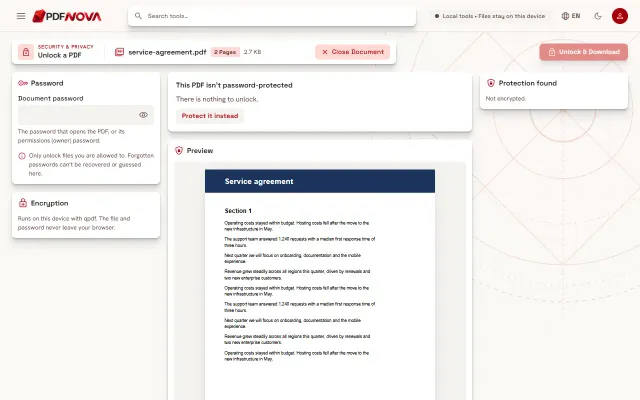
- Look at the Protection found panel. It reports whether a Password to open is Required or Not required, the Encryption type, and the state of the Restrictions for printing, copying and editing. Before you enter the password, some of these show as "Hidden until unlocked" or "Hidden", because they cannot be read without it.
- Type the password into Document password. This can be the password that opens the file, or its permissions (owner) password.
- Select Unlock & Download.
The result says "Your PDF is unlocked", and the check confirms that the new file opens without a password and has no restrictions. The original file on your device is not changed; you get a new copy.
If the file has no password at all, the page says "This PDF isn't password-protected" and offers a link to protect it instead.
What unlocking cannot do
Unlock PDF is for files you are allowed to open. It does not guess, crack or bypass anything. The tool says so directly: "Forgotten passwords can't be recovered or guessed here." You need the password to remove encryption. If you do not know it, the tool cannot help, and neither can anyone at PDF NOVA, because nothing is kept.
There is a second limit that surprises people. A PDF may open freely but still restrict printing, copying or editing. In that case, opening is not the problem: the page asks for the permissions (owner) password, with the message "This PDF opens freely but restricts some actions". Likewise, if the password you typed opens the file but the author also restricted it, you will be asked for the owner password. Only the person who set the restrictions normally has it.
Only unlock documents you are authorised to access.
Common problems
"That password is not correct."
Check for a different keyboard layout, Caps Lock, or a trailing space copied from an email. Use the eye button to see the text. If you have two passwords for the same file, try the other one.
"This PDF is already password-protected. Unlock it first, then protect it again."
Protect PDF does not add a second layer to an already encrypted file. Unlock it with the current password, then protect the new copy with the one you want.
"To restrict printing, copying or editing, set a permissions password that differs from the open password."
You chose a restriction but left the permissions password empty, or typed the same one twice. Enter a different password.
The file could not be read
Some damaged files cannot be encrypted or decrypted. The messages suggest Repair PDF first, which tries to rebuild the file structure.
Protecting is not the same as hiding content
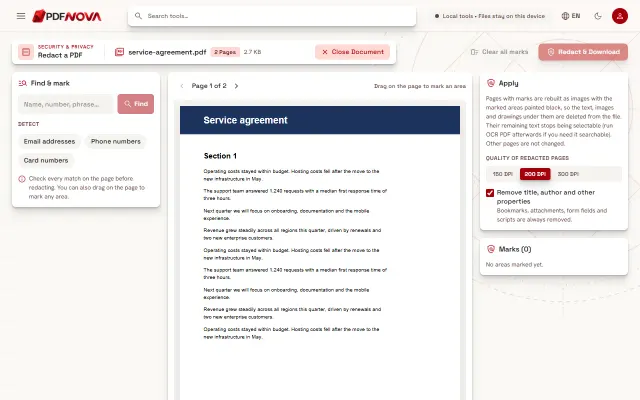
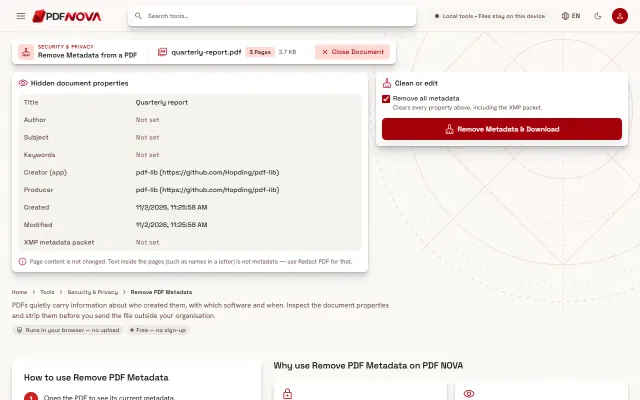
Passwords control who can open a file. They do not remove anything inside it. If a document must be shared with people who should not see a particular name or number, redact it properly first, and protect the result afterwards. If you want to strip the author name, creation software and dates before sending, that is a separate step with Remove PDF Metadata.
For other steps in a sensible sending routine, see how to sign a PDF without printing it and whether online PDF tools are safe.
FAQ
Is Protect PDF free?
Yes. It runs without an account and adds nothing to your pages.
Does my file leave my device?
No. Both tools process the file in your browser. The file and the password are not uploaded.
Can you recover my password if I forget it?
No. The password is not stored anywhere. Without it, the file cannot be opened.
Will everyone be able to open the protected file?
Any current reader that supports AES-256 PDFs should, including browsers and Adobe Acrobat X and later. Very old software may not.
Do the permission limits stop everyone?
No. Most apps honour them, but some ignore them. Treat them as a courtesy layer on top of the open password.