How to Redact a PDF Permanently (Not Just Black Boxes)
6 min read
Remove names, numbers and other sensitive details from a PDF for real. See why black boxes and whiteout fail and how Redact PDF checks its result.
Every few months a story appears about a document published with black bars over the sensitive parts, and someone copying the text from underneath the bars. It keeps happening because hiding something on a page and removing it from the file are two very different things.
This guide explains the difference, then shows how to use Redact PDF to remove sensitive text, images and drawings so they are gone from the file, and what the tool does to check its own work.
Hiding is not removing
A PDF page is a list of drawing instructions: put this text here, draw this image there. If you add a black rectangle, you add one more instruction on top. The text instruction is still in the file, and anyone can select it, copy it, search for it or run text extraction on it. The same applies to a white rectangle.
PDF NOVA keeps the two ideas apart on purpose:
- Whiteout in the editor paints over content. The editor's own wording is "Cover content with white (visual only)", and its note adds that the text underneath can still be selected or extracted. It is fine for tidying a page you control, but it is not for secrets.
- Redact is a separate tool that removes what is under your marks from the file.
When you use whiteout in Edit PDF, the editor's note tells you to use Redact PDF to remove content permanently. Replacing existing text in the editor also tries to remove the original on save, but it falls back to a cover when it cannot, and the editor then labels the text "Covered, original kept underneath". For anything confidential, use Redact PDF, not either of those.
What Redact PDF does
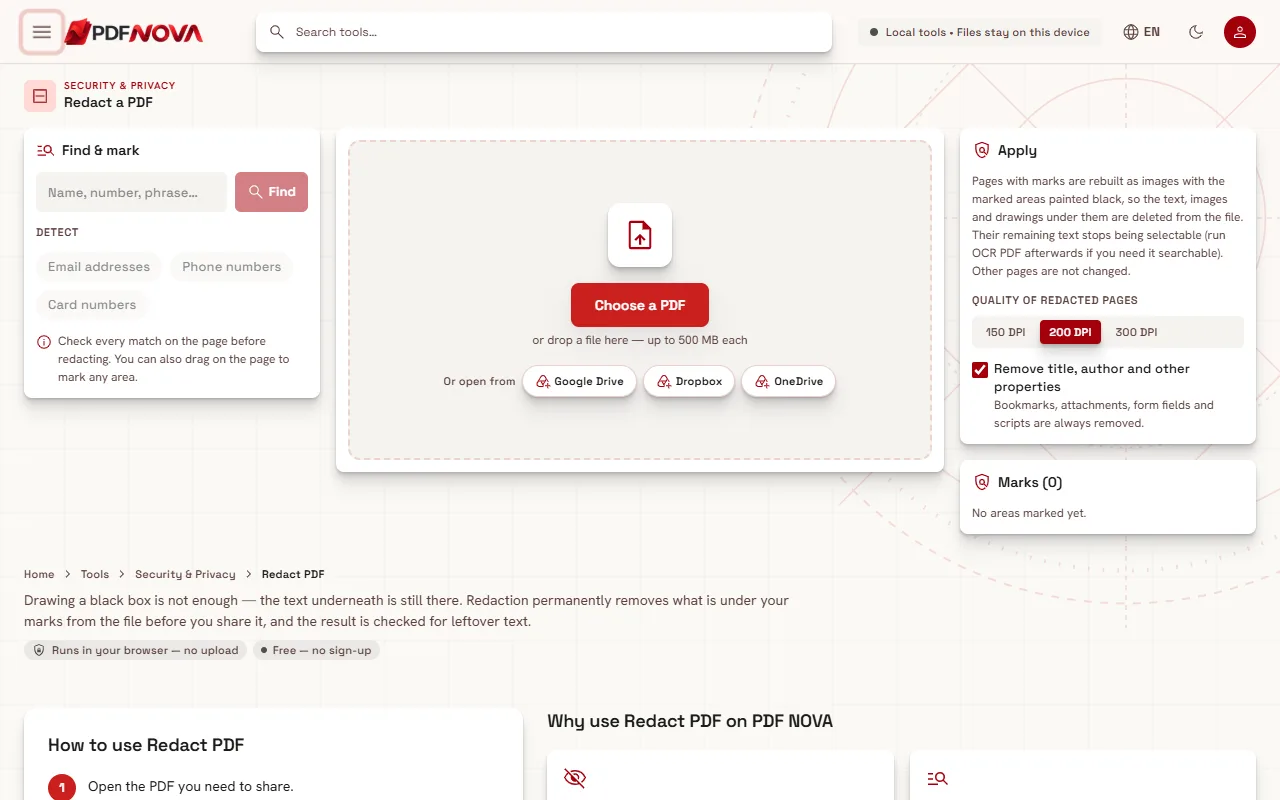
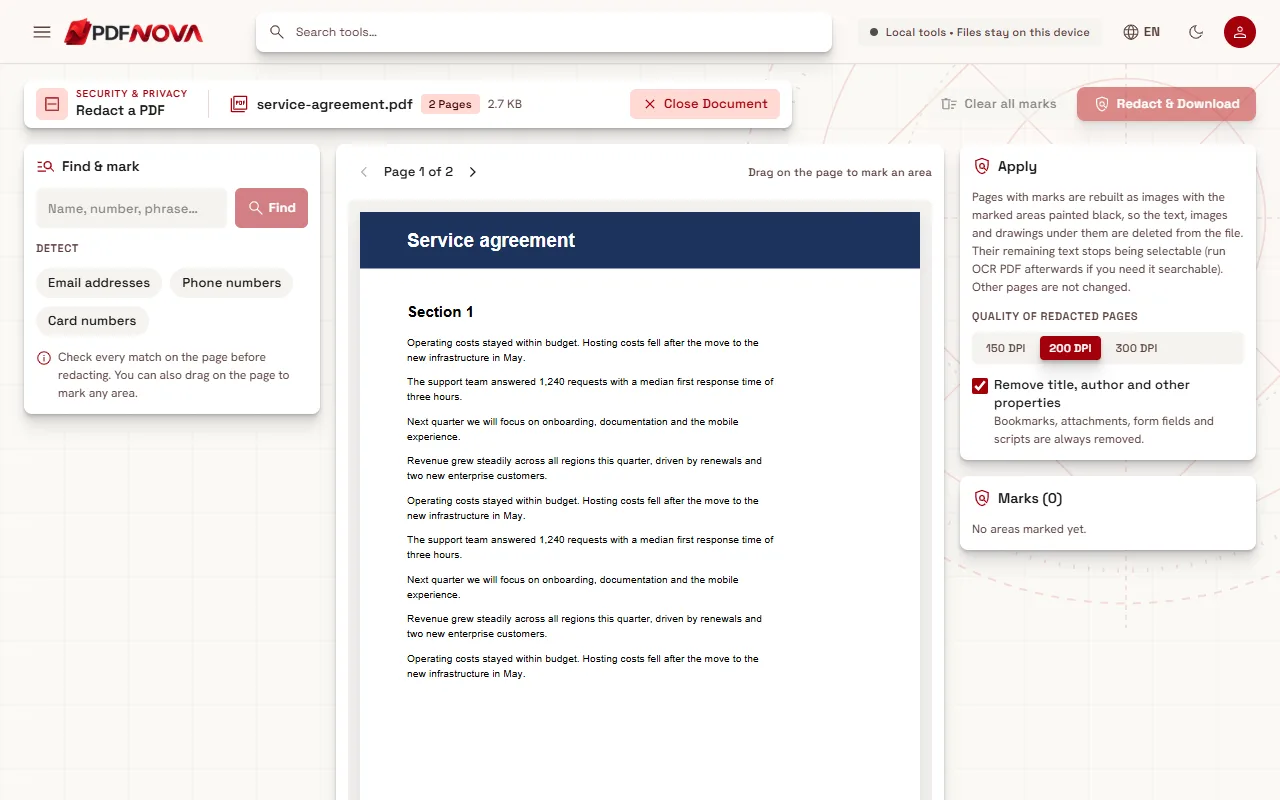
According to the workspace, pages with marks are rebuilt as images, with the marked areas painted black. The text, images and drawings under those areas are deleted from the file rather than hidden. Pages without marks are not changed.
That design has a few consequences you should know before you start:
- On redacted pages, the text that you did not mark also becomes part of a picture. It is no longer selectable or searchable. The page tells you to run OCR PDF afterwards if you need it searchable again; see making a scanned PDF searchable.
- Bookmarks, attachments, form fields and scripts are always removed from the output.
- Processing is local: Redact PDF runs in your browser, so the document is not uploaded.
Step by step: redact a PDF
- Open Redact PDF and choose your PDF with Choose a PDF.
- Mark what must go, by hand or by search, or both. To draw a box, drag on the page (the hint reads "Drag on the page to mark an area"); this is the way to handle scanned pages, which have no searchable text. To search, use the Find & mark panel: type a name, number or phrase into Text to find and select Find, or use the Detect buttons for Email addresses, Phone numbers and Card numbers.
- Review the matches. The panel lists each with its page number. Use Select all or Select none, untick any you want to keep, and then select Mark selected (the button shows how many, such as "Mark 4 matches").
- Check the Marks list on the right. Each row shows a page and what was matched, and Remove deletes a single mark. Clear all marks starts again.
- In the Apply panel, set the Quality of redacted pages. Resolution can be 150, 200 or 300 DPI. Higher resolution keeps the rebuilt pages sharper but makes the file larger.
- Decide on Remove title, author and other properties. It is ticked by default.
- Select Redact & Download. Once pages are marked, the button counts them, for example "Redact 2 pages & Download".
Searching: helpful, but check every match
Search finds text in the PDF's text layer. The tool is clear about its limits:
- "Nothing found in the PDF's text. Scanned pages have no text: draw boxes on them instead." A scan is a picture, so a search cannot see words in it. Draw boxes by hand.
- The pattern buttons find email addresses, phone numbers and card numbers by their shape. A pattern can miss an unusual format, and it can match something that is not what you meant. The page says: "Check every match on the page before redacting."
- A name can appear in more than one form: "J. Smith", "Smith, John", a signature block, a header, a footnote. Search for each variant and scroll through the pages yourself.
After the file is created, the result can tell you when a phrase you searched for is still on pages you did not redact, for example "'Account 4412' still appears on pages 3, 5 (not marked)." That is a useful second look, but it only covers phrases you actually searched for.
How the result is checked
Redaction that cannot be trusted is worse than none, so the tool verifies its output. While it works you will see steps such as "Flattening page 2 (1 of 3)…", "Rebuilding the document…" and "Checking that nothing is left…". The result card then says "Redacted and verified" and reports that no text remains on the redacted pages.
If a check fails, the file is not saved. The two messages are "The redacted file could not be verified, so it was not saved." and "Text was still found on a redacted page, so the file was not saved." You get nothing rather than a file that looks safe but is not.
What the check cannot do is decide for you what is sensitive. It confirms that the text on the redacted pages is gone; it does not know whether you marked everything.
Metadata and other leaks
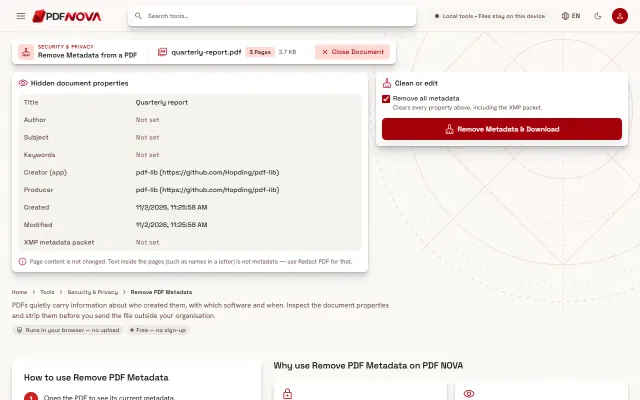
Visible content is only one place for information to hide. A PDF also carries properties such as title and author. The option Remove title, author and other properties clears them, and you can untick it if you want to keep them. For finer control over those fields, see Remove PDF Metadata.
Think about the other copies too. Your original file still contains everything, so keep it private and share only the redacted download. Check the file name as well: a document called "Smith-divorce-final.pdf" tells a story before it is opened.
A sensible routine before sharing
- Work from your original and keep it unchanged; the download is a new file.
- Mark by hand and by search, then read the marks list.
- Redact and download.
- Open the downloaded file in your PDF reader. Try to select the area under a mark, search for a redacted word, and read through every page once.
- If the recipient needs searchable text, run OCR on the redacted file.
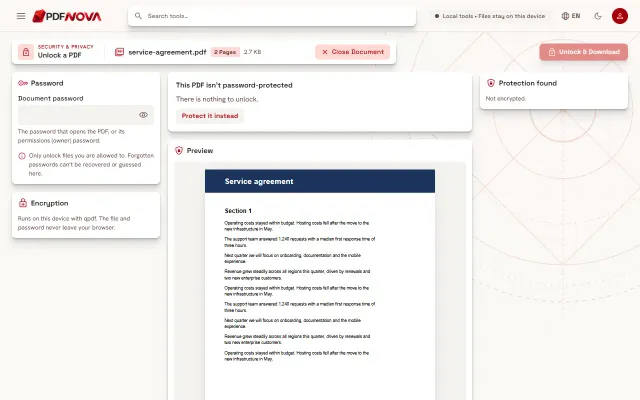
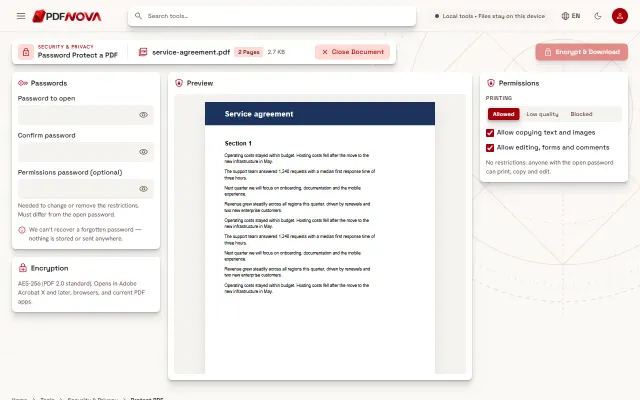
- If the file should also be private in transit, add a password with Protect PDF; the steps are in the password guide.
If the redacted file is larger than you want, a lower resolution helps, and compressing it afterwards is the next step.
Common problems
The redacted pages look softer than the rest
They are rebuilt as images. Choose 300 DPI in Quality of redacted pages for sharper text, accepting a bigger file.
I cannot select or search text on a redacted page
That is expected, since the page is now a picture. Run OCR PDF if you need the visible text to be searchable.
Redact & Download does nothing
The message "Mark at least one area to redact." means there are no marks yet. Draw a box or use Find & mark.
A search finds nothing, but I can see the word
The page may be a scan, or the word may be part of an image. Draw a box over it by hand.
FAQ
Is a black rectangle the same as redaction?
No. A drawn rectangle hides content visually but the text remains in the file. Redaction removes it.
Does Redact PDF upload my document?
No. It runs in your browser.
Can redaction be undone?
Not in the file you download. That is the point, so always keep your original.
What else is removed?
Bookmarks, attachments, form fields and scripts are not carried over. You can choose whether the title, author and other properties are removed too.