How to Compress a PDF Without Losing Quality
5 min read
Shrink a PDF for email or upload while keeping text sharp. Learn what the compression levels do, how to compare the result, and why some files barely shrink.
A PDF that is too big for an email attachment or a form's upload limit is one of the most common document annoyances. The usual reaction is to compress it and hope for the best, then discover the pages look blurry or the file barely changed.
Knowing what actually makes a PDF heavy lets you shrink it sensibly. This guide explains what Compress PDF does, how to pick a level, how to check the result before you send it, and when compression simply cannot help.
Why PDFs get large
A PDF is a container. Inside are page descriptions, fonts, images and some structural data. In practice, images are nearly always the biggest part: photos, scanned pages and screenshots can take up most of the file, while plain text pages are tiny. Fonts come second, especially when several complete fonts are embedded.
That is why compression mostly means working on images. Lowering the resolution and the JPEG quality of embedded pictures can shrink a scan dramatically. Text and vector graphics such as logos and charts are left alone, so they stay sharp and selectable.
Step by step: compress a PDF
- Open Compress PDF and choose your PDF, or drop it onto the page.
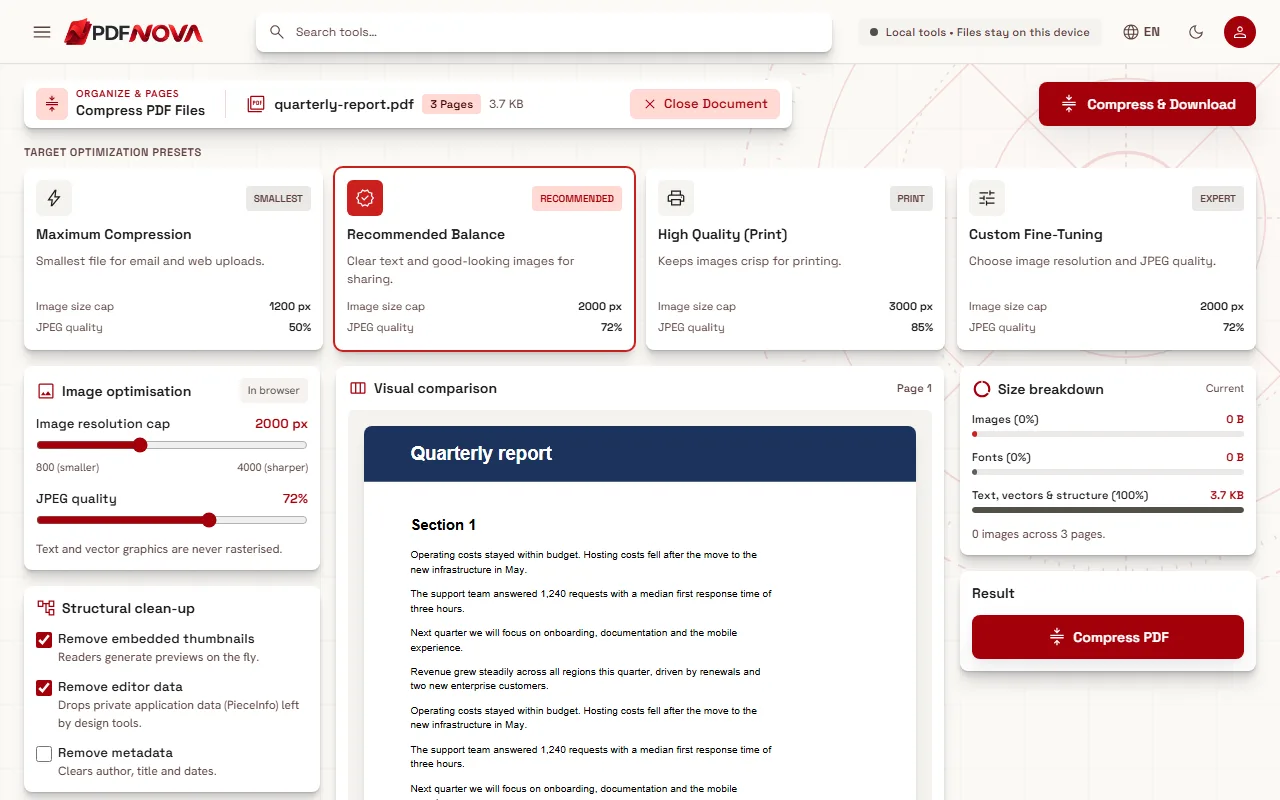
- Look at the Size breakdown panel. It shows how much of the file is Images, Fonts, and Text, vectors and structure. This tells you how much room there is to gain.
- Pick a compression level (see the next section).
- Use the Visual comparison slider to look at page 1 of the Original against the Compressed version.
- Select Compress & Download. The result panel shows the original size, the new size and how much smaller the file is.
Choosing a compression level
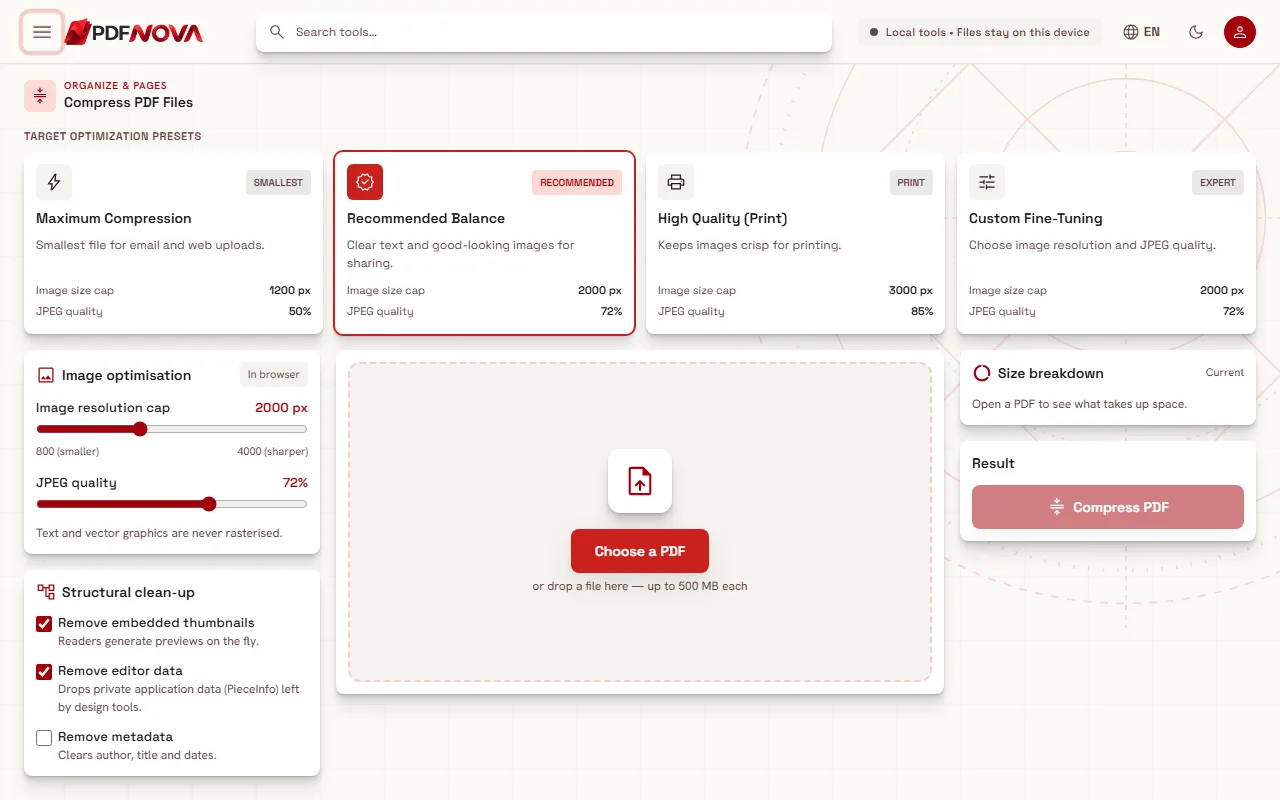
There are four presets under "Target optimization presets":
- Maximum Compression is the smallest file, meant for email and web uploads. Images are capped at 1200 px with JPEG quality about 50%.
- Recommended Balance keeps text clear and images good-looking for sharing. Images are capped at 2000 px with quality about 72%.
- High Quality (Print) keeps images crisp for printing. Images are capped at 3000 px with quality about 85%.
- Custom Fine-Tuning lets you set the image resolution cap (from 800 to 4000) and the JPEG quality yourself.
The cap is the largest size, in pixels, that an image may keep; bigger images are scaled down to it. For a page viewed on screen, a cap of 1200 to 2000 px is usually enough. For a document that will be printed on paper, stay with High Quality.
A good habit is to start with Recommended Balance. If the file is still too big, try Maximum Compression; if the result looks too soft, go back up a level. Because the comparison slider shows you the result before you download, you can try several settings without committing.
Structural clean-up options
Under "Structural clean-up" you can also choose to remove embedded thumbnails (readers can generate previews on their own), editor data left by design tools, and metadata. Removing metadata clears the author, title and dates, which can be useful before sharing a document but is not needed for compression to work. Read each option and keep only what you want; these savings are usually small compared with image changes.
What "without losing quality" really means
Image compression is lossy. Rebuilding a photo at lower resolution and JPEG quality always discards some detail, and it cannot be recovered afterwards. You can often make the loss invisible for the way the file will be used, but it is not literally lossless. In practice:
- Text and vector shapes keep their sharpness because they are not turned into pictures.
- Photos and scans lose some fine detail. At a screen reading size this is often hard to notice; zoomed in or printed large, it is not.
- If you need the original quality again, keep your original file. Compression produces a new file, and your original stays untouched.
When the file does not get smaller
Sometimes the tool tells you "This PDF is already well optimised." This happens when it could not make the file smaller with the chosen settings, so it does not create a new file. Rather than hand you something bigger, it asks you to try Maximum Compression or a lower resolution cap. Typical reasons:
- The PDF is mostly text. There is little to gain, and these files are usually small anyway.
- The images are already compressed at low resolution.
- A scan is stored in a way that is already efficient.
Other ways to reduce size are to remove pages you do not need with Delete PDF Pages, or to split a big document and send the parts, as covered in splitting a PDF and extracting pages. If you are assembling a document from several files, see merging PDF files in order and compress the final result once.
Typical results
Scanned and photo-heavy PDFs often shrink by 50 to 90 percent. Text-only PDFs are usually already compact and shrink less. These are typical ranges, not promises: the exact saving depends on your file, and the tool reports the true sizes after compression.
Privacy: does my file leave my device?
No. Compress PDF runs in your browser, using JavaScript and Web Workers. The file is read from your device, processed in memory and saved back to your device. Nothing is uploaded, so there is nothing to delete afterwards.
FAQ
Is Compress PDF free?
Yes. It is free to use without an account and does not add a watermark.
Will compression make text blurry?
No. Text and vector graphics are not resampled or turned into images. Only embedded images are recompressed.
Which level should I choose for email?
Try Recommended Balance first. If the file is still over the limit, use Maximum Compression and check the comparison slider.
Can I get the original quality back?
No. Keep the original file. Compression writes a new, smaller file and does not change your original.