How to Merge PDF Files in the Right Order
5 min read
Combine several PDFs into one document, set the page order, leave out unwanted pages and add page numbers, all in your browser with no upload.
An application form needs one PDF, but you have a scanned ID, a bank statement and a cover letter. A report arrives in five chapters from five people. A contract has an annex that sits in a separate file. In all these cases you need one document, with the pages in a sensible order.
This guide walks through combining files with Merge PDF: adding files, fixing the order, choosing pages, and the options that make the final document look consistent. It runs in your browser, is free to use and adds no watermark.
Step by step: merge PDFs
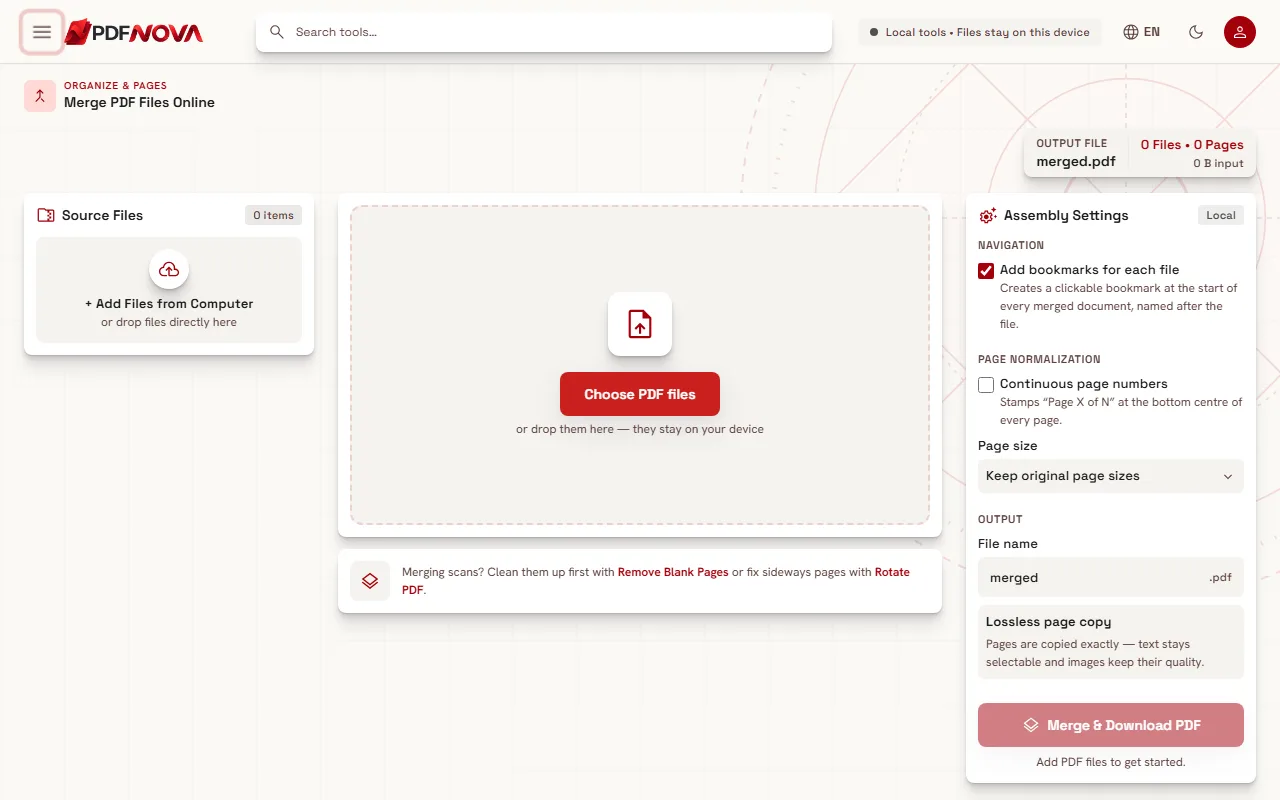
- Open Merge PDF and select Choose PDF files, or drop two or more PDFs onto the page.
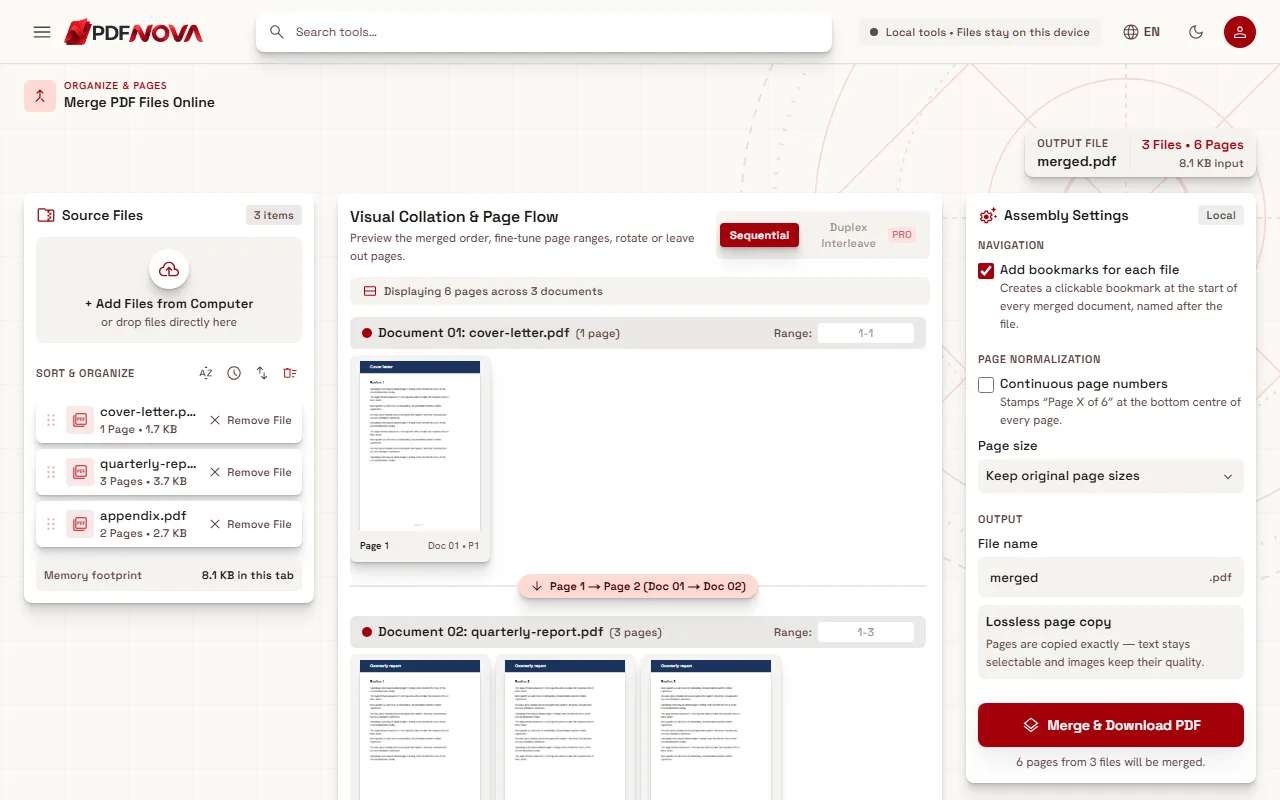
- The files appear under Source Files. Drag them into the order you want.
- In the centre, the page preview shows how the merged document will flow. Check it.
- Optionally limit a file to certain pages (for example 1-3, 5), rotate a page or leave one out.
- Review the settings under Assembly Settings (see below), and set a file name. The default is "merged".
- Select Merge & Download PDF.
Getting the order right
The most common merging mistake is not a technical error but a wrong order. Three things help:
- Drag and drop the files in the Source Files list into place. This is the most precise way.
- Sort alphabetically or Sort by date modified orders the list in one click. Name your files with numbers (01, 02, 03) before you start and alphabetical sorting does the work for you.
- Reverse order flips the whole list, which is useful when files were added newest first.
After sorting, look at the preview in the centre called Visual Collation & Page Flow. Pages are shown with their source, such as "Doc 02 • P3", and a divider marks where one document ends and the next begins. Spending twenty seconds here avoids a re-merge later.
Choose which pages to include
You do not have to merge everything. Each document has a Range field where you can type pages such as 1-4, 7, 10-12; only those pages are added. This is the quickest way to leave out cover sheets, blank backs or an appendix without a separate step. Each page also has buttons to rotate it or to leave it out. If you change your mind, Reset on a document restores its range and rotation.
If you need to take pages out of a single file instead of combining, the guide on splitting a PDF and extracting pages covers that.
The assembly settings explained
On the right, Assembly Settings controls how the final file is built.
- Add bookmarks for each file creates a clickable bookmark at the start of every merged document, named after the file. It makes a long merged PDF much easier to navigate.
- Continuous page numbers stamps "Page X of N" at the bottom centre of every page. It is useful for printed bundles. Note that the numbers are added on top of the pages, so if your documents already have page numbers you will see both.
- Page size can keep the original page sizes, or standardise everything to A4 (210 × 297 mm) or US Letter (8.5 × 11 in). Use this when you mix a phone photo scan with a normal document.
- Lossless page copy is how merging works: pages are copied exactly, so text stays selectable and images keep their quality. Nothing is re-rendered or re-compressed.
There is also a Merge mode that includes Sequential (one document after the other) and Duplex Interleave. The latter is marked PRO. Sequential is what most people need.
Tips for cleaner results
- Clean scans first. If you are merging scans, remove empty pages with Remove Blank Pages and fix sideways ones with Rotate PDF before merging.
- Check the file size afterwards. Merging keeps every page as it is, so the merged file is roughly the sum of its parts. If it is too large to send, use Compress PDF and read how to compress a PDF without losing quality.
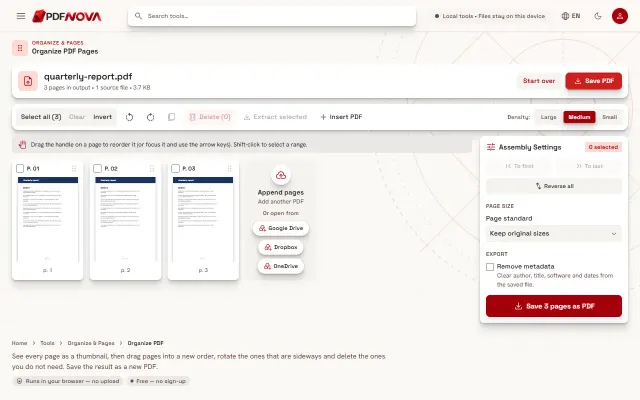
- Fine-tune later. If you want to reorder, delete or rotate individual pages of the finished document, Organize PDF is designed for that.
- Need to change a word? After merging you can edit text with Edit PDF Text; see how to edit text in a PDF online.
Common problems
- A file is skipped. Encrypted or unreadable files cannot be merged, and the page tells you that "files can't be merged and will be skipped". For a password-protected file you are allowed to open, use Unlock PDF first, then add it again.
- Pages have different sizes. Choose A4 or US Letter under Page size, so the merged document looks consistent.
- The browser becomes slow with very large files. Because merging happens on your device, the practical limit is the memory of your device. Dozens of typical documents merge quickly, but very large scans may need compressing first, or merging in two stages.
- Merging does not make the file smaller. It keeps every page as it is. Use compression separately.
Privacy: does my file leave my device?
No. Merge PDF works in your browser. Your files are read from your device, combined in memory and saved back to your device. Nothing is uploaded to a server, which also means there is nothing to delete afterwards. This matters for documents such as contracts, identity papers and statements.
FAQ
How many PDFs can I merge at once?
There is no fixed limit. Since merging happens in your browser, the practical limit is your device memory.
Can I merge only some pages of each PDF?
Yes. Enter a page range for any file, for example 1-4, 7, 10-12, and only those pages are added.
Will merging reduce the quality of my PDFs?
No. Pages are copied without re-rendering, so text, images and fonts are preserved as they were.
Is Merge PDF free?
Yes. It is free to use without an account and does not add a watermark.