How to Delete Pages from a PDF (Free, in Your Browser)
4 min read
Remove unwanted pages from a PDF by clicking thumbnails or typing a range like 2, 5-7. Save a clean copy without uploading your file anywhere.
A scan came out with a blank back, a report still has its draft cover, a contract includes an internal page you must not send. In each case you want the same document minus a few pages, and you do not want to rebuild it from scratch.
Delete PDF Pages does exactly that. You mark the pages you do not want, either by clicking thumbnails or by typing page numbers, and save a new PDF with the rest. It runs in your browser, is free and does not change your original file.
Step by step: delete pages
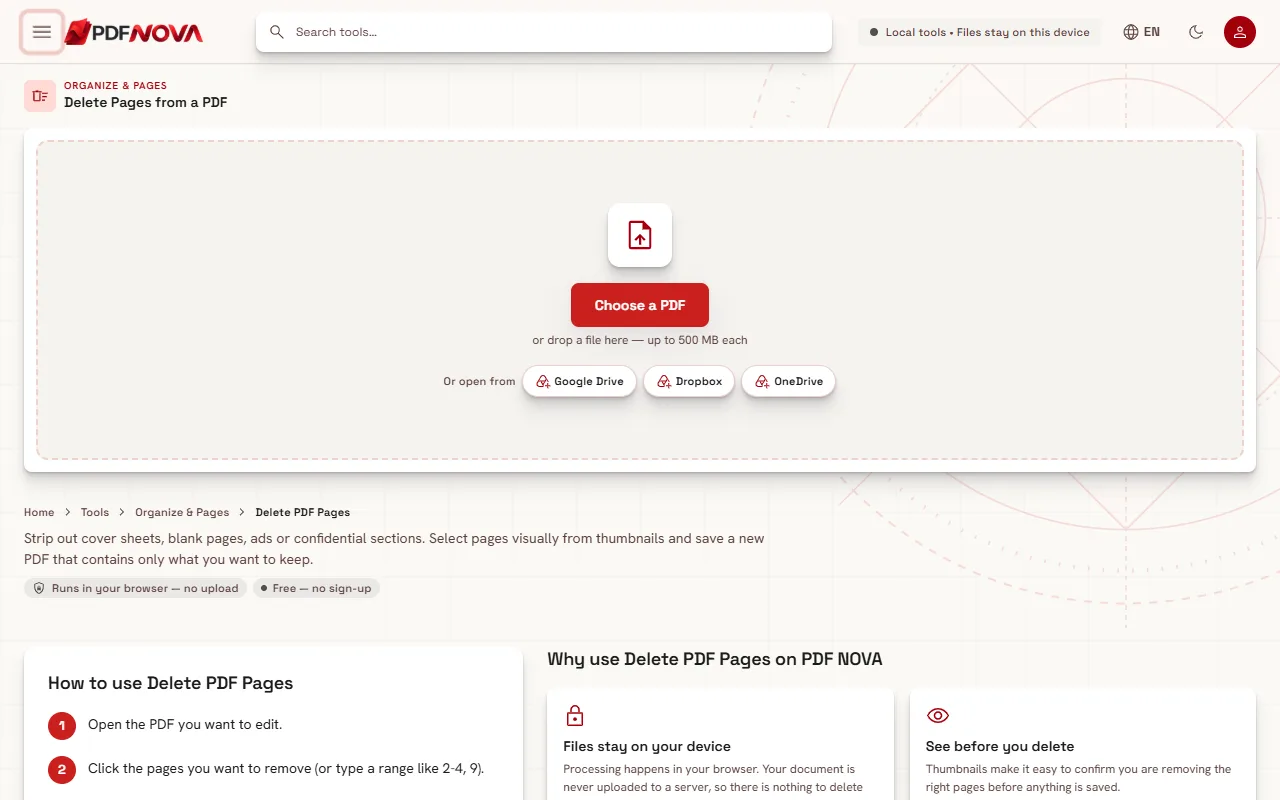
- Open Delete PDF Pages and select Choose a PDF, or drop the file onto the page.
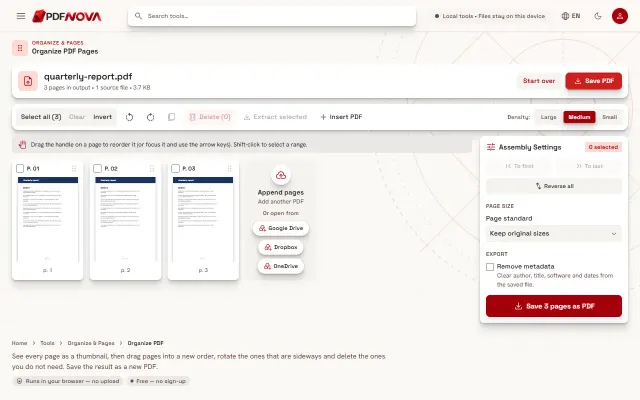
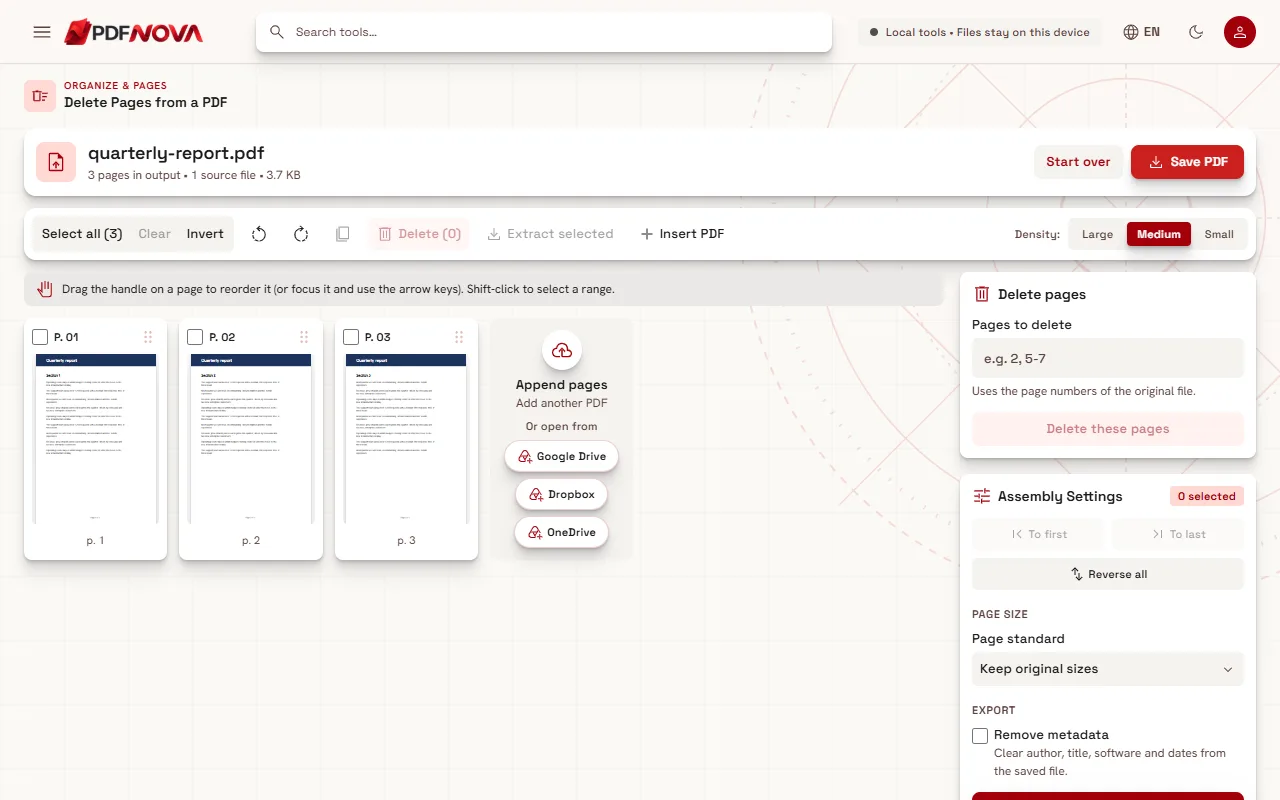
- Every page appears as a thumbnail. Click the checkbox of each page you want to remove. Hold Shift and click to select a whole run of pages.
- Or use the Delete pages box on the right: type the pages in Pages to delete, for example 2, 5-7, and select Delete these pages.
- Select Delete in the toolbar if you picked pages by clicking. The button shows how many pages it will remove, such as "Delete (3)".
- Check the remaining thumbnails. The header tells you how many pages are left in the output.
- Select Save PDF (or the Save N pages as PDF button under Assembly Settings) to download the result.
Two ways to choose pages
Click thumbnails when you can see the pages you want to lose: a blank back, a cover, a page with a wrong figure. The thumbnail size buttons (Large, Medium, Small) help with long documents. Select all, Clear and Invert are handy when it is easier to pick the pages you want to keep and then invert the selection.
Type a range when you already know the numbers. Commas separate pages and a hyphen means "from page to page", so 2, 5-7 removes pages 2, 5, 6 and 7. The hint under the field matters: the numbers refer to the page numbers of the original file, not to the shifting positions after earlier deletions. That makes it safe to run several deletions in a row.
Nothing is lost until you save
Deleted pages disappear from the grid, but your original file is untouched. The tool builds a new PDF when you save it, named after the original with "_edited" added, for example report_edited.pdf. If you delete the wrong page before saving, Start over in the header resets the whole session.
Under Assembly Settings there are two optional extras. Remove metadata clears author, title, software and dates from the saved file. Page size can keep the original sizes or standardise to A4 or US Letter.
When to use a different tool
- You only want to keep a few pages. If the pages to keep are fewer than the pages to delete, Extract PDF Pages is quicker: type what you want and get a new file. The guide on splitting a PDF and extracting pages explains the difference.
- You also want to move or rotate pages. Organize PDF has the same grid with drag-and-drop ordering; see how to rearrange PDF pages. Rotate PDF is covered in rotating pages permanently.
- The blank pages are scattered through a long scan. Let the tool find them for you with Remove Blank Pages; the guide on removing blank pages from scanned PDFs shows how.
- You must hide content, not remove pages. If a sensitive detail sits on a page you need to keep, deleting is the wrong tool. Black it out permanently with Redact PDF; see how to redact a PDF permanently.
Common problems
- The wrong pages disappeared. Check whether you counted printed page numbers instead of file positions. A report with an unnumbered cover has "page 1" on file page 2. The thumbnails show the true position.
- An error appears under the range box. The range could not be read, or a number is larger than the page count. Use commas between entries and numbers that exist in the file.
- Every page deleted. You need at least one page left to save; the tool reports that there are no pages to save.
- The file is password-protected. It cannot be opened until you unlock it with Unlock PDF.
The saved copy contains only the pages you kept. If the file is a legal or regulated document, open the saved copy and check it before you send it.
Privacy
Delete PDF Pages processes the file in your browser. It is read from your device, rebuilt in memory and saved back to your device. Nothing is uploaded. If you want the long version, read are online PDF tools safe?
FAQ
Is deleting PDF pages free?
Yes. The tool is free to use without an account and adds no watermark.
Does deleting pages reduce the quality of the others?
No. The remaining pages are copied into the new file, not re-rendered, so text stays selectable and images keep their quality.
Can I undo a deletion?
Before saving, use Start over to reload the original pages. After saving, your original file is still on your device, so you can open it again.
Can I delete pages from several PDFs at once?
Delete PDF Pages works on one main document at a time. To combine files first, follow how to merge PDF files in order, then delete.