How to Sign a PDF Without Printing or Scanning It
6 min read
Add a drawn, typed or uploaded signature to a PDF in your browser, place it, add the date and download the signed copy. Here is the full process.
The old routine is familiar: print the contract, sign it with a pen, scan it, attach it to an email. It wastes paper, takes ten minutes, and the scan often comes out crooked. If the document is already a PDF, you can skip all of it and put your signature straight onto the page.
This guide shows how to do that with Sign PDF, what the signature options mean, how to avoid the usual mistakes and, just as important, what an image of your signature does and does not prove.
Sign a PDF in four steps
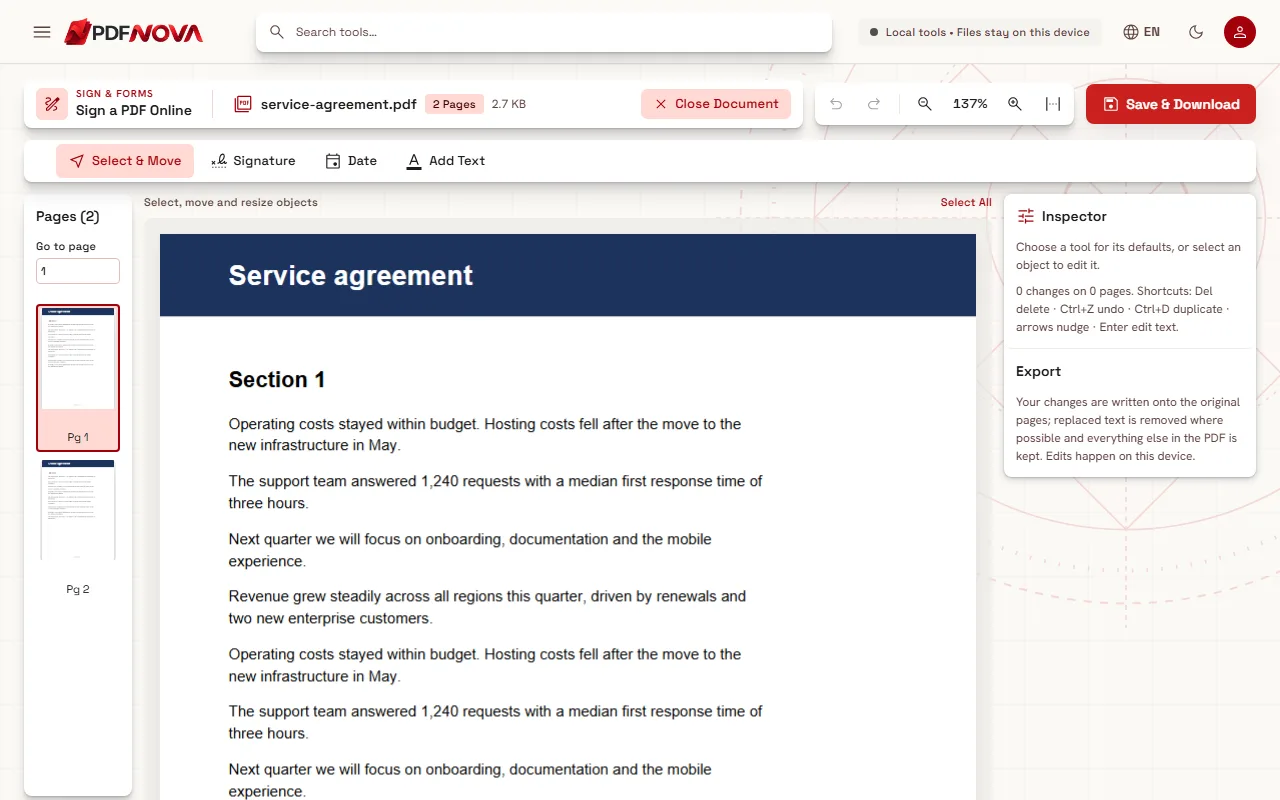
- Open Sign PDF and add the PDF you need to sign.
- Choose the Signature tool in the editing toolbar and create your signature.
- Click Use signature, then place it on the page and resize it.
- Click Download PDF to get the signed copy.
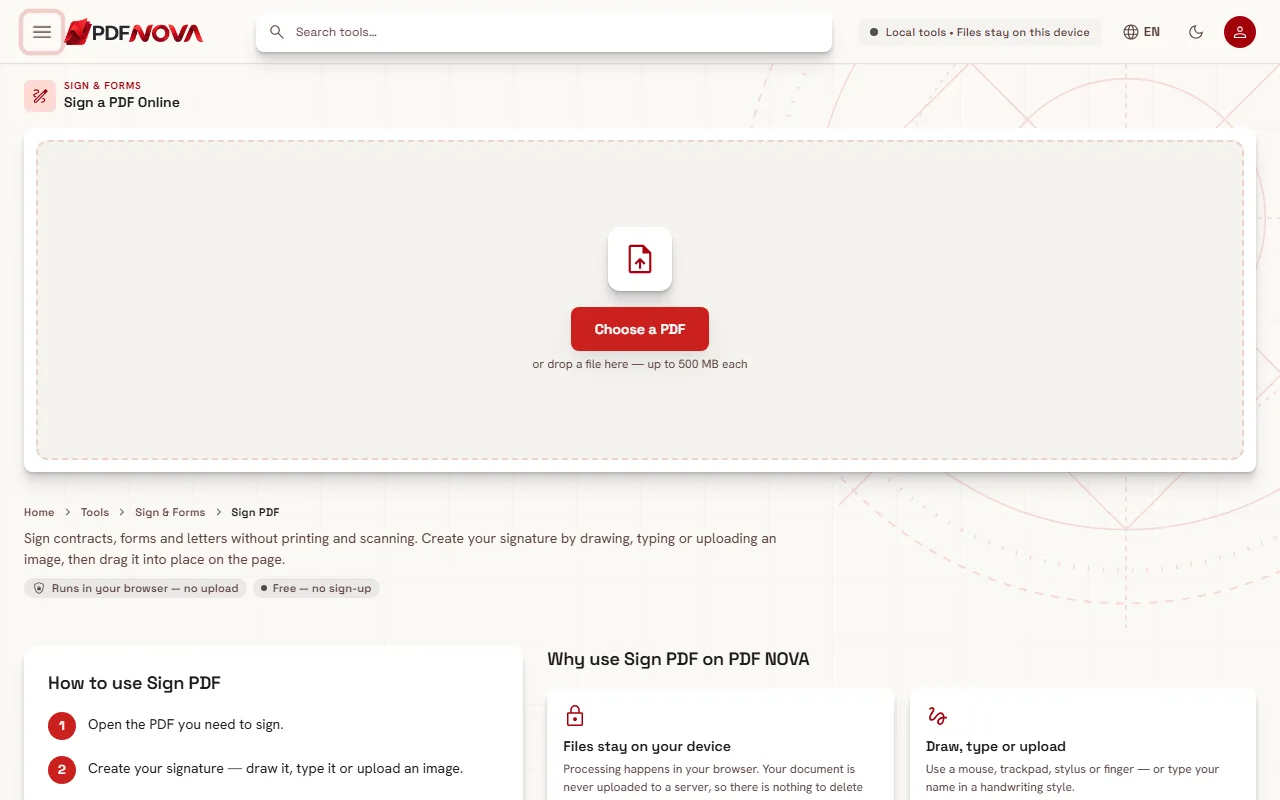
Sign PDF uses the same editor as Edit PDF, so the document is displayed page by page and you can scroll to the page that needs your signature. Nothing is exported until you press the save button, and the signed file is named after the original with "signed" added.
The three ways to create a signature
When you pick the Signature tool, a dialog titled Add your signature opens with three methods.
Draw
Use your mouse, trackpad, finger or a stylus on the drawing pad. A touchscreen or a pen usually gives the most natural result; a mouse tends to look stiff. If you do not like the first try, use Clear and start again. You can choose the ink colour: Black, Blue or Navy. Blue or navy ink has a practical advantage on a printed copy, because it is easier to tell an original signature from a photocopy.
Type
Type your name and choose one of three handwriting styles: Flowing, Elegant or Handwritten. This is the quickest option and it is perfectly readable, which is useful when a clean, consistent signature matters more than a personal one.
Upload
If you already have a photo or scan of your handwritten signature, choose it with Choose image. PNG and JPG files work. Sign a white sheet of paper with a dark pen, photograph it in good light and crop closely. The option Remove white background makes the paper transparent so the signature does not hide text underneath it. It applies to the next image you choose, so tick it before you pick the file.
Saving your signature for next time
At the bottom of the dialog there is a box labelled Save for next time (stored only in this browser). When it is ticked, the signature goes into a small Signature Vault that holds up to five signatures. The next time, you pick one with Use saved signature instead of drawing it again.
Two things to know. First, the vault lives in your browser only, so it is not available on another computer, and clearing your browser data erases it. Second, on a shared or public computer, do not save your signature, or delete it from the vault before you leave.
Placing and sizing the signature
After you confirm, the signature appears on the page as an object you can move and resize. A few habits make the result look professional:
- Put the signature on the signature line, not over printed text.
- Keep the proportions. Stretching a signature in one direction makes it look artificial.
- Zoom in before dropping it on a small field so it lands precisely.
- Use the Date tool to insert today's date next to it when the document asks for one.
If the document has several places to sign, such as initials on each page, select the Signature tool again and pick your saved signature each time.
Common problems and how to fix them
The signature looks pixelated. An uploaded photo that was too small or too heavily compressed is the usual cause. Retake it at a higher resolution, or draw the signature instead.
There is a white box around my signature. You uploaded an image with a white background. Choose it again with Remove white background ticked.
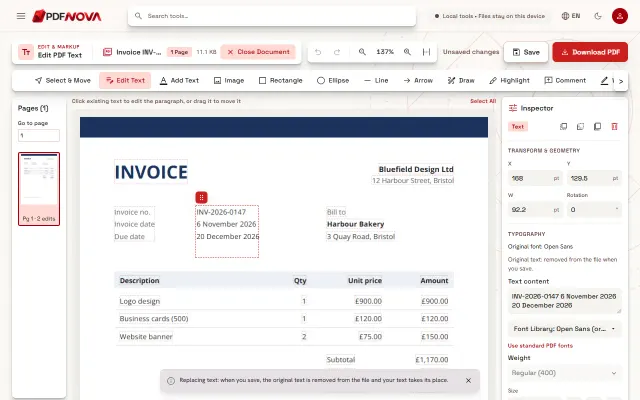
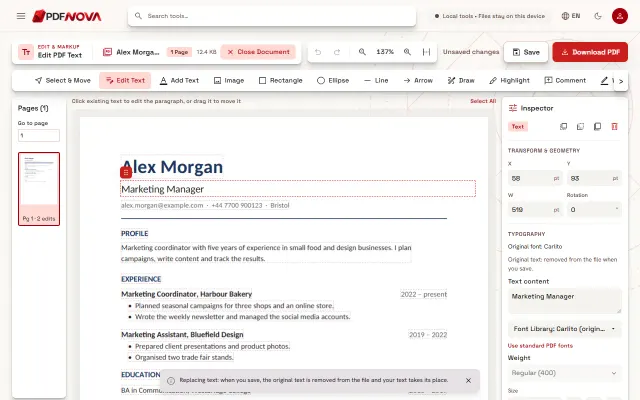
The page is a scan and I also need to write on it. A scanned page is a picture, but you can still place a signature on it. To add typed text as well, see how to edit text in a PDF; to make a scan searchable first, see how to make a scanned PDF searchable.
The form has a signature field. Interactive forms sometimes contain a dedicated signature field. Fill PDF Form does not fill those and points you to Sign PDF instead, so place your signature on the page where the field appears. Our guide to filling in PDF forms online explains the rest of the process.
The signed file is too large for an email. Run it through Compress PDF afterwards. The guide on compressing a PDF without losing quality explains the trade-offs.
What a signature image is, and what it is not
This is the part many people skip. Sign PDF places an image of your signature on the page. Many countries accept a simple electronic signature for ordinary agreements, as long as it shows that you intended to sign. For example, the US ESIGN Act and the EU eIDAS regulation both recognise electronic signatures in general terms.
Three limits are worth knowing:
- Some documents require a stronger kind of signature, such as an advanced or qualified electronic signature, or a handwritten one. Check what the recipient or the law requires; this guide is not legal advice.
- An image does not prove that the document stayed unchanged after you signed it. A cryptographic digital signature, issued through a certificate, does that. PDF NOVA does not offer certificate-based signing at this time.
- A signature image can be copied by anyone who gets the file. Share signed documents only with the people who need them, and consider protecting the PDF with a password when it goes by email.
When in doubt, ask the person who sent you the document which type of signature they accept. For most everyday paperwork, such as a rental application, a permission slip or an internal approval, a simple signature is what they expect.
Privacy
Sign PDF runs in your browser. Your document is read from your device, the signature is added in memory and the signed file is saved back to your device. The document is not uploaded to a server. The signatures in the vault are also stored only in your browser.
Frequently asked questions
Is Sign PDF free, and does it add a watermark?
It is available on the free plan, needs no account and adds no watermark or branding to the file.
Can I sign several documents in a row?
Yes. Save your signature to the vault once, then pick it each time. If several documents belong together, you can combine them first with Merge PDF and sign the result. The guide on merging PDF files in order covers that.
Does the signature make the PDF read-only?
No. The tool adds the signature image to the page; it does not lock the document. That is why a signature image does not replace a certificate-based signature when tamper-proofing matters.
My document is a form. Which comes first, filling or signing?
Fill the form, then sign. See the guide on filling PDF forms online; flattening the form before you sign keeps the answers from being changed afterwards.