How to Fill In a PDF Form Online and Save It
5 min read
Fill text fields, checkboxes and dropdowns in a PDF form in your browser, then save it or flatten it so the answers cannot be changed. Step by step.
Application forms, tax paperwork, insurance claims and school documents often arrive as PDFs. Printing them just to write in boxes by hand is slow, and handwriting is not always legible. Many of these PDFs are actually interactive: they contain real fields you can type into. The trick is knowing whether yours does, and how to save your answers so they show up in every PDF viewer.
This guide covers Fill PDF Form: what it can fill, what it cannot, and what to do in each case.
Fill a PDF form in four steps
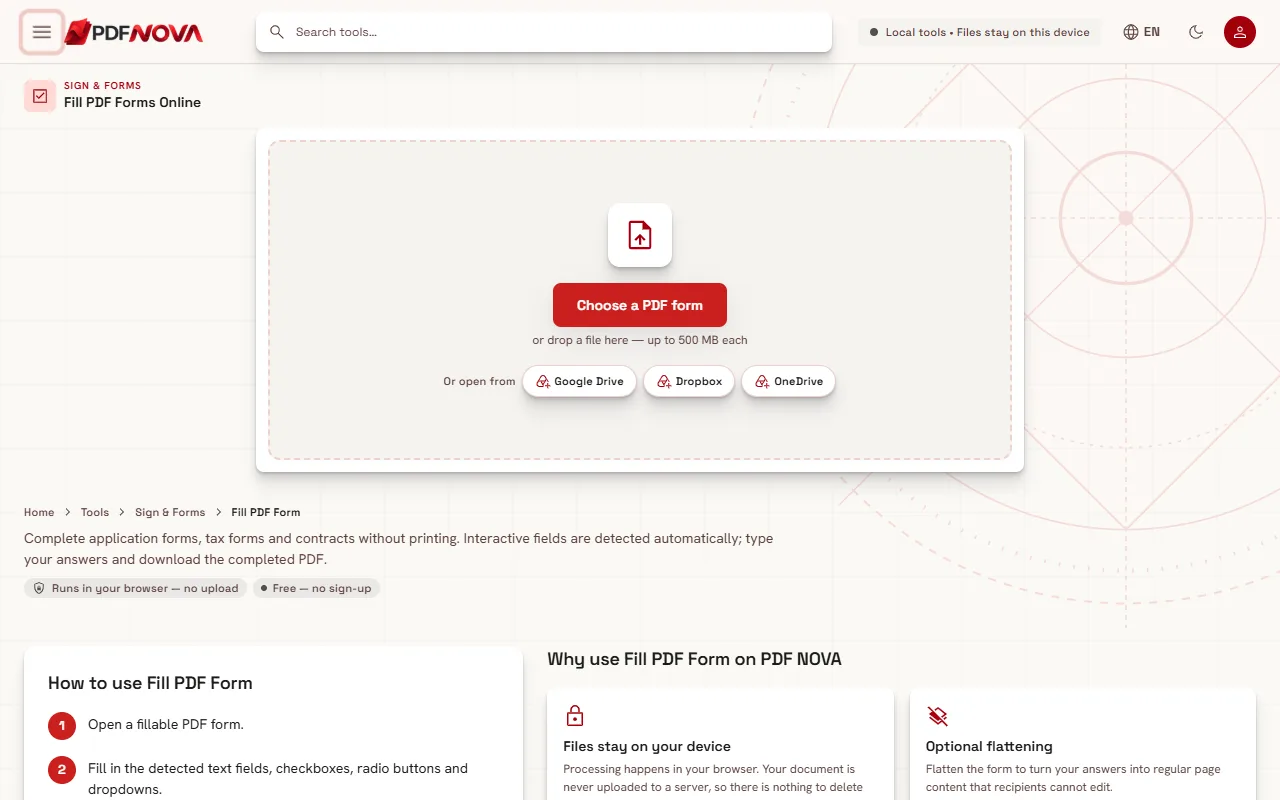
- Open Fill PDF Form and click Choose a PDF form.
- Wait a moment while the form is read. The fields are detected automatically and listed in the Fields panel.
- Type your answers, tick the boxes and pick the options.
- Click Save filled PDF to download the completed form.
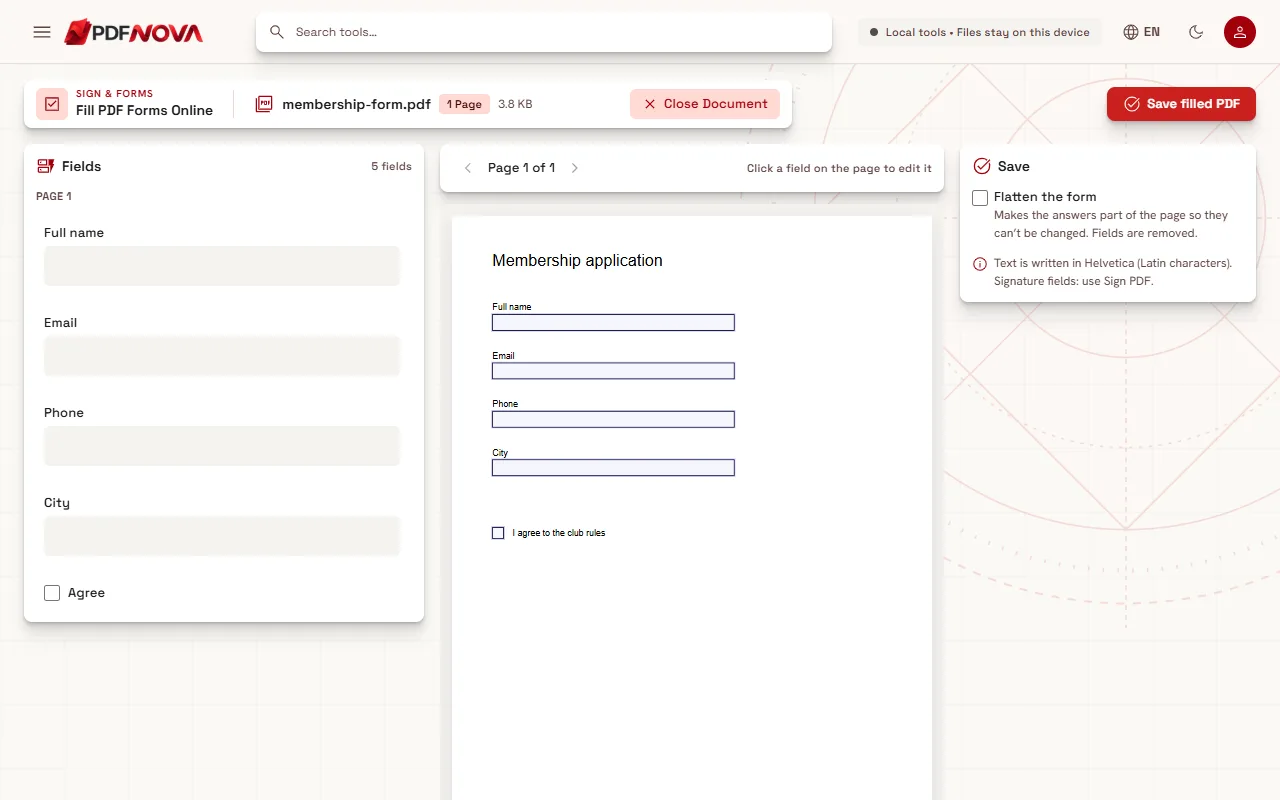
Once the form is loaded, you will see the fields listed on the left, grouped by page. The centre shows a preview of the page with your current values, and the tip "Click a field on the page to edit it" tells you that you can also work directly on the preview instead of the list.
What the tool can fill
The tool works with standard interactive PDF forms, known as AcroForms. It handles:
- text fields
- checkboxes
- radio buttons (one choice among several)
- dropdown menus and lists
The names, labels and options you see come straight from the PDF, so they appear exactly as the form's author wrote them. Fields that the author marked read-only are shown with "(read-only)" and cannot be changed. Next to each field you can use Clear to empty it again.
If the form has required fields, the Save panel warns you how many are still empty and names the first few, so you do not send an incomplete form by mistake.
Save or flatten: which one?
In the Save panel there is a setting called Flatten the form. The choice matters.
- Without flattening, the saved PDF keeps its fields, so you or the recipient can still open it and change an answer. This is the right choice when you want to come back later, or when the recipient's system reads the field values.
- With flattening, your answers become part of the page itself and the fields are removed, so they can no longer be edited. This is the right choice for a final copy that you will email, print or archive.
A good habit is to save both: an editable copy for yourself and a flattened one to send. The filled file is named after the original with "filled" added, for example "application_filled.pdf".
The tool also removes any XFA version of the form hidden inside some PDFs, so that every PDF viewer displays the values you entered rather than an older version.
When the tool says there are no fillable fields
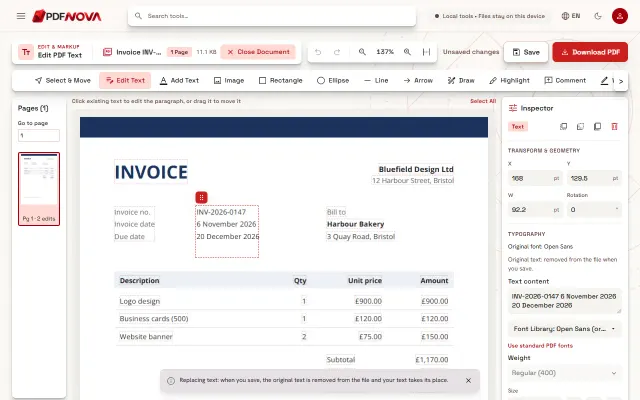
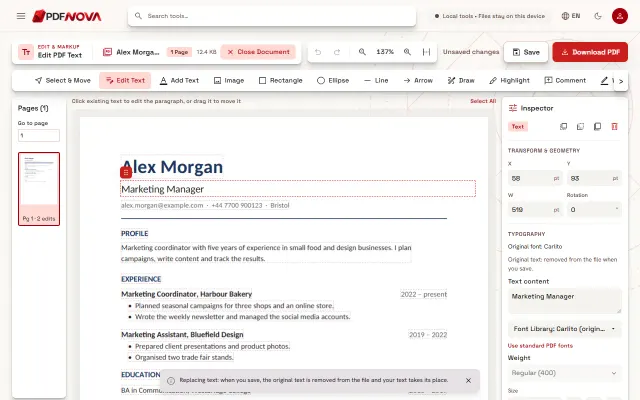
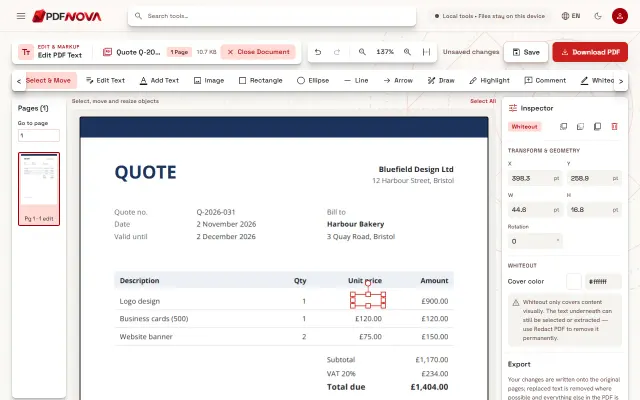
Open a PDF and you may see the message "This PDF has no fillable fields". This is common: many forms are just a picture of a form, for example a scanned paper sheet, with no real fields behind it. In that case use the button Open in Edit PDF. In Edit PDF you can add text boxes and check marks anywhere on the page and place your signature. Our guide on editing text in a PDF explains how. If the page is a scan and you want to be able to search or copy its text, see how to make a scanned PDF searchable.
You will see a different message, "This is a dynamic (XFA) form", for a particular kind of form built with Adobe's older XFA technology. These need Adobe Acrobat or Reader to fill and cannot be filled in a browser, so there is no workaround in this tool.
Limits to keep in mind
- Latin characters only. Answers are written in Helvetica. Accented letters used in Western European languages are fine, but other writing systems, such as Arabic or Cyrillic, are not supported yet.
- Signature fields are not filled here. A field made for a signature is listed with a note to use Sign PDF. Fill the rest of the form, save it, then sign it as described in how to sign a PDF without printing.
- Buttons are not filled. Buttons inside a form, such as "Submit" or "Reset" buttons, do nothing here. If a form asks you to submit it online through such a button, save the PDF and send it by the method the organisation describes.
- The result is checked. After filling, the tool re-reads the saved file. If it cannot confirm that the values were written correctly, it says so and does not save the file, rather than giving you a form that looks complete but is not.
Tips for a clean result
Read the whole form first, because answers in one section sometimes change what is required in another. Fill dates in the format the form asks for. If a form contains a field that is supposed to add up other fields, check that figure yourself before sending.
Before you send a flattened copy, scroll through the preview once. Flattening is final for that file, so keep your editable version in case a mistake turns up later.
If you are returning several documents in one email, the guide on merging PDF files in order shows how to combine them. You can also use Compress PDF if the final file is too large to attach.
Privacy
Fill PDF Form runs entirely in your browser. The form is read from your device, processed in memory and saved back to your device. It is not uploaded to a server. This matters for forms that contain personal details such as addresses, tax numbers or bank information.
Frequently asked questions
Is filling PDF forms free?
Yes. The tool is available on the free plan, needs no account and adds no watermark.
How do I know whether my PDF has fillable fields?
Open it in the tool. If fields exist, they are listed in the Fields panel. If not, you will see "This PDF has no fillable fields" and an option to continue in Edit PDF.
Can I fill the form on my phone?
The tool runs in your browser, so you can try it on a phone. For long forms, a computer is more comfortable because the list and the preview are shown side by side.
Why did flattening remove my fields?
That is what flattening does: it turns the fields into ordinary page content. If you need to edit again, go back to the unflattened copy you saved.
Can I sign the form in the same session?
Sign it in a second step with Sign PDF. Fill and, if you want, flatten the form first, then add your signature to the saved file.