How to Scan Documents to PDF With Your Phone Camera
4 min read
Scan paper documents to a multi-page PDF with your phone or laptop camera. Capture, crop, adjust contrast, then make the scan searchable with OCR.
You do not need a scanner to turn paper into a PDF. A phone camera is enough, and Scan to PDF runs in your browser: you capture each page, trim the edges, adjust the contrast, and save everything as one PDF. The pages stay on your device.
It helps to know what the tool does and does not do before you start. It is a simple capture-and-crop scanner. It does not find the edges of the paper by itself and does not straighten a page photographed at an angle. Most of the quality therefore comes from how you take the picture, which is what the tips below are about.
Step by step
- Open Scan to PDF in your phone's browser.
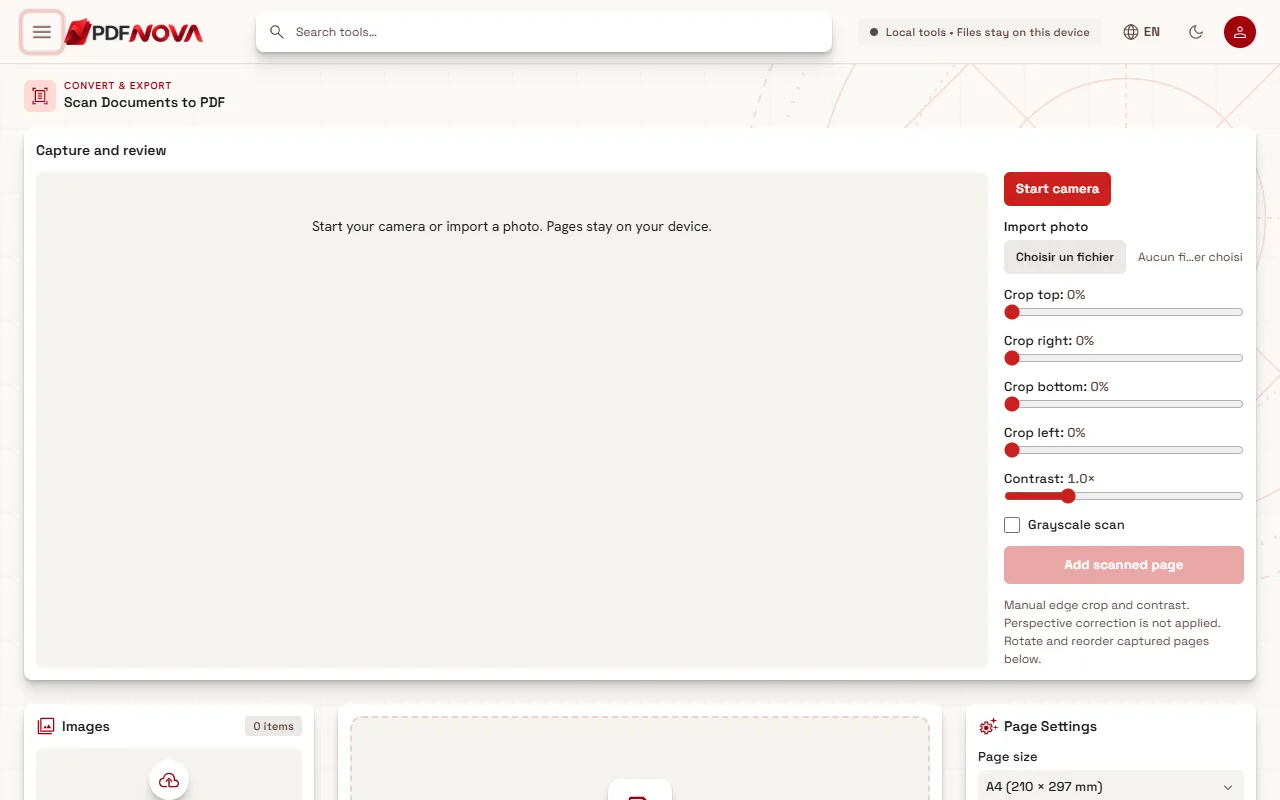
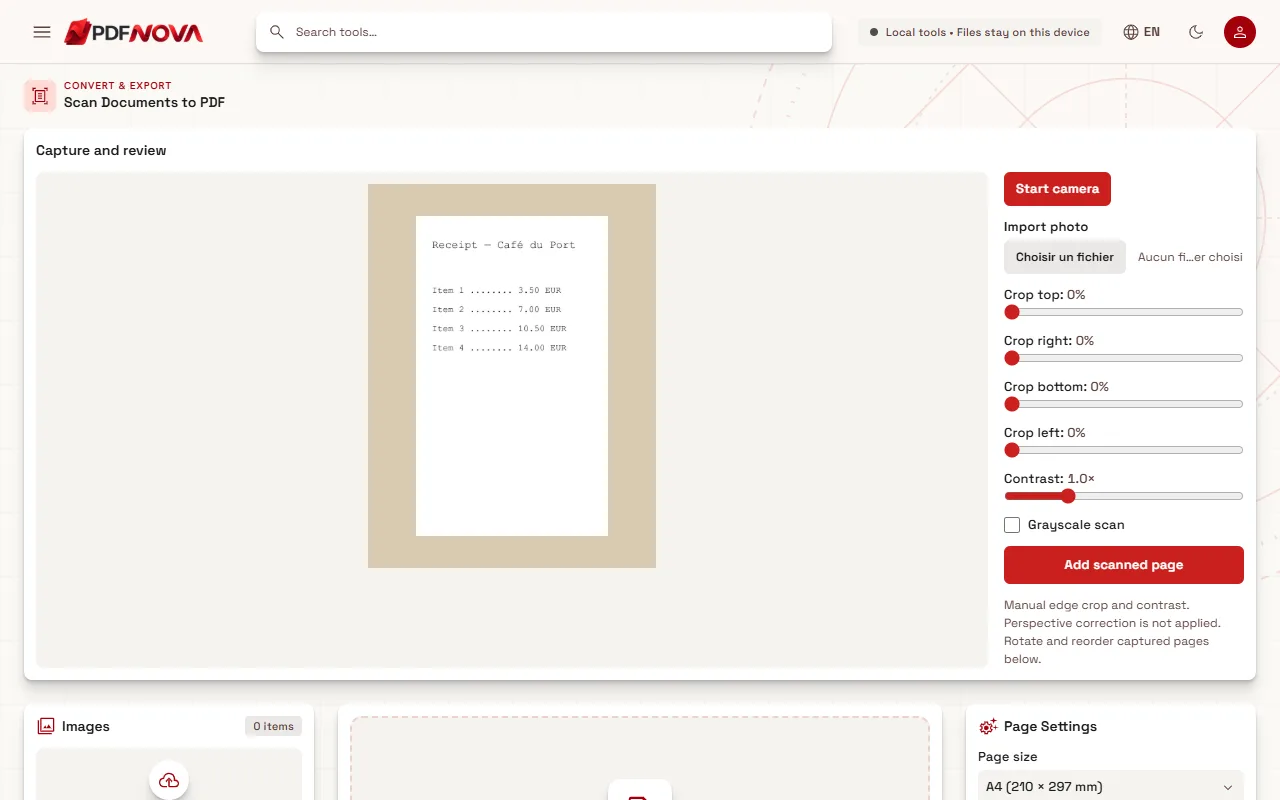
- Select Start camera and allow camera access. The tool asks for the rear camera when your device has one. If the camera is not available, or you prefer your normal camera app, choose Import photo instead.
- Hold the page flat and fully in view, then use the Crop top, Crop right, Crop bottom and Crop left sliders to cut off the table and shadows. Each goes from 0 to 40 percent.
- Set the Contrast slider (from 0.5 to 2.5 times) and, for text pages, turn on Grayscale scan.
- Select Add scanned page. Repeat for every page.
- Rotate pages with the 90 degree button on each page tile, and drag images in the list to reorder them.
- In the Page Settings panel, choose the page size, orientation, margin and the File name, then select Create PDF with the page count.
Taking a good scan
The tool applies your crop and contrast, nothing more, so get the picture right with the camera.
- Light. Use even, bright light, ideally daylight from a window. Avoid a lamp that casts your phone's shadow on the page.
- Flat and square. Lay the page on a table and hold the phone directly above it, parallel to the paper. A tilted phone makes the page look like a trapezoid, and because there is no perspective correction, the PDF keeps that distortion.
- Dark, plain background. A dark table makes the paper edges easy to see, so cropping is quick.
- Fill the frame. Come close enough that the page fills most of the view, but keep all four corners visible. A crop only removes; it cannot add what is outside the picture.
- Hold still and let it focus. Blur cannot be fixed afterwards.
- Contrast. A little extra contrast makes grey paper look white and text darker. Too much makes light pencil and faint stamps disappear, so check the preview before you capture.
- Grayscale for text. It removes colour casts from indoor lighting. Leave it off for photos, coloured forms or stamps where colour matters.
What to expect from the PDF
Each captured page becomes one page of the PDF. The page size comes from your choice in Page Settings: fit to the image, A4, US Letter, US Legal, A3 or A5. Captured images are limited to about 4096 pixels on their longest side, which is plenty for reading text.
This is the same page builder as Image to PDF, so the options for order, size and margin are the same. If you already have photos in your gallery, you can build the PDF straight from those; see turning photos into one PDF.
Make the scan searchable
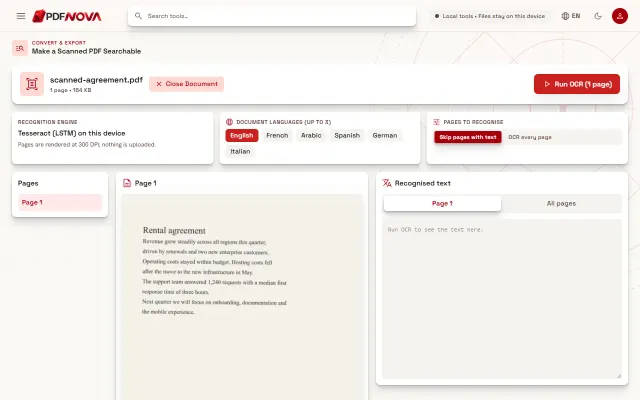
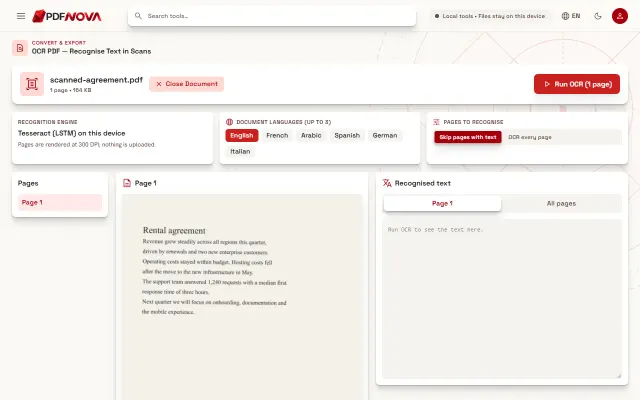
A scanned PDF is a set of pictures, so you cannot search it or copy text from it. Run it through OCR PDF or Make PDF Searchable afterwards. OCR also runs in your browser, and it works best on the clean, straight, well-lit pages described above. The details are in making a scanned PDF searchable. Handwriting is not recognised reliably. If you scanned something and still cannot select its text, see why you can't select text in a PDF.
If the file ends up large, compress it. If a blank back side slipped in, Remove Blank Pages can drop it.
Limits and known gaps
- Manual crop only. There is no automatic edge detection and no perspective correction. The tool says so itself.
- Camera access needs your permission. If it is unavailable, the tool shows a message and you can import a photo instead.
- Device coverage. The project's test notes record tests with an imported photo and a simulated camera, and say that coverage on physical-device cameras remains to be done. If the live camera behaves oddly on your phone, importing a photo from your camera app is the reliable route.
- Imported photos should be JPG or PNG; a photo that cannot be decoded produces an error asking for another image.
Privacy
Captured pages and the PDF are built in your browser and are not uploaded. This is useful for IDs, contracts and medical papers. Do not scan sensitive pages on a shared device, and close the tab when you are done. More in are online PDF tools safe?
FAQ
Is Scan to PDF free?
Yes, according to the plan settings at the time of writing. It needs no account.
Can I scan many pages in one go?
Yes. Add as many pages as you like, then reorder them before creating one PDF.
Why are my page edges skewed?
The tool does not correct perspective. Hold the phone parallel to the page and crop the edges manually.
Can I use my laptop webcam?
Yes. The camera panel works with any camera your browser can access, but a phone usually gives a sharper picture.