How to Extract Images From a PDF in Original Quality
5 min read
Save the photos, logos and scans stored inside a PDF without re-compressing them. Learn what gets extracted, what does not, and the file formats you get.
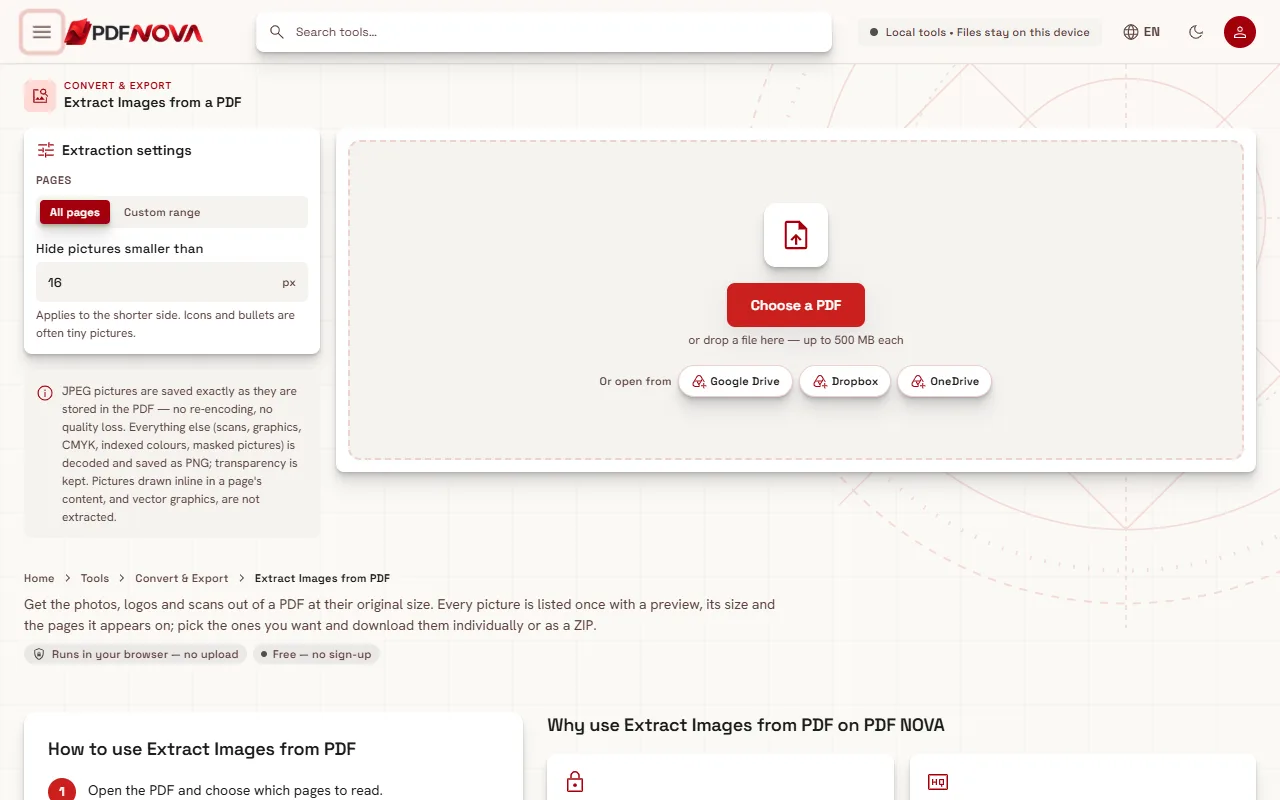
A screenshot of a PDF page gives you a low-quality copy of a photo, with text and background baked in. If you want the actual picture that the designer placed in the document, at the size it was stored, use Extract Images from PDF. It lists every picture in the file, lets you pick the ones you need, and saves them without a second round of compression where possible. It runs in your browser, so the PDF is not uploaded.
If what you really want is a picture of the whole page, that is a different tool: see converting PDF pages to JPG or PNG. This guide is about the pictures inside the file.
Step by step
- Open Extract Images from PDF and choose your PDF.
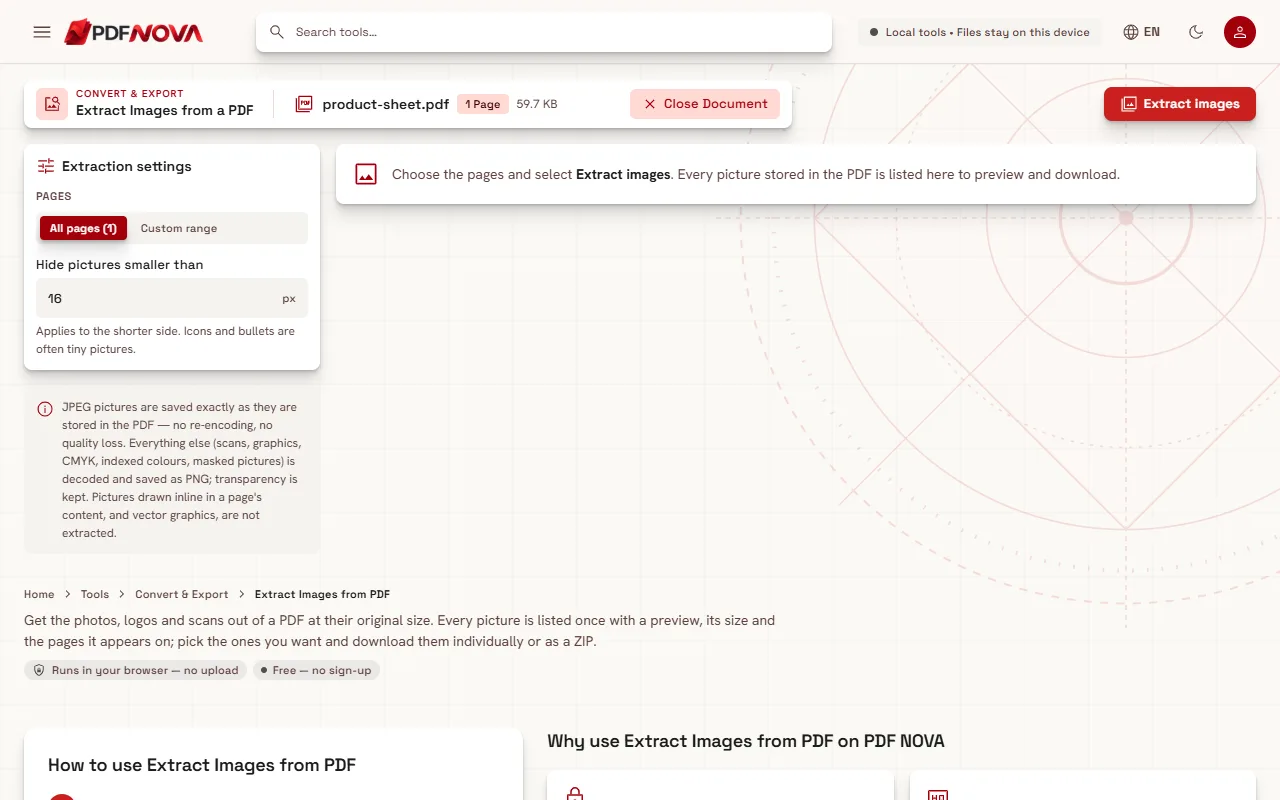
- In Extraction settings, choose whether to read all pages or only a range.
- Set Hide pictures smaller than to skip tiny icons and bullets. The value is in pixels and applies to the shorter side of each picture.
- Select Extract images. A progress message such as "Decoding pictures on page 3 of 10" shows where it is.
- Under Images found, review the previews. Use Select all or Select none, tick the ones you want, then choose Download image for a single picture or the ZIP button (for example "Download 4 images (ZIP)") for several.
What each picture card tells you
Every picture is listed once, even if the PDF shows it on several pages. A card shows its number, its size in pixels, its file size and the pages it appears on, so a logo repeated in the header of ten pages is one card with ten page numbers, not ten files.
The label on the card says how it will be saved:
- JPG, as stored in the PDF. Many photos are stored as JPEG data inside a PDF. The tool copies those bytes out unchanged. There is no re-encoding, no extra loss, and the file is the same quality as the original the author inserted.
- PNG from followed by the storage method. Everything else, such as scans stored with other compression, CMYK pictures, indexed-colour images and pictures with a mask, is decoded and saved as PNG. PNG is lossless, so nothing more is lost, but the file can be larger than a JPEG would be. Where a picture had transparency, the card notes that it is kept.
- CMYK and similar print colours are converted to RGB so they look right on screen. The card names the conversion, such as "CMYK → RGB".
Page images or extracted images: which one?
Extracted images keep the stored resolution of each picture. A photo placed small on a page may still be several thousand pixels wide, and you get all of it. A page image (from PDF to JPG) is a render of the page at a DPI you choose: it includes text, layout and background, and the photo inside it is only as sharp as that render.
Use extraction to reuse a product photo, recover a logo, or save the pictures from a brochure. Use a page image to share a page as it looks.
A scanned PDF is a special case. Each scanned page is one big picture of the whole page, so extracting it gives you the page photograph at its scanned resolution. That can be useful when the scan is higher quality than a 150 DPI render. To make the text of such a scan searchable instead, see making a scanned PDF searchable.
What is not extracted
The tool is honest about its limits, and the workspace explains them:
- Vector graphics are not images. Logos, charts, diagrams and icons drawn with lines and shapes are instructions, not pixels. They do not appear in the list. If you need one, convert the page to an image and crop it, or use Crop PDF first.
- Inline images and pattern pictures. Pictures drawn directly inside a page's content, and pictures inside patterns or annotations, are not extracted.
- Text. Text is not a picture. To get the words, use PDF to Text.
- Very large pictures. A picture larger than 80 megapixels is skipped because it is too big to decode in the browser. It appears in a "could not be extracted" list with the reason.
- Memory limits. Reading stops early to stay within your browser's memory after about 600 MB of output. The tool tells you, and you can run the remaining pages again with a custom page range.
- Files encrypted without an open password. The pictures cannot be copied exactly as stored, so they are decoded and saved as PNG, and the tool shows a notice that JPEGs are no longer byte-for-byte originals.
If the page has no pictures, the tool says "No pictures were found on these pages". Pages made only of text and vector graphics contain none.
Tips
- Use the size filter. Icons and bullets are often tiny pictures. Raising Hide pictures smaller than hides them, and lowering it brings them back if a real picture seems to be missing.
- Work in batches. For a long document, extract a page range at a time to keep memory use low.
- Watch the file sizes. PNGs from photographic scans can be big. If you need smaller files, resave them in an image editor as JPEG, or compress the PDF before extraction if the images are heavier than you need.
- Check the rights. Having a picture inside a PDF does not give you the right to reuse it. Check the licence or ask the owner.
- Password-protected PDF? Unlock it first with Unlock PDF if you know the password.
FAQ
Do extracted JPEGs lose quality?
No. A JPEG that is stored in the PDF is saved byte for byte as it is, with no re-encoding.
Why did I get PNG files?
Those pictures were not stored as plain JPEG in the PDF, so they had to be decoded. PNG is lossless and keeps transparency.
Why is my chart or logo missing?
It is probably vector artwork, not a picture. Vector graphics are not extracted. Convert the page to an image instead.
Is it free and private?
Extraction is available on the Free plan at the time of writing, needs no account, and runs in your browser; the document is not uploaded.