How to Convert Word to PDF Without Losing Formatting
5 min read
Turn a Word document into a PDF that looks the same everywhere. Learn why fonts and line breaks sometimes shift, what to check first, and how the upload works.
You finished the CV, the contract or the report in Word, and now it has to go out as a PDF so the pages look the same on every phone, printer and email client. The conversion itself takes seconds. What worries people is the result: a heading that jumps to the next page, a font that suddenly looks different, a table that no longer fits.
This guide shows how to use Word to PDF, why formatting sometimes changes, and what to check before you convert so it does not. The tool is free and needs no account.
Step by step
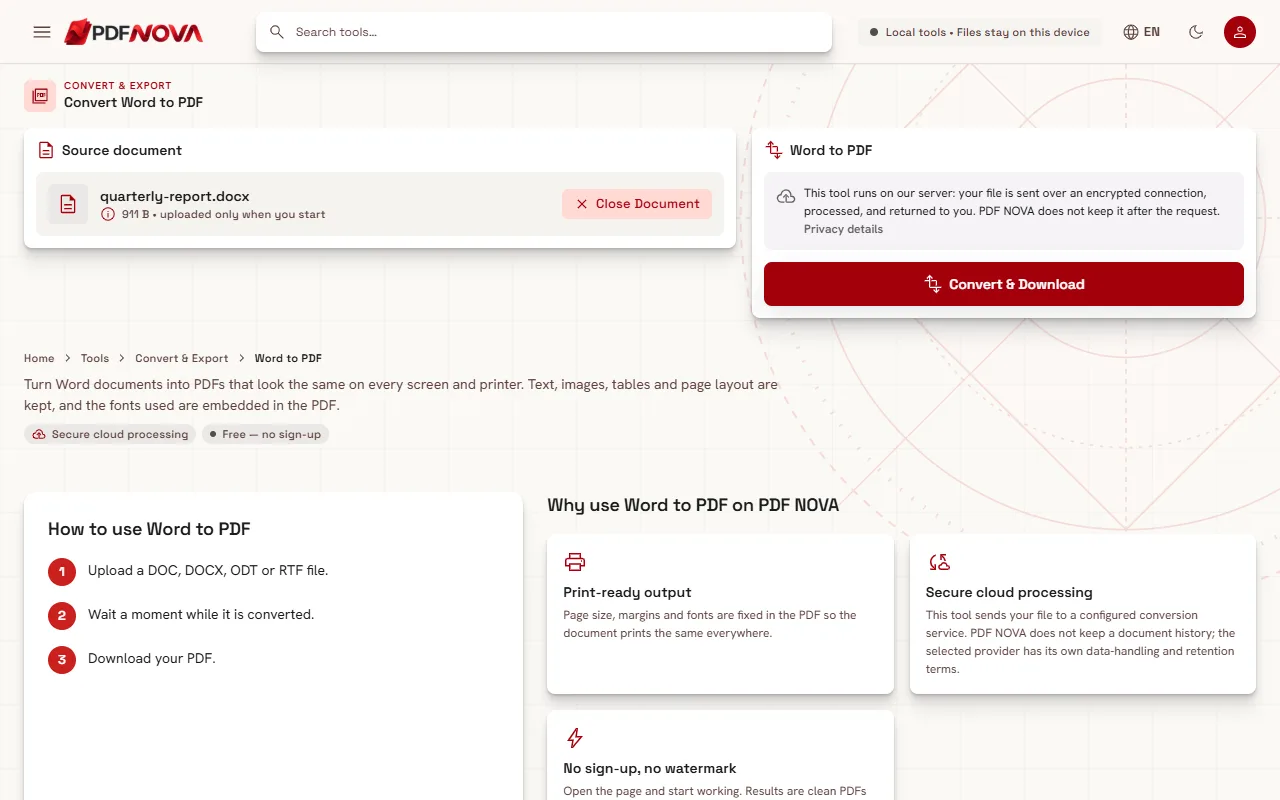
- Open Word to PDF and click Choose a file, or drop your document onto the page. DOC, DOCX, ODT and RTF files are accepted.
- Check the notice in the panel on the right. It tells you that the tool runs on our server and that your file is sent over an encrypted connection.
- Click Convert & Download. While the file is sent and converted you see "Uploading and converting…", and you can cancel.
- The PDF is downloaded, and a result card appears with the file and a checksum computed on your device, so you can confirm that the file you received is the one you keep.
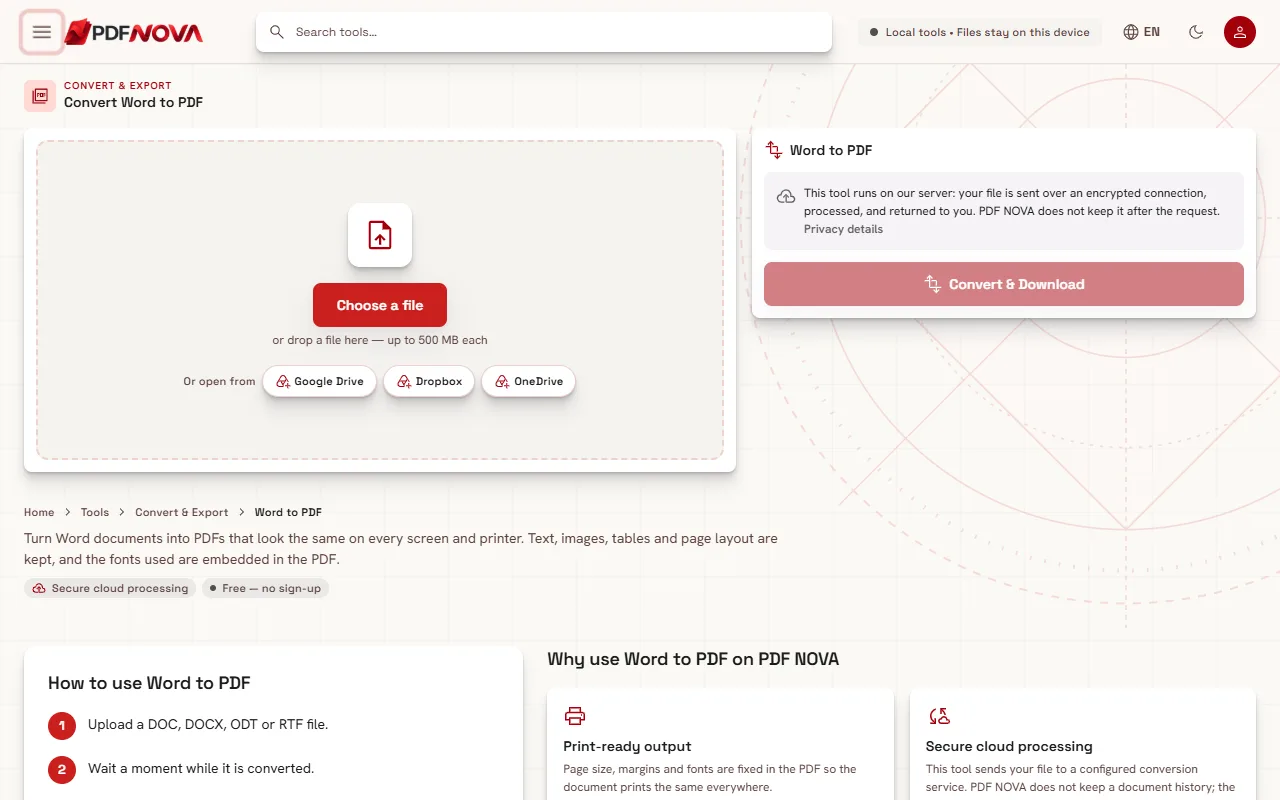
With a document selected, the left side shows a Source document panel with the file name and size, and a button to close it if you picked the wrong file. Nothing has left your device yet: the file is uploaded only when you click Convert & Download.
Why formatting can shift
A Word file does not contain a fixed page. It contains text, styles and instructions, and the program that opens it decides where lines and pages break using the fonts installed on that computer. A PDF is the opposite: every line is placed on the page and the fonts are stored inside the file.
PDF NOVA converts with LibreOffice, running on our own server. LibreOffice lays the document out itself, and that is where differences come from:
- Missing fonts. If your document uses a font that is not available on the server, a similar font with the same spacing is used instead. Letters then have slightly different widths and a paragraph can wrap one word earlier or later, which may move a page break.
- Word-only features. Some effects, such as certain text effects, SmartArt or complex WordArt, have no exact equivalent and can look simpler.
- Compatibility settings. Documents created in very old versions of Word, or with unusual compatibility modes, may be spaced slightly differently.
For ordinary documents with common fonts, headings, lists, images and tables, the result is very close to what you see in Word. For a designed layout, always look at the PDF before you send it.
Check these things before you convert
- Use common fonts when you can. Fonts such as Arial, Times New Roman or Calibri-like system fonts are far less likely to be substituted than a decorative font installed only on your machine.
- Embed the fonts in Word. In Word, go to File › Options › Save and turn on embedding fonts in the file. This is the advice our own tool page gives for an exact match.
- Accept tracked changes and comments. Decide whether you want revision marks to appear in the PDF. For a final copy, accept or reject all changes first.
- Update fields. Update the table of contents and page numbers in Word so the PDF shows the final values.
- Look at images and tables. Make sure images are inline or clearly anchored, and tables are not wider than the page margins.
- Check the file size. The Free plan accepts files up to 50 MB. If yours is larger, compress the images in Word first.
Save as PDF in Word itself
If you have Word on your computer, you do not need any website. Choose File › Save As (or Export) and pick PDF. Word then uses your own fonts and its own layout engine, so the PDF matches what you see on screen exactly, and it is the best choice when a document is sensitive, because it never leaves your computer.
An online converter is useful in different situations: you are on a computer or phone without Word, the file is an ODT or RTF, you received a DOCX and only need a quick PDF, or you simply want to avoid installing anything. Use whichever fits; both give a normal PDF.
After the PDF is created
The PDF is a fixed copy, so edit the Word file for content changes and convert again. For small corrections afterwards, see how to edit text in a PDF. Other useful follow-ups:
- Reduce the size for email with Compress PDF.
- Combine several files, as in merging PDFs in order, or add a watermark.
- Archive it for the long term: what is PDF/A explains when that is needed.
- Not sure which format to keep? Read PDF vs Word.
- Need to go back the other way? See converting PDF to Word.
Privacy: what happens to your file
Word to PDF is a server tool. Your document is sent over an encrypted connection to PDF NOVA's own conversion server, converted with LibreOffice, and returned to you. The tool page says that PDF NOVA does not keep it after the request, and our privacy page states that files sent for conversion are deleted after the result is returned. Because the file does leave your device, avoid uploading a document if its rules forbid it, and prefer Save as PDF in Word for highly confidential files. More about the general picture in are online PDF tools safe?
Common problems
The PDF has a different number of pages. A substituted font changed the line breaks. Use common fonts or embed them in Word, then convert again.
The file is refused. Only DOC, DOCX, ODT and RTF are accepted, up to 50 MB on the Free plan.
An effect looks different. Replace the effect with a plain picture of it (paste as an image in Word) and convert again.
FAQ
Is Word to PDF free?
Yes. It is part of the free plan, needs no account and adds no watermark.
Which formats can I convert?
DOC, DOCX, ODT and RTF documents.
Will fonts be kept?
Fonts that are available on the server are embedded in the PDF. Fonts that are not available are replaced by a similar one, so use common fonts or embed them in Word if the exact appearance matters.
Can I convert Excel or PowerPoint the same way?
PDF NOVA has separate tools for those formats: Excel to PDF and PowerPoint to PDF, and HTML to PDF for an HTML file. Like Word to PDF, they send the file to PDF NOVA's conversion server. This guide covers Word documents only.