PDF vs Word (DOCX): Which Format Should You Use?
4 min read
PDF or Word? Compare editing, sharing, printing, forms, signatures, archiving and accessibility, and see when to use each format and how to switch.
Both formats hold text, images and tables, so it is easy to treat them as interchangeable. They are not. A Word document (DOCX) is built to be written and changed. A PDF is built to be read, printed and kept exactly as it is. Most problems people have, from "the page breaks moved" to "I cannot edit this", come from using one where the other belonged.
The short rule: write and revise in Word, then share, print and archive as PDF. The rest of this guide explains the exceptions.
The core difference
A Word file stores flowing text and styles. When you open it, the program decides where each line and page ends using the fonts and settings of that computer. That is what makes editing pleasant: add a sentence and everything reflows.
A PDF stores a finished page. Each piece of text has a position, and the fonts are normally embedded, so the document looks the same on a phone, a laptop and a printer. That is what makes sharing reliable, and also why editing is awkward: there are no paragraphs to reflow, only placed lines.
When Word is the better choice
- Drafting and co-writing. Track changes, comments, styles and templates are made for this.
- Documents that will change often. Contracts under negotiation, reports with monthly figures, a CV you tailor to each job.
- Content you want to reuse. Tables of contents, cross references and mail merge work from the source file.
- People who need to restructure the text. Rewriting sections or moving paragraphs is far easier than in a PDF.
When PDF is the better choice
- Sending a final version. The recipient sees your layout, not their own fonts and settings.
- Printing. Page size, margins and fonts are fixed, so the printed copy matches the screen.
- Applications and uploads. Many portals ask for PDF because it is predictable to review and store.
- Protecting against accidental edits. A PDF is not tamper-proof, but changing it deliberately takes effort and tools.
- Forms. A PDF can contain real fillable fields that any reader can complete; see how to fill in a PDF form.
- Signing. Signing a fixed document is cleaner than signing a file that can still reflow; see signing a PDF without printing.
Archiving and accessibility
For long-term storage a plain PDF is already a good start, but there is a stricter variant, PDF/A, that embeds everything needed to display the document the same way years later and forbids features that could stop working. If an authority or your own records policy asks for it, read what PDF/A is and use PDF to PDF/A.
On accessibility, the format is less important than how the document was made. A well-structured Word file, with real headings, lists, alt text on images and a clear reading order, is a good source for an accessible PDF. A scan or a PDF exported from a design tool without structure is hard for screen readers. If you need accessible output, fix the structure in Word before you export, and treat a scanned page as an image until text has been recognised.
How they compare, by situation
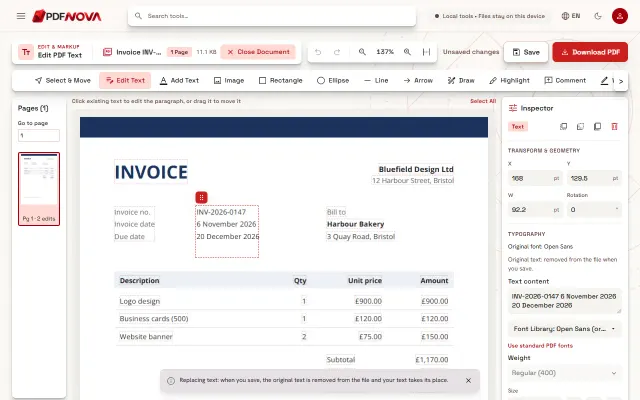
- I need to fix a typo in a document I did not write. If you only have the PDF, a small correction can be made directly with Edit PDF; see editing text in a PDF. Converting the whole file to Word is usually more work than the fix is worth.
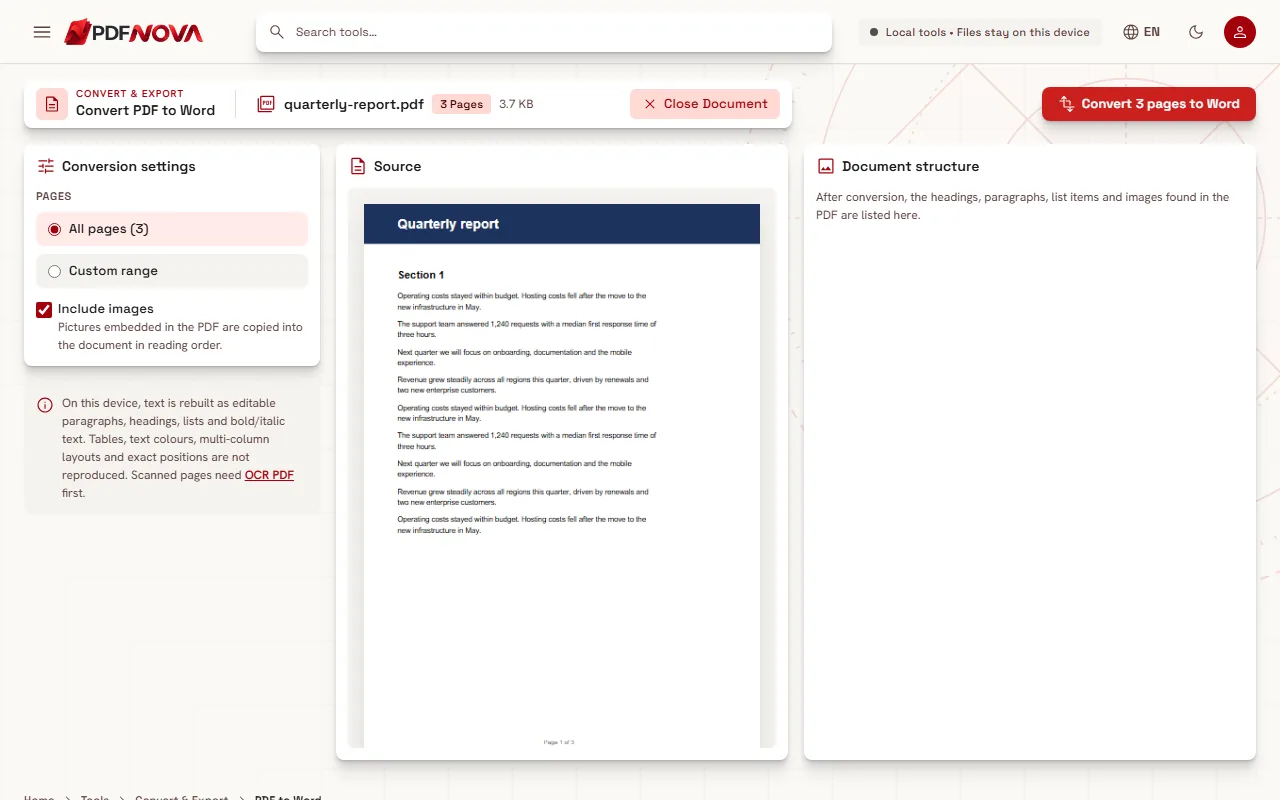
- I need to rewrite most of a PDF. Convert it to Word with PDF to Word. Simple text documents convert well, designed layouts do not; the guide on converting PDF to Word explains what to expect.
- I need to send my Word file safely. Convert it with Word to PDF, or use Save as PDF in Word. See converting Word to PDF for what to check first.
- I want the smallest file. Neither format guarantees it. For a PDF, Compress PDF can help. The Word file can be large if it contains big pictures.
- I need to keep a record that cannot change. Use PDF, and PDF/A if the recipient requires it.
Keep both
A habit that removes most trouble: keep the Word file as your source, and treat each PDF as an export. If you receive a PDF with no source behind it, you can still recover an editable version, but expect to tidy the result.
Privacy is part of the choice too. Converting in either direction may happen in your browser or on a server depending on the tool, and each tool page states which. For the general picture, read are online PDF tools safe?.
FAQ
Is a PDF more secure than a Word file?
Not by itself. A PDF is harder to change by accident, but it only becomes protected if you add a password or permissions, or sign it. Remember to remove personal details such as author names from either format before sharing.
Can I open a PDF in Word?
Recent versions of Word can open some PDFs and convert them, but the result varies. A dedicated converter lets you choose pages and see what will be rebuilt.
Which format is best for a CV?
Send a PDF unless the employer asks for Word. Keep the Word file to edit and export again for each application.
Can I turn a PDF back into the same Word file I started with?
You get a new Word file rebuilt from the page, not the original. Text, headings and lists usually survive; exact layout often does not.