How to Compare Two PDFs and Find What Changed
5 min read
Find the differences between two versions of a PDF. See what Compare PDF checks, how to read the highlights, what the change report holds, and its limits.
Contracts, policies, price lists and reports rarely stay the same. Someone sends a "final_v3" next to your "final_v2", and the question is always the same: what is different? Reading both side by side is slow and easy to get wrong, because a single changed number or a deleted clause is easy to miss.
Compare PDF reads the text of two PDFs and shows what was added and removed, page by page. This guide explains exactly what it compares, how to use it, and where it cannot help.
What Compare PDF actually compares
It is important to be clear about this, because "compare" can mean many things. Compare PDF compares text:
- It reads the selectable text of each page in both documents.
- It compares the text of page 1 of the original with page 1 of the revised file, page 2 with page 2, and so on. This is comparison by page number.
- Within each page it works word by word and marks words that were removed and words that were added.
What it does not compare is just as important. As the tool itself notes, images, typography and page movement are not compared. A changed logo, a different font, a recoloured heading or a photo swapped for another will not show up. And because pages are matched by number, a paragraph that moved from page 2 to page 3 appears as a removal on one page and an addition on the other. If one document has extra pages, the missing side is treated as empty, so those pages show up as entirely added or removed.
Step by step: compare two versions
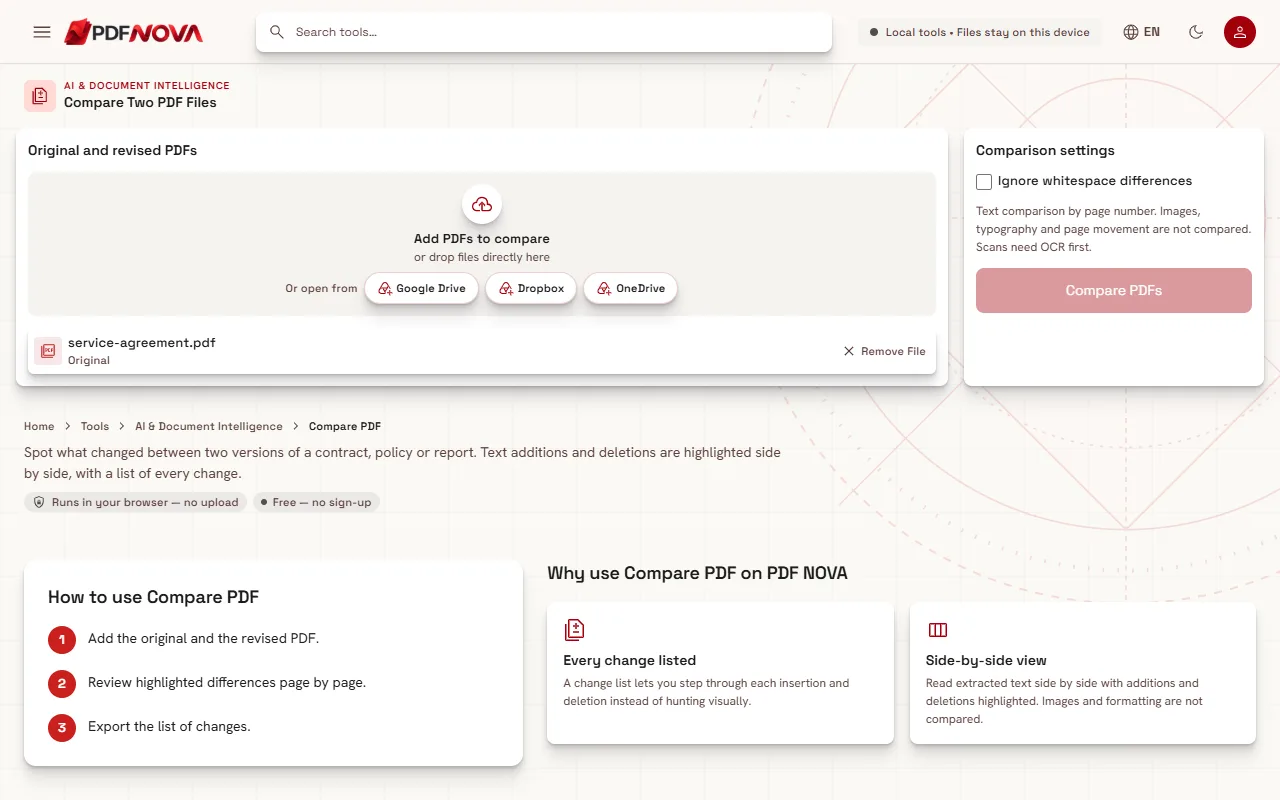
- Open Compare PDF.
- In the Original and revised PDFs panel, select Add PDFs to compare and choose both files. The first file is labelled Original and the second Revised. Only two files are used, so add the older version first.
- In Comparison settings, decide on Ignore whitespace differences (see below).
- Select Compare PDFs. Progress reads "Reading document 1: 3 / 10 pages", then "Comparing page N".
- In the results panel, use the Comparison page drop-down to move between pages. Each entry reads "Page N - changed" or "Page N - unchanged", and the panel title counts the pages with text changes. The tool opens on the first changed page.
- Read the two columns, Original and Revised. Removed words are highlighted in red in the original column, and added words in green in the revised column.
- To keep a record, select Download change report.
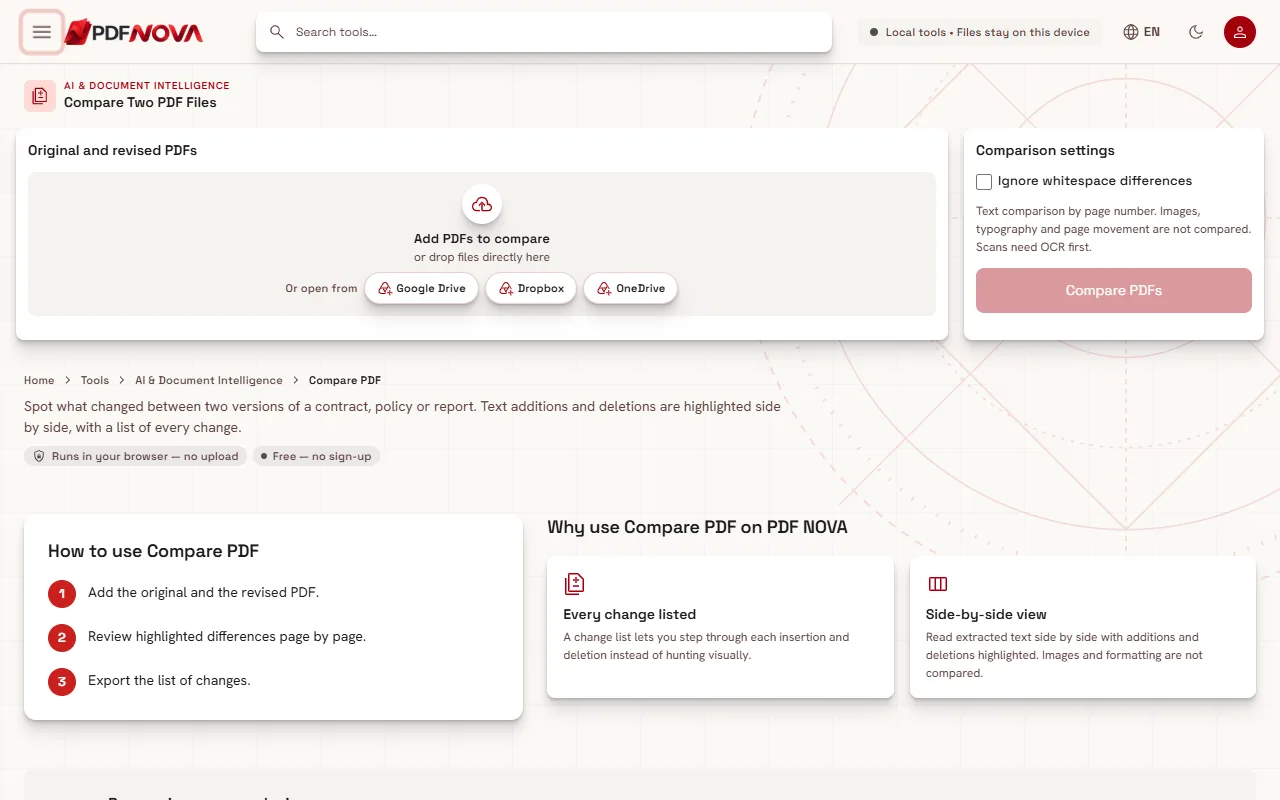
If you change the whitespace option or remove a file, the previous result is cleared and you run the comparison again.
The whitespace option
PDFs can differ in spacing without any real change in wording. A line may break in a different place, or an extra space may appear because the file was exported by different software. With Ignore whitespace differences switched on, runs of spaces and line breaks are treated as a single space before the comparison, so those differences stop appearing as changes. Switch it on when you are comparing documents from different sources and only the wording matters. Leave it off when exact spacing matters, for example in text that is laid out in columns.
The change report
Download change report saves a file named `comparison.json`. It is a JSON file with a version number, the whitespace setting you used, and for every page a list of parts, each marked as the same, removed or added text, plus whether the page was treated as a coarse replacement. It is meant for people who want to process the result further, or keep a record. It is not a marked-up PDF, and you will not get an annotated copy of either document. For a quick human review, the on-screen view is the better format.
Limits you should know
- Scans need OCR first. A scanned PDF is a picture, so there is no text to compare. If either document has no selectable text, the tool stops with a message to run OCR PDF first. See making a scanned PDF searchable, then compare the OCR results. OCR can introduce its own small errors, so treat any differences with care.
- Size limit. Each document can hold up to three million characters of text. Larger documents need to be split first; see splitting a PDF.
- Large changed sections. For very big stretches of change on a single page, an exact word-level match would be too heavy to compute, so that section is shown as a complete replacement: everything old removed and everything new added. The tool tells you when this happened with a note on the page. It does not mean nothing matched; it means the detail was not worked out.
- Text only. Images, fonts, layout and colours are not part of the comparison.
Tips for a reliable review
- Compare like with like. Two exports of the same document from the same program usually compare cleanly. A PDF and a re-typed version with different page breaks will produce many differences.
- Check page counts first. If the page counts differ, expect shifted content and read neighbouring pages together.
- Do not rely on it alone for legal or financial decisions. The comparison shows text differences, but it cannot see images, signatures or changed layout. For anything important, read the changed pages yourself as well.
- Keep the originals. The tool does not modify either file.
Related guides
If you are preparing a document before comparing it, the guide to editing PDF text online covers changing text in a PDF. To combine reviewed pieces into one file, see merging PDF files in order.
Privacy: does my file leave my device?
No. Compare PDF runs in your browser. Both documents are read on your device and compared there, and nothing is uploaded. For more on this topic, read are online PDF tools safe?
FAQ
Can I compare more than two files at once?
No. The tool compares exactly two: an original and a revised version.
Why does a changed image not show up?
Compare PDF looks at text only. Images, typography and layout are not compared.
Why is a whole section marked as replaced?
When a changed section on a page is very large, it is shown as a complete replacement instead of a detailed word-by-word match. The page carries a note when this happens.