How to Add a Text or Image Watermark to a PDF
6 min read
Stamp CONFIDENTIAL, DRAFT or your logo on PDF pages. Learn the text and image options, position, opacity, fonts and page scope, and when a watermark helps.
A watermark is a mark that sits across a page: the word DRAFT on a contract still under review, CONFIDENTIAL on an internal report, a company logo on a price list, or your name on a sample you are sending to a client. It tells readers what status the document has before they read a word, and it makes a casual reuse a little harder.
This guide walks through Watermark PDF: the text and image modes, every setting you can change, and the situations where a watermark helps and where it does not.
When a watermark is the right tool
- Status marking. DRAFT, SAMPLE, APPROVED or CONFIDENTIAL make the state of a document obvious, including on a printout.
- Branding. A logo in a corner or a faint repeated pattern identifies where a document came from.
- Deterrence. A named or dated mark discourages passing a file around as if it were the final version.
It is not a lock. The tool's own FAQ is honest about this: the watermark is drawn into the page content, and determined people with editing software may still remove it. For sensitive files, combine it with a password from Protect PDF, as described in the password guide. It is also not a way to hide information: if a name or number must not be visible at all, use redaction.
Step by step: add a watermark
- Open Watermark PDF and choose your PDF with Choose a PDF.
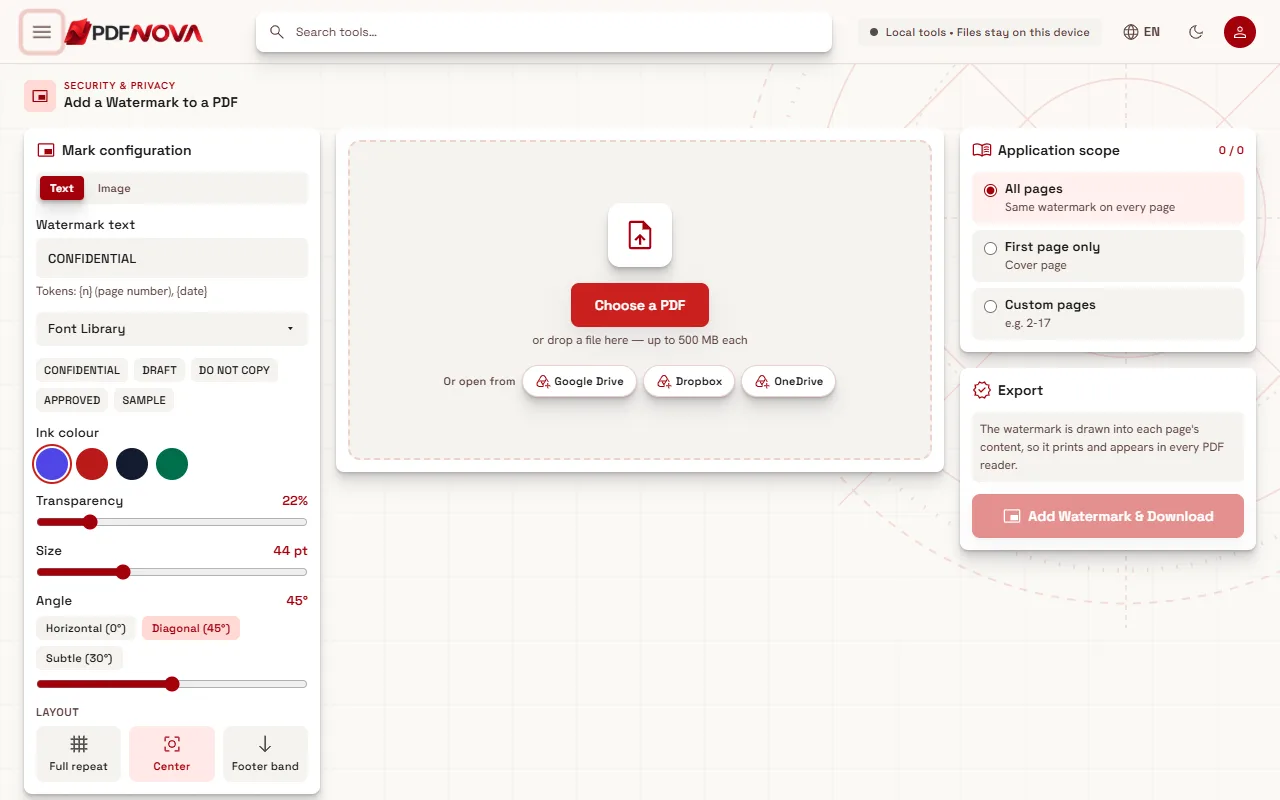
- Under Mark configuration, pick Text or Image in the Watermark type switch.
- Adjust the look (the sections below explain each control) and check the preview of your pages.
- Under Application scope, choose which pages get the mark.
- Select Add Watermark & Download.
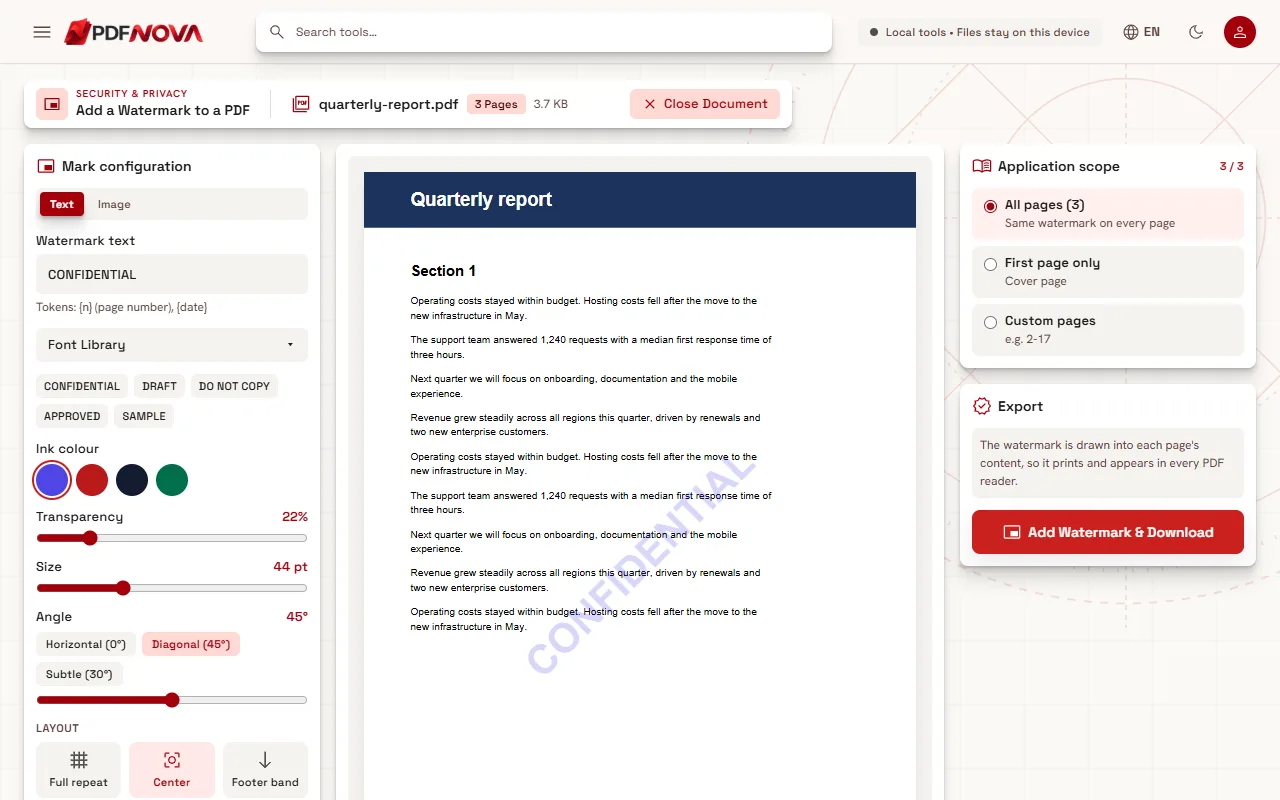
Your original file is not changed; you download a new PDF. The watermark is drawn into each page's content, so it prints and shows in every PDF reader.
Text watermarks
With Text selected you have these controls:
- Watermark text. Type your own, or use one of the preset buttons: CONFIDENTIAL, DRAFT, DO NOT COPY, APPROVED and SAMPLE. The workspace opens with CONFIDENTIAL filled in.
- Tokens. The hint under the box reads "Tokens: {n} (page number), {date}". Put `{n}` in the text and each page gets its own number; `{date}` inserts the date. That makes a stamp like "Draft {date}" or "Copy {n}" possible.
- Font. The Font Library button opens the same picker used in the editor. It lists the standard PDF fonts (Helvetica, Times, Courier), the fonts of PDF NOVA's own library and any font you upload. Uploads accept TTF, OTF, WOFF or WOFF2 up to 5 MB, stay on your device and are embedded in the exported PDF. The picker asks you to confirm you have permission to embed an uploaded font.
- Ink colour. Four swatches: Indigo, Red, Graphite and Green.
- Size. From 10 to 120 points.
Fonts and other alphabets
The standard fonts cover Latin letters. For other alphabets you need a font that contains the characters. The library's coverage is stated per font; at the time of writing it includes Latin, extended Latin and Arabic families such as Noto Sans Arabic and Noto Naskh Arabic. Check the preview after typing: if a character is missing or wrong, choose another font. If you need a script the library does not cover, upload a font that has it and confirm you may embed it.
Image watermarks
With Image selected, select Choose image (PNG or JPG). The preview shows the picture, and you can remove it or choose another.
- PNG transparency is kept, so a logo with a transparent background sits on the page without a white box around it.
- Size is set as a share of the page width, from 5% to 100%.
- The picture is embedded in the PDF and stored once, then reused on every page, which keeps the file from growing much. It is not uploaded anywhere.
- If an image cannot be read, the page says "This image could not be read. Use a PNG or JPG file." Other image types are converted to PNG in your browser first, according to the tool's FAQ.
A logo watermark works best at a modest size in a corner, or at a low opacity in the centre.
Transparency, angle and position
These settings apply to both modes:
- Transparency. The slider runs from 5 to 100 percent. A low value (the text default is 22) keeps the page readable underneath; a high value makes a bold stamp. Look at the preview at the size a reader will see it, and try a printout if the document will be printed, since faint grey can disappear on paper.
- Angle. From 0 to 90 degrees, with quick buttons Horizontal, Diagonal (45 degrees, the default) and Subtle.
- Layout. Choose Full repeat to tile the mark across the page, Center for one mark in the middle, Footer band, or one of the corners: Top left, Top right, Bottom left, Bottom right.
Typical combinations: a diagonal, centred, low-opacity word for status (DRAFT); a full repeat of a small mark for documents that will be photographed or screenshotted; a small bottom-right logo for branding.
Choosing the pages
Application scope offers three options: All pages (the same watermark on every page), First page only (for a cover), and Custom pages, where you type a range such as `2-17` or `1-5, 8`. The pages field is a plain list of numbers and ranges.
If you only need to mark some pages, you can also split the document first, but the custom range is usually quicker.
Local processing
Watermark PDF is listed as a local tool: the file is read, stamped and saved in your browser. Nothing is uploaded, and the picture of a logo stays on your device too. It works without an account, and the tool's FAQ lists it as free.
Common problems
The watermark is too strong and the text is hard to read
Lower the transparency or the size, or move the mark to a corner or the footer band.
Letters look wrong or are missing
The chosen font may not contain those characters. Open Font Library and choose a font that covers them, or upload one you have the right to embed.
The button asks for text or an image
The messages "Enter the watermark text." and "Choose the watermark image." mean that the field for the selected type is empty.
The file got bigger
Text watermarks add very little. An image is stored once, but a very large logo still adds its own size. Use a smaller picture, or compress the result.
I need page numbers, not a watermark
Page numbers are text placed in a margin, usually with a pattern like "Page 1 of 10". See adding page numbers, headers and footers.
FAQ
Can I use my logo?
Yes. Choose Image, pick a PNG (transparency is kept) or JPG, then set its size, transparency, angle and position.
Can the watermark be removed afterwards?
It is drawn into the page content, so a determined person with editing software may be able to remove it. Do not rely on it for protection.
Does it work on every page?
Yes, with All pages, or you can use First page only or a custom range.
Will it show when printed?
Yes, since it is part of the page content, not a separate annotation layer. Check the preview and a test print, because very light marks may not print visibly.