How to Add Page Numbers, Headers and Footers to a PDF
6 min read
Number the pages of a PDF, choose the format and starting page, and add headers or footers with text, dates or a logo. Steps, options and common fixes.
A long document without page numbers is hard to discuss ("see the table on... somewhere in the middle") and hard to print. Reports, legal filings, manuals and merged bundles of several files all benefit from numbers, and often from a running title or a confidentiality line at the top as well.
This guide covers the two tools that share one workspace: Add Page Numbers, for simple numbering with an optional header text, and Add Header & Footer, for six independent zones with text, dates, images and more.
When to number, and when to use a header or footer
- Page numbers only suit most documents: a number in the bottom centre or bottom right.
- "Page 3 of 12" helps when a document is printed or faxed, because a missing page is obvious.
- Headers and footers suit documents that need more: the report title on the left, the date on the right, a company logo, a "Confidential" notice, or a signature image.
- A document made by merging several files usually has no continuous numbering. Merge first, then number the final file once.
Step by step: add page numbers
- Open Add Page Numbers and choose your PDF with Choose a PDF. The workspace opens in Page Numbers mode, and a preview of the page shows the result as you change settings.
- Under Placement, pick one of the six positions: Top left, Top centre, Top right, Bottom left, Bottom centre or Bottom right.
- Under Numbering, pick a Pattern: `Page {n} of {total}` (the default), `{n} / {total}`, `— {n} —`, `Page {n}` or `{n}`. You can also type a Custom pattern. The hint reads "Tokens: {n}, {total}, {date}".
- Set Start counter at (the number the first numbered page gets) and Start on page (the first page that is numbered).
- Under Typography, choose the Font size, Margin and Colour.
- Optionally fill the Header text fields (see below).
- Select Add Page Numbers & Download.
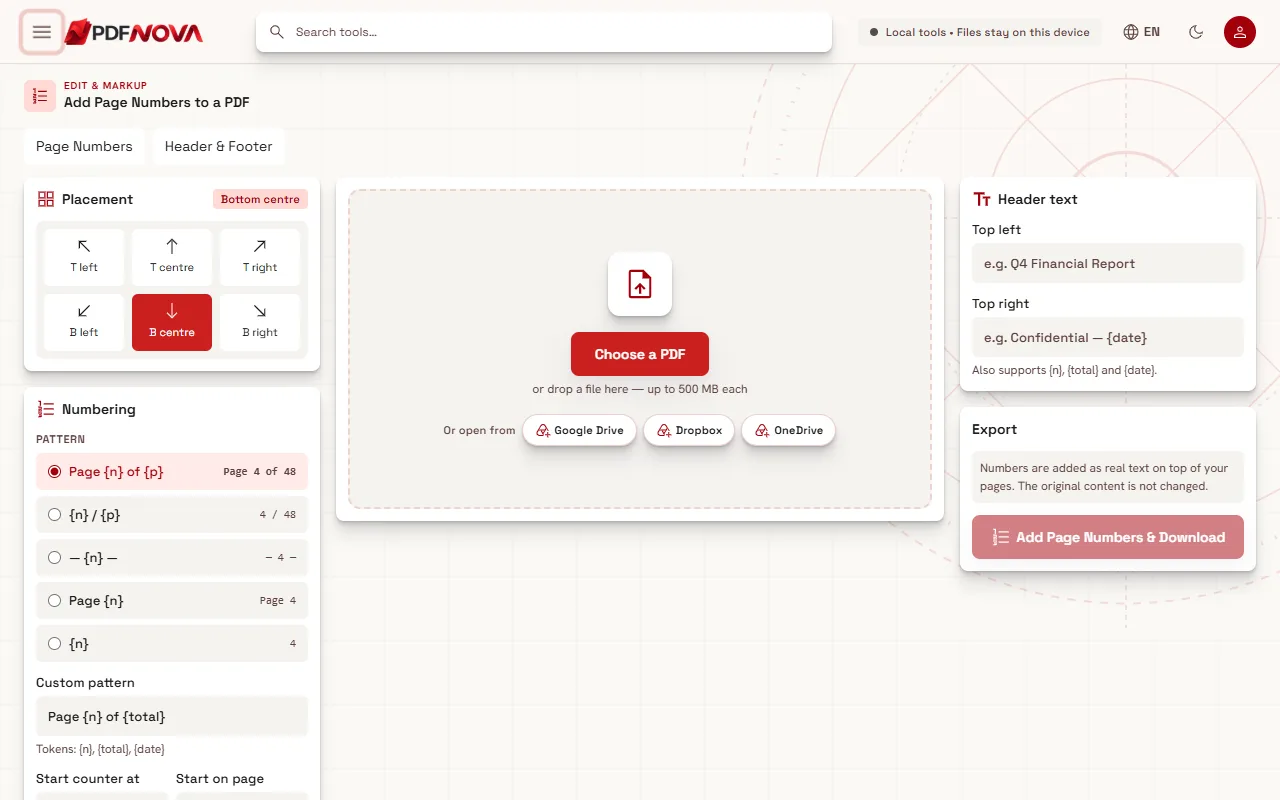
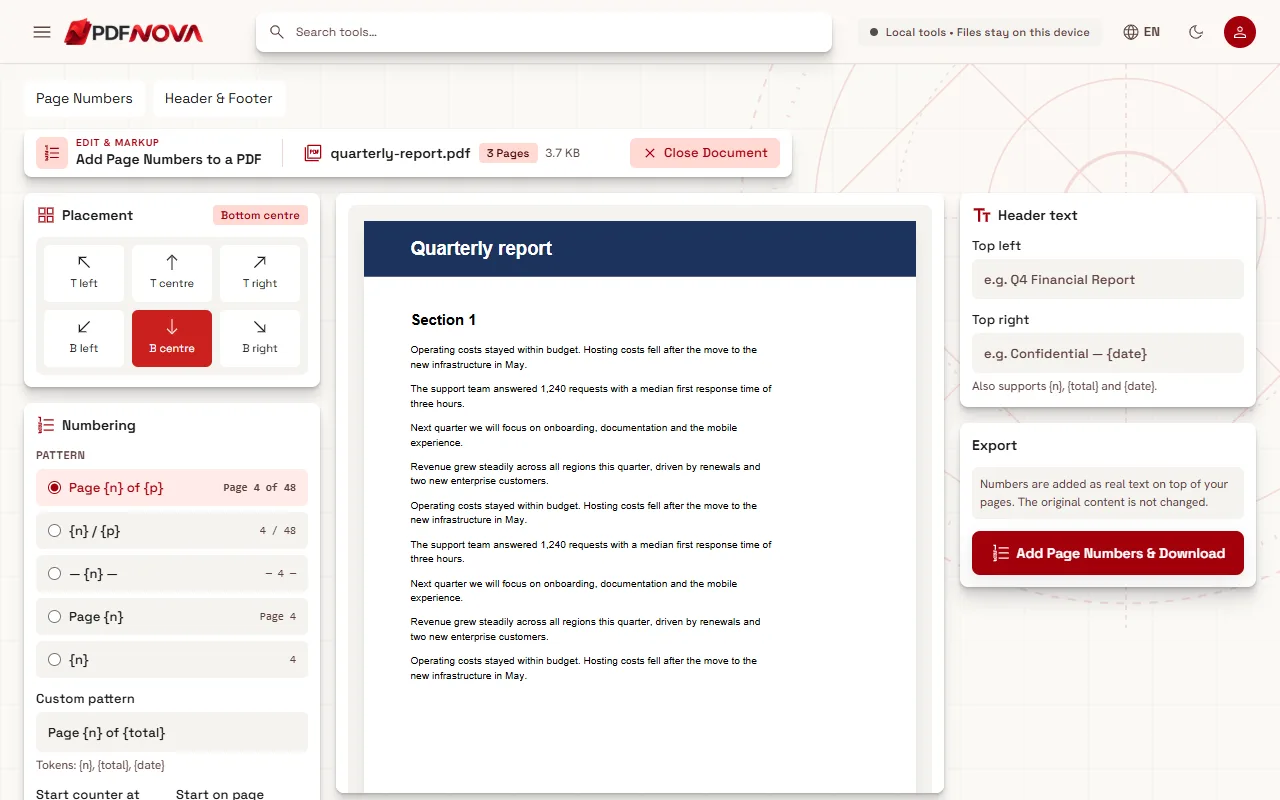
The page notes that numbers are added as real text on top of your pages and the original content is not changed. You download a new file.
Understanding the tokens
Tokens are placeholders that the tool replaces when it writes the PDF:
- `{n}` is the page number.
- `{total}` is the number of pages.
- `{date}` is the date.
- In Header & Footer mode, `{filename}` and `{title}` are also available.
A pattern must include `{n}`; otherwise the page says "The numbering pattern must include {n}." Text that ends up in the number pattern is drawn with a standard PDF font, so keep to Latin characters there. For a language written right to left, a pattern such as `{n} / {total}` works without any words.
Skipping the cover page
A cover or table of contents usually should not carry "Page 1". Two settings handle this:
- Start on page says where numbering begins. If you set it to 3, the page shows "Pages 1–2 are left without numbers."
- Start counter at says which number that first numbered page gets. To make the first body page say "1" even though it is physically page 3, set Start on page to 3 and Start counter at to 1.
Check the preview on the first numbered page to confirm. Page numbers on a document with a front section are a common source of "off by two" errors, so it is worth a look.
Size, margin and colour
Font size accepts values from 6 to 72 points and starts at 11. Margin is the distance from the page edge, from 0 to 100 and starting at 10, in millimetres. Colour has four swatches: Graphite, Black, Indigo and Grey. Graphite or grey keeps numbers quiet; black is best for a printed legal filing. If a page already has content in the margin, increase the margin so the number does not collide with it, and look at that page in the preview.
Header text in Page Numbers mode
The right column has Header text with two boxes: Top left (for example "Q4 Financial Report") and Top right (for example "Confidential — {date}"). The top-right box also supports `{n}`, `{total}` and `{date}`. This is the quickest way to add a running title without leaving the numbering view.
Header & Footer mode: six zones
For more control, open Add Header & Footer or switch the mode to Header & Footer. The workspace has the same preview, with a header and a footer, each divided into Left, Center and Right zones.
For each zone, Zone content can be:
- Empty
- Text (with the tokens above)
- Page Number
- Total Pages
- Date or Time
- Filename
- Document title (you type it in the Document title field)
- Image, Logo or Signature. For images, use Upload image; the supported types are PNG or JPEG, and the width is set in points, from 12 to 300. For a signature, Choose / Create Signature opens the same signature dialog as the editor.
A text zone also has these settings: Font Library (the same picker as the editor, where you can use the standard fonts, the library or an upload), Font size (6 to 72), Bold, Italic, Color, Alignment, Opacity (10% to 100%) and Margin (pt) (0 to 150). If you choose bold or italic and the font has no matching style, the page tells you to upload the matching font style, because synthetic styles are not exported.
Presets
The Layout preset menu gives you a starting point instead of an empty form: Simple Page Number, Corporate, Confidential, Report and Signed Document, plus Custom layout once you change things. Pick one, then edit the zones you want.
Choosing which pages
Header & Footer mode has several ways to limit the pages:
- Page range, where you enter "All pages, or 1-3, 5".
- Odd/even pages: All pages, Odd pages or Even pages. This is useful for printed books, with the page number on the outer edge.
- Different first page with Edit first-page zones, so a cover can carry something different or nothing at all.
- Divider lines, a line between the header or footer and the content.
Local processing
Both tools are listed as local: the PDF is read and saved in your browser, and the images you add stay on your device. No account is needed, and the tools are listed as free.
Common problems
The number overlaps the page content
Increase the margin, or move the number to a corner that is empty on that page. In Header & Footer mode, the margin is set per zone.
The numbers start at the wrong page
Check Start on page and Start counter at against the preview. Remember that the first is a physical page and the second is the number printed on it.
Text in a header looks wrong
Some characters might not be available in the chosen font. Open Font Library and pick another, or upload a font you may embed. The page also reports when a font cannot show the characters you used.
The pages are in the wrong order
Numbering follows the order of pages in the file. Reorder or delete pages first with Organize PDF, then number the result.
I also want a watermark
A watermark sits across the page rather than in a margin. See adding a watermark.
FAQ
Can I start numbering from a page other than 1?
Yes. Choose the first page to number and the number to start counting from.
Can I leave the cover page without a number or header?
Yes. Use Start on page in Page Numbers mode, or Different first page and a page range in Header & Footer mode.
Does adding numbers change my original file?
No. The tool creates a new PDF and adds the numbers as text on top of your pages.
Can I add the date and the file name?
Yes, in Header & Footer mode. The tokens `{date}` and `{filename}`, and the Date, Time and Filename zone contents, do this.