How to Extract Tables From a PDF to Excel or CSV
5 min read
Get tables out of a PDF into Excel or CSV. See how columns are detected, what works on digital PDFs, why scans need OCR first, and how to clean the result.
Bank statements, invoices and reports often arrive as PDFs, while the numbers in them are only useful in a spreadsheet. Copying and pasting from a PDF usually produces one long column of text. A converter that rebuilds rows and columns saves hours of retyping.
This guide covers PDF to Excel and PDF to CSV: how they find tables, what to expect from them, and how to tidy the result.
How table detection works
A PDF does not usually contain a table object. It contains pieces of text, each placed at a position on the page. A table is just text that happens to line up. PDF NOVA reads those positions and rebuilds the table from them:
- Text on the same baseline forms a line. A gap wider than about one em (roughly the width of the letter M), or a run of three or more spaces, starts a new cell.
- Consecutive lines with two or more cells form a table region.
- Columns are found from where the cells sit, so left-aligned, right-aligned and centred columns can all line up.
- Text outside tables, such as titles and paragraphs, stays in the first column in reading order, so nothing on the page is lost.
Numbers such as `1,250.00`, `(300)` or `12%` become real numbers, so you can sum, sort and filter them straight away.
Because detection is based on alignment, not on drawn lines, cell borders, colours and merged cells are not copied. A table with no visible grid works as well as one with a grid, provided the text lines up.
Digital PDFs versus scans
This only works when the PDF contains selectable text. A document exported from accounting software, a spreadsheet or a word processor normally does. A scan or a photo is a picture of text, and there is nothing to read.
If you open a scanned PDF, the tool says "No text found" and points you to OCR. Run OCR PDF first, then open the result in the converter. The steps are in making a scanned PDF searchable. OCR can misread characters, so check the digits carefully in any numbers that matter.
If only some pages have no text, the result tells you which ones ("Page 3 had no selectable text") so you know what is missing.
Step by step: PDF to Excel
- Open PDF to Excel and choose your PDF.
- Under Workbook layout, choose Sheet per page or One sheet. One sheet puts every page into a single sheet; a sheet per page keeps pages apart.
- Under Pages, choose All pages or a Custom range such as `1-3`.
- Select the convert button, which names the page count, for example "Convert 3 pages to Excel". Progress reads "Reading tables on page N of M".
- Check the Spreadsheet preview. It shows the first rows of the first sheet so you can judge the columns. A badge tells you how many table rows were split into columns.
- Download the workbook from the result card, which lists the number of sheets and rows.
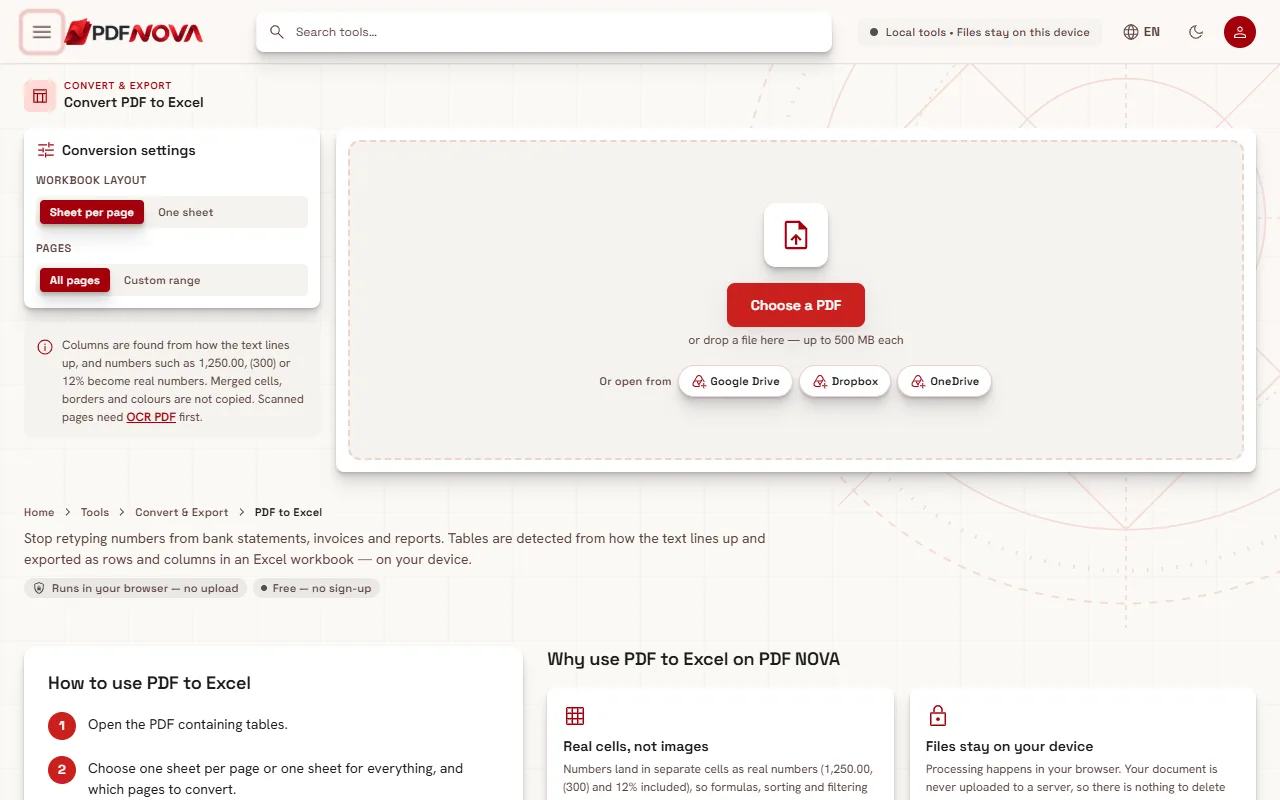
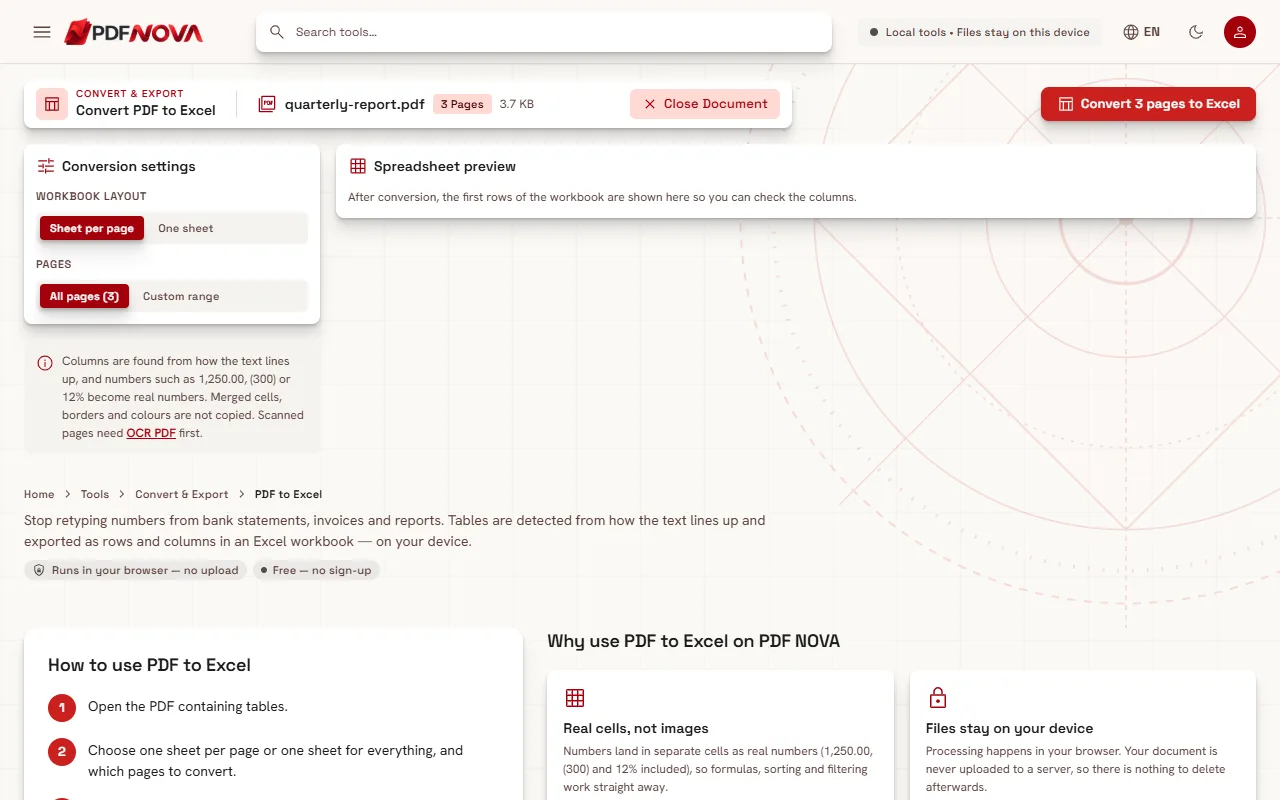
Processing happens on your device by default. If the site has a conversion server configured, an Engine choice appears with This device and High fidelity; the second option sends the file to the server, and the result says it was converted there.
Step by step: PDF to CSV
CSV is a plain-text format that opens in Excel, Google Sheets and most accounting tools. Use it when you want to import data into another system.
- Open PDF to CSV and choose your PDF. The tables on every page are detected on your device.
- In Tables found, tick the tables you want. Each is labelled such as "Page 2, table 1" and shows its rows and columns.
- Under One CSV file per, choose Table (only detected tables are exported) or Page (every line of the page is exported, tables in columns and other text in the first column).
- Choose a Delimiter: comma or semicolon. Many European versions of Excel expect semicolons.
- Leave UTF-8 byte order mark on so Excel shows accented and non-Latin letters correctly. Turn it off for tools that dislike it.
- Decide on Write numbers as plain numbers. When on, `1,250.00` becomes `1250`, `(84.20)` becomes `-84.2` and `$1,200` becomes `1200` in table rows. Turn it off to keep the text as printed. Pick the Decimal mark as a point or a comma.
- Check the CSV preview, then use Download CSV or Download N CSV files (ZIP).
If no tables are found, the tool says so and offers One CSV per page instead.
One safety detail: cells that start with `=`, `+`, `-` or `@` and are not numbers get a leading apostrophe, so a spreadsheet does not run them as formulas.
Cleaning the result
Even good detection is a starting point. Typical clean-up:
- Check the column count. If a column of text was split in two, merge it in the spreadsheet. If two columns ran together because the gap between them was small, split them with the spreadsheet's text-to-columns feature.
- Remove repeated lines. Page headers and footers can appear on every page and land in the sheet. Filter them out.
- Check numbers. Confirm that totals still match the PDF. Unusual number formats may stay as text.
- Compare against the PDF. Spot-check a few rows, and the first and last row of each table.
When results are poor
- Everything lands in column A. The text may not align in clear columns, or the layout is a paragraph and not a table. In PDF to CSV, try the Page mode to see every line.
- Columns are shifted on some rows. Cells with unusual gaps or text that overflows its column are the usual cause. Fix these rows by hand.
- "No text found". The document is a scan. Use OCR first.
- Complex layouts. Multi-column articles, nested tables and forms drawn with boxes are not what an alignment-based approach handles well, and borders and merged cells are not used.
For a text-heavy document where you want a Word file, see converting a PDF to Word and keeping the layout.
Privacy
By default both tools run in your browser. The PDF is read on your device and the workbook or CSV is created there; nothing is uploaded. The exception is the optional High fidelity engine of PDF to Excel, when it is offered, which uses the server. For a broader look at the question, read are online PDF tools safe?
FAQ
Does it keep formatting and merged cells?
No. Only the text and its positions are used. Borders, colours and merged cells are not copied.
Can I convert a scanned bank statement?
Run OCR first, then convert. Check the digits afterwards.
Excel or CSV?
Choose Excel for a ready workbook with sheets. Choose CSV to import into another tool, or when you want one file per table.