How to Highlight and Annotate a PDF Online for Free
5 min read
Highlight passages, add comments, draw, and point with arrows and shapes on a PDF in your browser. Learn what is saved as a real annotation and what is drawn.
Reviewing a report, marking up a contract draft or studying a paper usually means highlighting a passage, leaving a short note and circling something that needs attention. You can do all of that on a PDF without printing it, and the marked-up file can be sent to anyone.
This guide shows how to mark up a document with Annotate PDF, what each tool does, and one detail worth knowing before you share the file: how the marks are stored. The tool is free and runs in your browser.
Step by step
- Open Annotate PDF and click Choose a PDF.
- The Highlight tool is already active. Drag over the passage you want to highlight.
- Pick another tool from the row above the page for notes, drawings or shapes.
- Select any mark to change it in the Inspector panel, such as its colour.
- Click Download PDF to save the marked-up file. Save keeps your changes on this device without downloading.
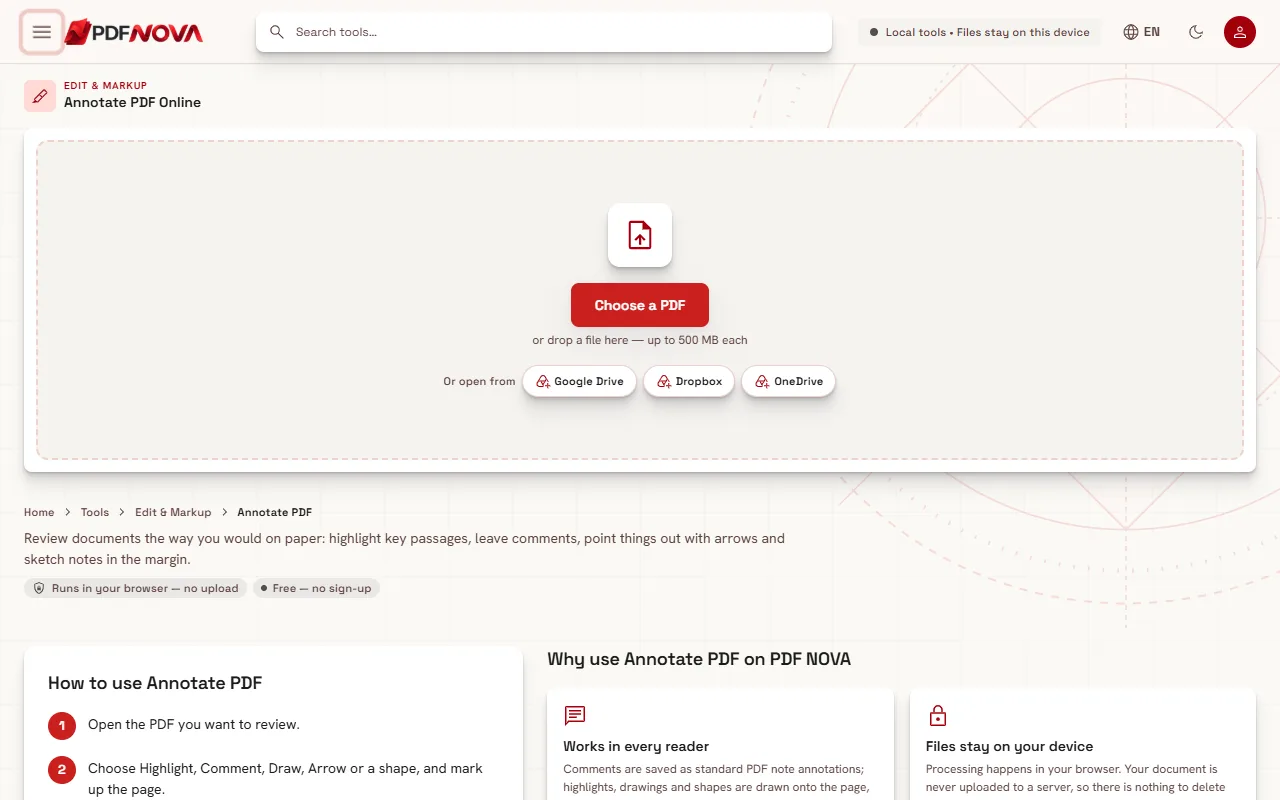
Once a PDF is loaded, the page appears in the middle with a page list on the left and the Inspector on the right. A status line next to the buttons tells you whether there are Unsaved changes or whether All changes saved on this device.
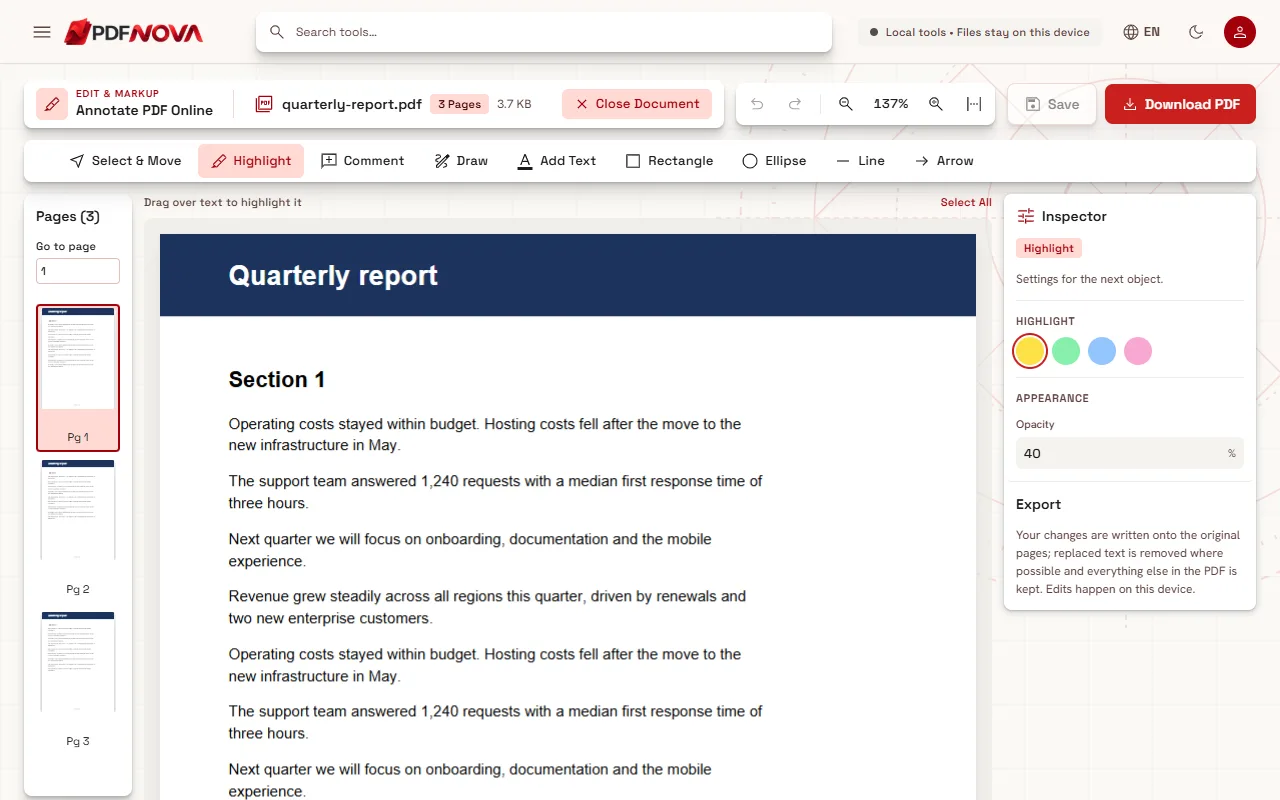
The tools
- Highlight. Drag over text to mark it. Choose the colour with Highlight color in the Inspector.
- Comment. Click where the note belongs and write in Comment text. A small note icon is placed on the page.
- Draw. Freehand drawing, for circling a figure or underlining by hand.
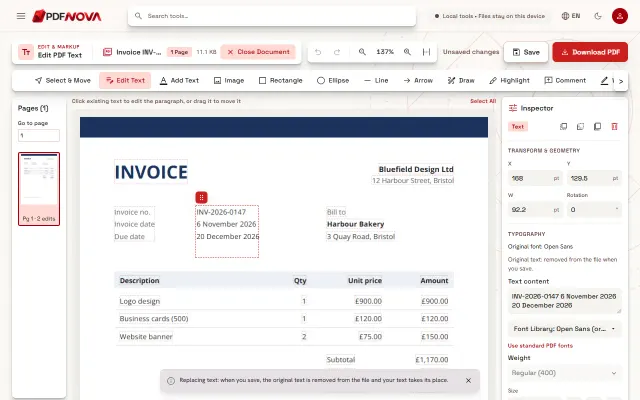
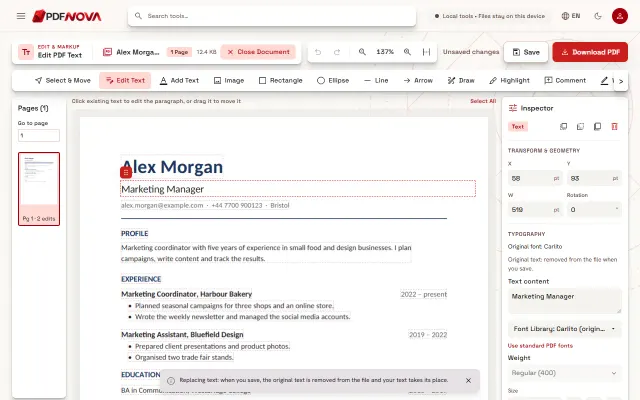
- Add Text. Click or drag to type a text box, for labels like "check this".
- Rectangle, Ellipse, Line and Arrow. Shapes for framing a table, pointing at a number or crossing something out.
- Select & Move. Click an object to select it, drag it to move it or change its size. After a selection you can Duplicate or Delete it, and Undo and Redo step through your changes.
For the other tools in the same editor, such as replacing text or adding a signature, see editing text in a PDF and signing a PDF without printing. All of them, together with the annotation tools above, are in the PDF Editor.
Are annotations real annotations or flattened?
This is the part people ask about when they send a file for review.
- Comments are saved as standard PDF note annotations. Other PDF readers show them as comments, so the recipient can open and read the text in their own software.
- Highlights, drawings, shapes, arrows and text boxes are drawn onto the page. They look the same in every reader and cannot be missed, but in another program they are part of the page rather than separate markup objects. The recipient will not be able to select a highlight and change its colour there, and a reader's "list of comments" will not list them.
So the file is dependable to look at and print, but if you need markup that your colleagues can edit in their own tool, send the comments as comments and explain the rest in them. Keep your own working copy, because the drawn marks are not removable in another program. If you are still working, use Save and keep the original file separate.
Practical uses
- Study. Highlight key definitions in one colour and examples in another, then add a comment at the page you want to revisit.
- Document review. Highlight the sentence, add a comment explaining the change you want, and use an arrow to point at a number in a table. Compare two versions afterward with Compare PDF.
- Feedback on a design or a layout. Draw boxes and arrows around the area and put a short label next to each.
- Preparing a final. Once edits are agreed, make the corrections with Edit PDF, and remove your own marks by selecting them and pressing Delete.
Things to keep in mind
- A highlight is a coloured rectangle. It covers an area you drag, it is not attached to the underlying words. If you later edit the text or the layout shifts, the highlight stays where you put it.
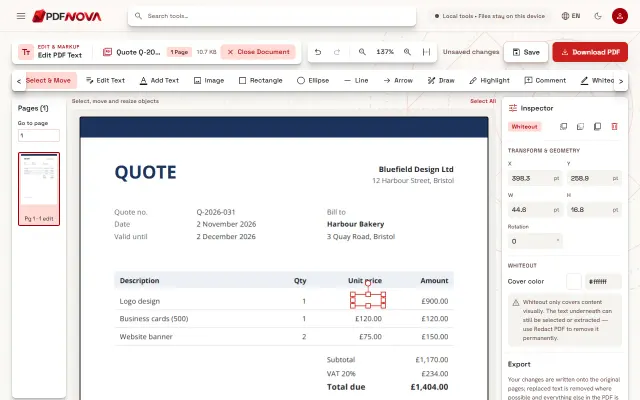
- Highlights do not hide anything. If the point is to remove confidential text, use the permanent redaction described in redacting a PDF, not a colour.
- Scanned pages. You can mark a scan like any page, but its text is only a picture. See making a scanned PDF searchable if you also want to search it.
- Sensitive information. Comments are stored in the PDF itself. Check them before you share the file widely, and remove information you do not want others to see; the guide on removing PDF metadata covers the hidden details in a file.
Privacy
Annotate PDF runs in your browser. The document is read from your device, the marks are added in memory and the PDF is saved back to your device. Nothing is uploaded to a server.
FAQ
Is Annotate PDF free?
Yes. It is part of the free plan, needs no account and does not add a watermark.
Will the person I send it to see my comments?
Yes. Everything you add is saved in the downloaded PDF, so anyone who opens it sees your highlights, drawings and comments.
Can I highlight in different colours?
Yes. Select the tool or a mark and choose its colour in the Inspector.
Can I remove a highlight later?
Yes, in this editor, before you download the file: select it and press Delete, or use Undo. After you have downloaded and closed the file, the highlight is part of the page and cannot be removed in other programs.
Can I annotate on a phone?
The tool runs in your browser, so you can try it on a phone, but a computer is more comfortable for long documents.