How to Summarize a PDF with AI and Check the Result
6 min read
Learn how Summarize PDF and Ask PDF work, what is sent to the AI, how to verify answers with page citations, and when OCR or splitting is needed first.
A 60-page report, a long contract or a research paper rarely needs to be read word for word on the first pass. What you often need is the outline, the main decisions and the key figures, plus a fast way to find a specific clause. AI can help with that, as long as you treat it as a reading aid and not as a replacement for the document.
PDF NOVA has two tools for this: Summarize PDF, which produces an overview, and Ask PDF, which answers questions about a document. This guide explains how to use them, what is sent where, and how to check the output. Both are cloud tools and belong to the Pro plan.
Summarize or ask: which one?
- Summarize PDF gives you a short overview followed by key points, decisions and figures, each linked to a page reference. Use it when you want to understand what a document is about, or to prepare before reading it properly.
- Ask PDF is a conversation. You type a question in plain language, such as "What is the notice period?", and get an answer with links to the pages it came from. Use it when you are looking for something specific.
They combine well: summarize first to get oriented, then ask follow-up questions about the parts that matter.
The Pro plan includes three more AI tools for related jobs: Ask Across PDFs puts one question to several documents at once, AI Study Guide turns a document into key concepts, definitions and review questions, and Translate PDF translates the text and shows it next to the original.
Step by step: summarize a PDF
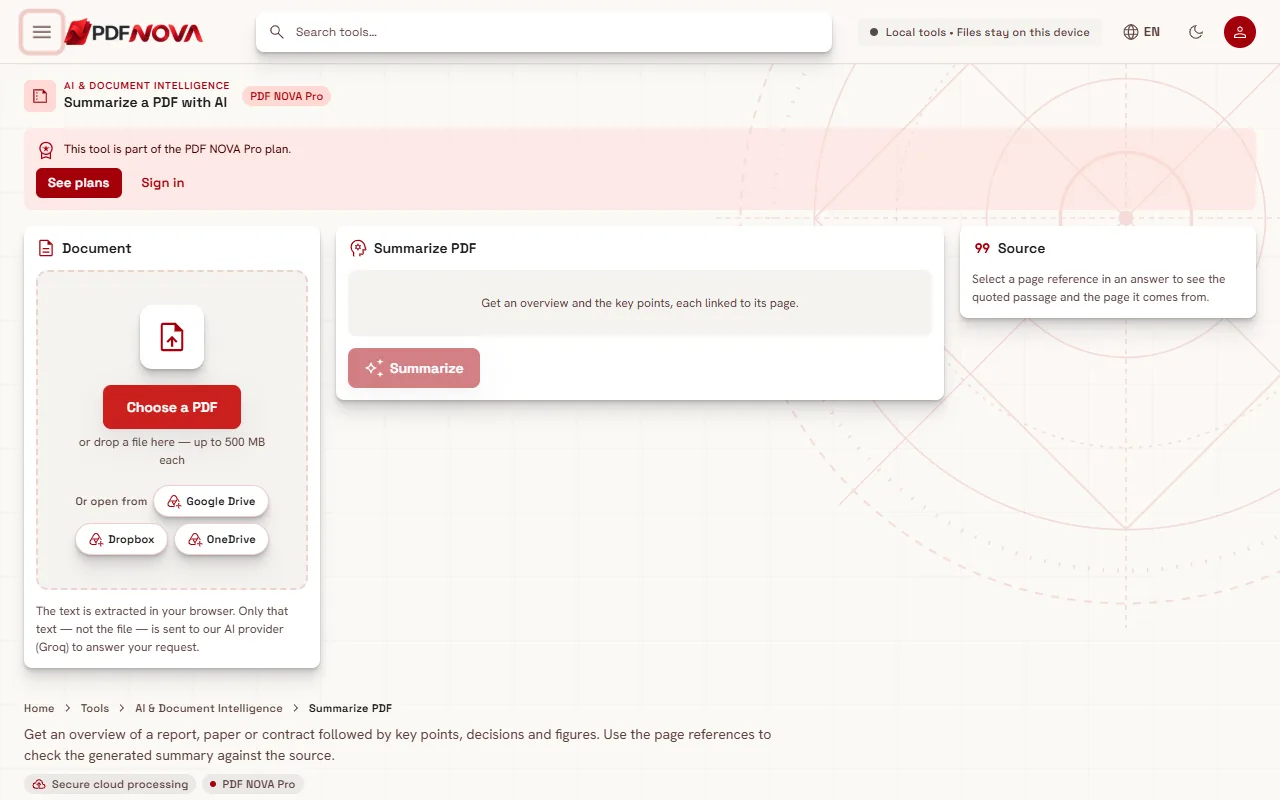
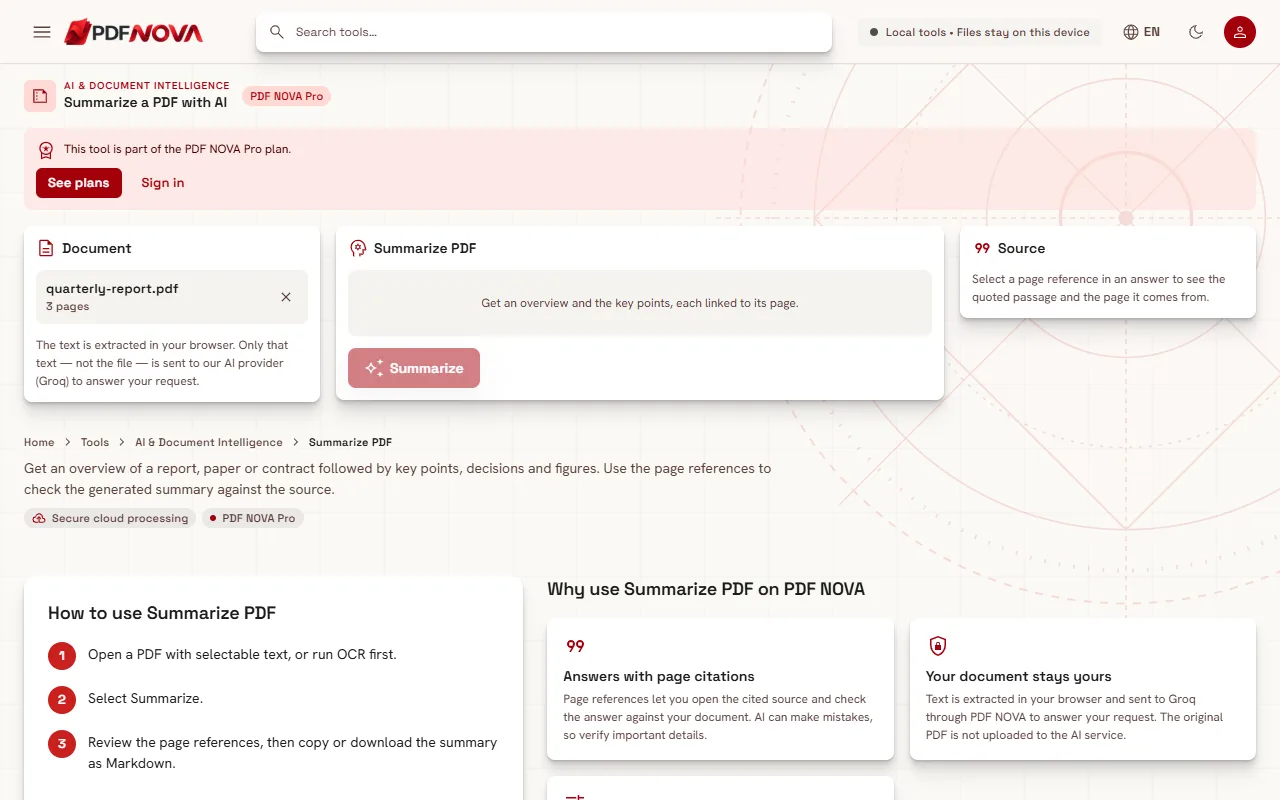
- Open Summarize PDF. The page opens with a Choose a PDF button.
- Add your PDF. The text is read in your browser first; you will see a "Reading text" progress message, then the page count.
- Select Summarize.
- Read the result. It starts with an overview, then key points, decisions and figures. Each item carries a page reference such as "p. 12".
- Select a page reference to see the quoted passage and the page it comes from in the Source panel.
- Use Copy to paste the summary elsewhere or Download .md to save it as a Markdown file. Regenerate asks for a new version if the first one is not what you wanted.
Step by step: ask questions
- Open Ask PDF and add your PDF.
- Type your question in the box ("Ask a question about the document") and send it.
- Read the answer and select a citation to jump to the source passage.
- Ask a follow-up, or open the cited page to confirm the wording.
Good questions are specific and refer to things the document actually contains: "What payment terms are in section 4?", "List the deadlines mentioned", "How is confidential information defined?" Vague questions such as "Is this contract good?" produce vague answers, and the tool can only report what the document says, not give professional advice.
How to check the result
AI output can be incomplete or wrong. The tools say so, and the page references exist for exactly this reason. A sensible routine:
- Open the cited page for every number, date, name or obligation you intend to rely on.
- Compare the wording. A summary may soften or generalize. If a clause matters ("may" versus "shall"), read the original sentence.
- Look for what is missing. A summary shows what the model found notable, not everything. If you are searching for a particular topic, ask about it directly.
- Be careful with tables and figures. Text extracted from complex layouts, charts or multi-column pages can be jumbled, which affects the answer.
- Never rely on it alone for legal, medical or financial decisions. Use it to find the right pages, then read them.
If an answer reaches the length limit, the tool shows a note that it was cut short; ask a narrower question.
Limits to know about
- The PDF needs selectable text. The tools read the text layer. If you see the message that no text was found, the file is probably a scan or a photo, so run OCR PDF first. The guide Make a scanned PDF searchable with OCR walks through it.
- Length. Each request accepts up to 1.2 million characters of extracted text. Longer documents are rejected rather than silently shortened. If you hit the limit, divide the file with Split PDF and process the parts; see Split a PDF and extract pages.
- Language and content. Results depend on the document and the model. Check technical or non-English documents more carefully.
- Plan. The AI tools are part of PDF NOVA Pro. The tool tells you when a plan is needed.
Privacy: what is sent where
These are cloud tools, so unlike most of PDF NOVA they do involve a server. According to the tool texts and the privacy policy:
- The text is extracted in your browser. The PDF file itself is not uploaded to the AI service.
- The extracted text, the file name and your question are sent through PDF NOVA to the AI provider (named on the tool pages as Groq) to generate the response.
- PDF NOVA states that it does not save this content to a database or logs and does not use documents to train AI models. The provider handles submitted data under its own retention terms, so read them if the document is sensitive.
If a PDF contains information you cannot share with a third party, do not use a cloud AI tool on it, or remove that information first. For a wider look at how to judge any online tool, read Are online PDF tools safe?.
Tips for better summaries
- Summarize the relevant part. If you only care about chapter 3, split it out and summarize that, rather than the entire book.
- Use the summary to plan your reading. Note the page references and read those pages yourself.
- Regenerate once if the result is too shallow; do not expect identical output each time.
- Save the Markdown file next to the original so you remember which version of the document it describes.
- Need to change the source afterwards? See Edit PDF text online.
FAQ
Does Summarize PDF upload my PDF?
The file itself is not uploaded to the AI service. The text is extracted in your browser and only that text, with the file name and your request, is sent through PDF NOVA to the AI provider.
Why does it say no text was found?
The PDF probably consists of images, such as a scan. Run OCR PDF first to create a text layer, then try again.
Can the AI be wrong?
Yes. It can miss details or state something incorrectly, which is why answers carry page citations. Verify anything important against the cited pages.
Is there a size limit?
Each request accepts up to 1.2 million characters of extracted text. Longer documents are rejected; split them into smaller parts first.
What is the difference between Summarize PDF and Ask PDF?
Summarize gives a structured overview with key points, decisions and figures. Ask answers your own questions, with citations, one at a time.