Move, Replace or Remove a Picture in a PDF
5 min read
Click a picture in a PDF to move it, resize it, swap it for another one or delete it, scanned pages included. It runs in your browser and nothing is uploaded.
A logo is in the wrong corner, a product photo is out of date, a stamp should not be there, or a picture simply has to go. You do not have the original file, only the PDF, and most tools only let you add things on top of it.
Short answer: open the PDF in the PDF Editor, click the picture, then drag it to move it, pull a corner to resize it, replace it from the side panel or press Delete. It works on the pictures of a normal PDF and on the photos, logos and stamps of a scanned page. The file is edited in your browser, so it is not uploaded.
Step by step: move, replace or delete a picture
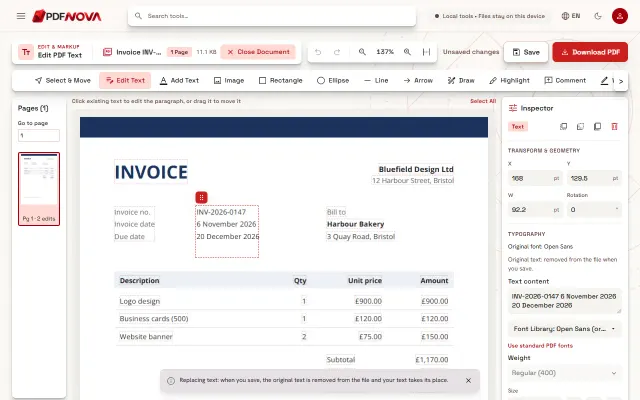
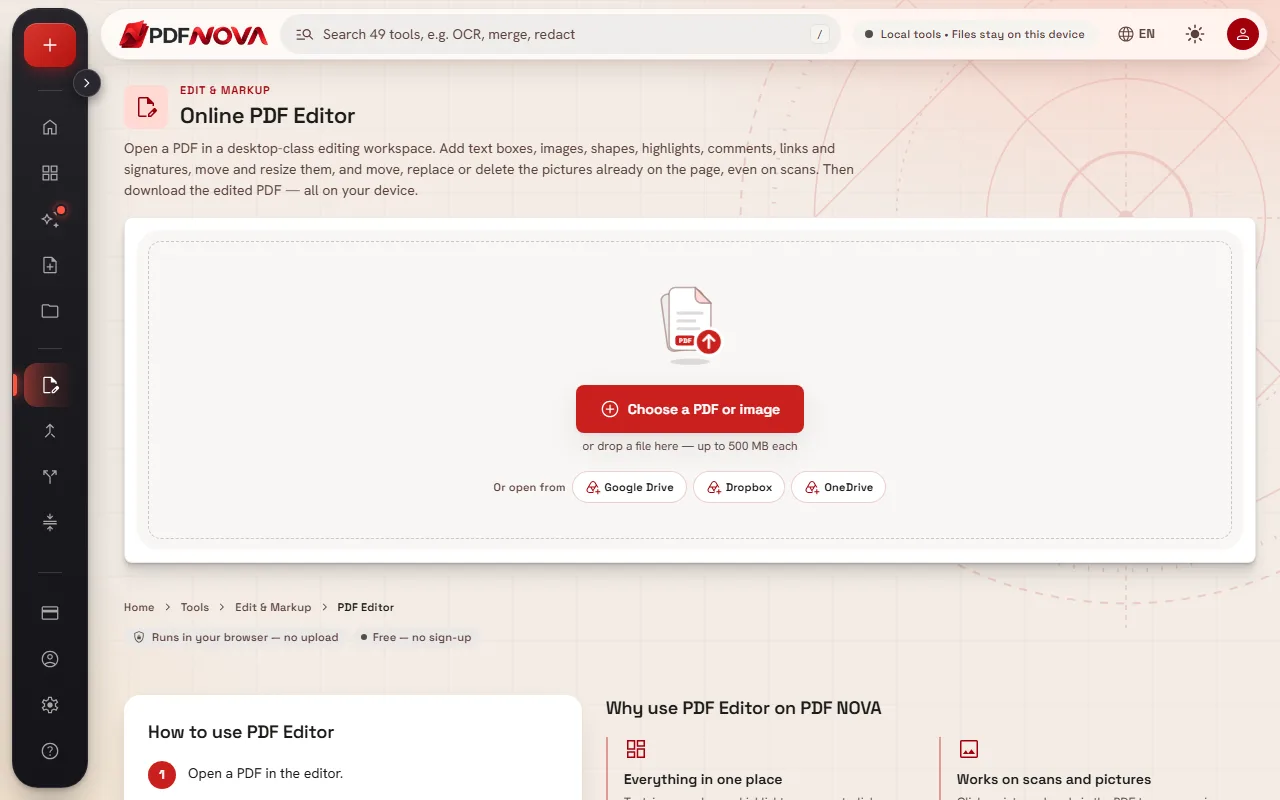
- Open the PDF Editor and choose your PDF. It opens with the Select & Move tool already active. A JPG or PNG photo of a page also opens, as a one-page PDF.
- Click the picture. A message tells you it was taken off the page, and it now has handles around it like any other object. If you change nothing and click somewhere else, the page is put back exactly as it was.
- Drag it to move it, or pull a corner to resize it (the proportions are kept). To put another picture in its place, select Replace with a picture… in the side panel: the new picture is fitted inside the old place and is never stretched. To remove it, press Delete.
- Check the page. If you change your mind, Undo is Ctrl+Z.
- Select Download PDF. Your original file is not overwritten: the edited version is a new download.
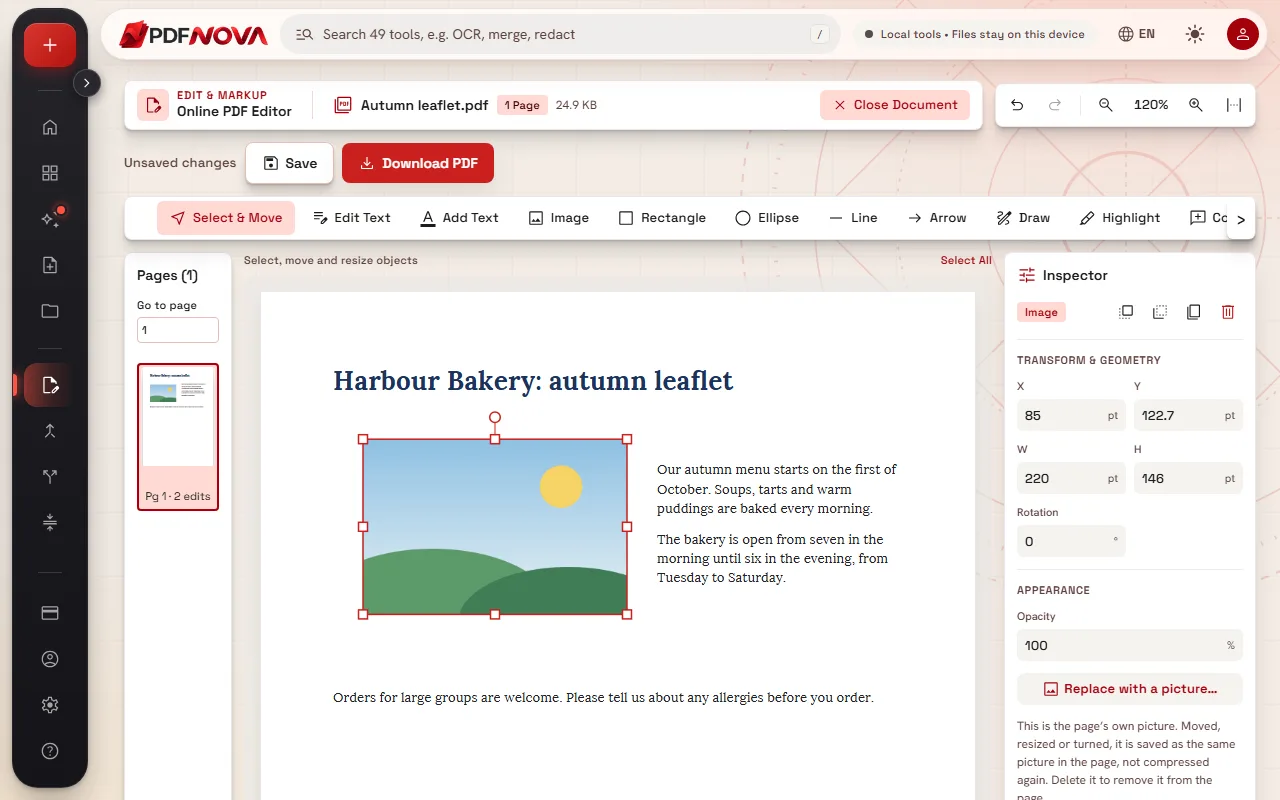
In a normal PDF: the same picture, not a copy
A PDF made on a computer (exported from a word processor, a design tool or a website) stores its pictures as separate objects. When you move or resize one, PDF NOVA saves it as the same image, drawn somewhere else or at another size. It is not compressed again, so it does not lose quality, and it keeps its place among the page's own content. When you delete one, it leaves the page content.
If you replace it, the new picture is added where the old one was, fitted inside that place so it is never stretched. A tall photo in a wide place leaves some room on the sides rather than being squeezed.
On a scanned page: the paper is rebuilt
A scanned page is one big picture of a sheet of paper, so a photo or a logo on it is just part of that picture. In the PDF Editor you can still click a photo, a logo or a stamp: it is taken off the scan and becomes an object you can move, resize, replace or delete, as above.
The place it leaves is not a white box. The editor rebuilds the paper there from the paper around it, so the page does not show a patch. A ruled line that crosses the place is kept.
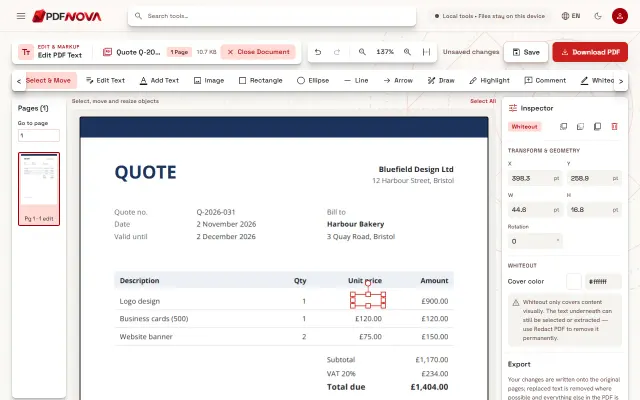
You can do the same for anything that is not a picture, such as a mark or a smudge. Choose Whiteout and draw over the area: on a scan it clears the area to the surrounding paper in the same way, instead of laying a flat colour.
If there is little plain paper around the area, for example in the middle of a photo or a dense block of text, the editor tells you that the fill may show. Put the edges of the area on plain paper to get a cleaner result.
What you should know before you rely on it
- On a scan, the original stays in the file. The change is drawn over the scan, and the original picture is still in the file underneath. This is not a redaction. When something must be removed for good, use Redact PDF. Our guide to redacting a PDF permanently explains the difference.
- A picture that covers the whole page cannot be selected as a picture. That is a background or the scan itself, so there is nothing to lift out of it.
- A few special kinds of images cannot be selected. If clicking one does nothing, it is one of those.
- Look at the result. Zoom in on the place where the picture was, especially on a scan, before you send the file.
Common problems and fixes
- Nothing is selected when I click. The picture may cover the whole page, or be one of the special kinds that cannot be selected. Make sure Select & Move is the active tool.
- The old place shows a patch. On a scan, there was little plain paper around the picture. Undo, then use Whiteout with an area whose edges lie on plain paper.
- I only wanted to look and the page changed. Clicking a picture only takes it off the page for the moment. Click elsewhere without changing it and the page returns as it was, or press Ctrl+Z.
- The new picture has empty space around it. It is fitted inside the old place without stretching. Resize it after replacing it if you want it larger.
Privacy: does my file leave my device?
No. The PDF Editor processes the document in your browser: the file is read from your device, changed in memory and saved back to your device. Nothing is uploaded, and there is nothing to delete afterwards. It is free to use, without an account and without a watermark.
To change words instead of pictures, see how to edit text in a PDF online and editing text versus covering it with white. To save the pictures of a PDF as files, see how to extract images from a PDF.
FAQ
Can I move a picture in a scanned PDF?
Yes. Click a photo, a logo or a stamp on the scan, then drag it. It is taken off the scan and the paper where it stood is rebuilt from the paper around it. The change is drawn over the scan; the original stays in the file underneath.
Does moving a picture lower its quality?
In a normal PDF, no. A moved or resized picture is saved as the same image, not compressed again.
Is deleting a picture the same as redacting it?
No. In a normal PDF the picture leaves the page content, but on a scan the original is still in the file under what is drawn. For anything confidential, use Redact PDF.
Can I change the background image of a page?
Not as a picture. A picture that covers the whole page is not offered for selection. On a scan, use Whiteout to clear an area instead.